
Microsoft Windows Games
Minesweeper
Minesweeper is not included with Windows 8, Windows 10, and Windows 11 out of the box. To install Minesweeper, access the Microsoft Store icon on the Windows Start Screen or Start menu and search for "Minesweeper".
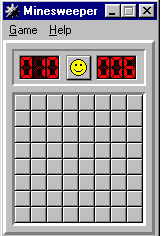
Windows Minesweeper is a software game included with all versions of Microsoft Windows up through Windows 7. The picture shows how Minesweeper looked in Windows XP and what Minesweeper looked like in early versions of Windows.
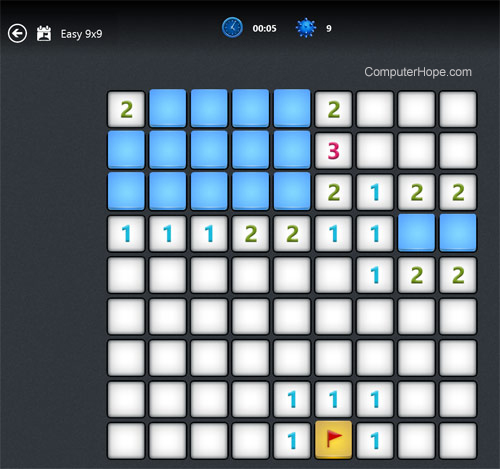
Minesweeper's objective is to locate and mark each mine with a flag by clicking the box you believe to be a bomb. To help discover where the bombs are located, numbers are placed in squares next to a bomb. For example, a square with "2" indicates two bombs are found on one of the sides or corners of that square.
Once all bombs are marked and all other squares are cleared, the player wins the game. If a bomb is selected and not marked, it explodes, and the player loses the game.
The picture below is an example of the Minesweeper app running in Windows 8. In this picture, you can better understand of the numbers and where the bombs may be placed in a game.
Solitaire
Solitaire is not included with Windows 8, Windows 10, and Windows 11 out of the box. To install Solitaire, access the Microsoft Store icon on the Windows Start Screen or Start menu and search for "Solitaire."
First introduced in 1990, Windows Solitaire (Klondike) is like the classic real-life card game. The objective is to arrange the randomized cards in order by number and suit, starting with the Ace card and going up to the King. The game starts with seven stacks of cards, with the first stack having one card, the second stack having two cards, etc. Only the top card is shown in each stack. The remaining cards are placed in the top-left corner of the screen in a single stack, facing down.
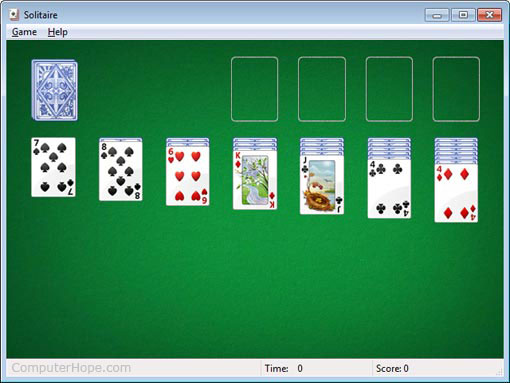
When placing a card in the seven stacks and using the cards in the top-left, the cards must be arranged in alternating color order. For example, a red six can only be placed on a black seven. If any of the seven stacks of cards can move to another stack, move them to reveal the card underneath. If an Ace is found, it's placed on one of the top four blank spots to begin creating a stack of all the same suites.
If one of the seven stacks is emptied, a King can be moved to that location. If no cards can be placed, one card is drawn from the top-left deck until a match can be found. If all cards are drawn from the top-left, the cards are turned over and gone through again.
Finally, you lose the game if no matches can be found after going through the top-left deck or in any of the seven stacks. If you can complete all four stacks of cards in the same suites, you win the game.
Double-clicking a card moves it into its place without having to drag the card.
If you believe you can complete the game with the cards showing, right-click to finish the game without having to drag-and-drop all the remaining of the cards.
Related information
FreeCell
FreeCell is not included with Windows 8, Windows 10, and Windows 11 out of the box. To install FreeCell, access the Microsoft Store icon on the Windows Start Screen or Start menu and search for "FreeCell."
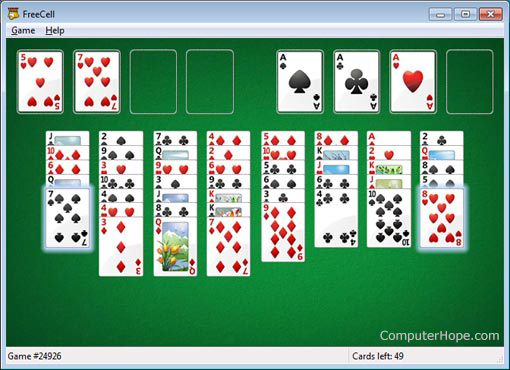
Windows FreeCell is a card game similar to Solitaire, where all cards are randomly placed into eight piles. The user must organize those piles by suit, starting with the King card and going up to the Ace. Move one card to either another pile or one of the top-left four available slots to organize the piles.
3D Pinball
3D Pinball is not included with Windows 8, Windows 10, and Windows 11 out of the box. To install 3D Pinball, access the Microsoft Store icon on the Windows Start Screen or Start menu and search for "3D Pinball."
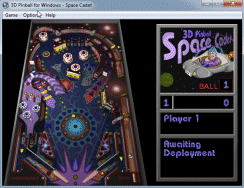
Windows 3D Pinball is a simple Pinball game included with Microsoft Windows NT 4.0, 2000, Me, and XP. In this version of 3D Pinball, the user can play the Space Cadet pinball table.
To play, press, hold, and let go of the spacebar on your keyboard to shoot the ball out into the table. Use the "Z" key to control the left paddle and the "/" (forward slash) key to control the right paddle. If the ball gets stuck, press the 'X' key to bump the table and get the ball free.
If you enjoy pinball games, there are many more elaborate pinball games on Steam.
Additional Windows XP games
Microsoft Windows XP includes Hearts, Internet Backgammon, Internet Checkers, Internet Hearts, Internet Reversi, Internet Spades, and Spider Solitaire.
To play any of the Internet Windows games, you must have an active Internet connection.
Additional Windows 7 games
In addition to 3D Pinball, Windows 7 includes Chess Titans, Hearts, Internet Backgammon, Internet Checkers, Internet Spades, Mahjong Titans, Purple Place, and Spider Solitaire.
To play any of the Internet Windows games, you must have an active Internet connection.
While 3D Pinball may not be included with Windows 7, you can download and install it manually. To do so, go to your favorite search engine web page and search for "3d pinball space cadet Windows 7". You should get several search results that provide instructions on how to download and install 3D Pinball for Windows 7.
Additional MSN (Microsoft) games can be downloaded for Windows 7 from the MSN Zone page. Some of these games are available for free.
Windows 8, Windows 10, and Windows 11 games
Out of the box, Windows 8, Windows 10, and Windows 11 do not include any games. Minesweeper, Solitaire, FreeCell, and Pinball came with most previous versions of Windows. For Windows 8, Windows 10, and Windows 11, however, these games must be downloaded and installed through the Microsoft Store, accessible from the Windows Start Screen or Start menu. Other games are also available through the Microsoft Store.
Accessing the Microsoft Store and downloading these games requires an active Internet connection.
How to run Windows games
Windows 8, Windows 10, and Windows 11 do not include any games out of the box. For help installing Windows games in Windows 8, Windows 10, and Windows 11, see: How to install Windows games.
Windows Games can be accessed via the Programs list in the Start menu by following these steps.
- Open the Start menu.
- Click All Programs.
- Click the Games folder.
- Click the game you want to run.
Alternatively, you can also run Windows games by searching for them in Windows. Follow these steps to search for a game.
- Open the Start menu.
- In Windows Vista or later, type the game's name in the Search box and press Enter. Click Run in Windows XP and prior versions and type the game's name in the Run text field.
- If the game does not open or is not found, it may not be installed. For help with installing, see: How to install Windows games.
How to install Windows games
The steps below do not work for installing games in Windows 8, Windows 10, and Windows 11. To install games in Windows 8, Windows 10, and Windows 11, access the Microsoft Store icon on the Windows Start Screen or Start menu and search for the game you want to install.
- Open the Control Panel.
- Click the Add/Remove Programs or Programs and Features icon, depending on your version of Windows.
- In the Add/Remove Programs or Program and Features window, click the Turn Windows features on or off option.
- In the Windows features window, all available Windows games are found under the Games category. Checking the box next to the game's name installs the game, and unchecking the box uninstalls the game.
Past Windows games
Through the evolution of Windows there have been many different games included with Windows. Below lists games (not mentioned above) that have been included with a version of Windows and the versions that had the game.
| Game | Versions of Windows |
|---|---|
| Reversi | Windows 1.x, 2.x, and 3.0 |
| Hover! | Windows 95 |
| 3D Pinball for Windows - Space Cadet | Windows NT 4.0, 2000, Me, XP |
| Hearts | Windows for Workgroups 3.1, 95, 98, Me, XP, Vista, 7 |
| Spider Solitaire | Windows Me, XP, Vista, 7, 10, and 11 |
| Internet Backgammon | Windows Me, XP, and 7 |
| Internet Hearts | Windows Me and XP |
| Internet Checkers | Windows Me, XP, and 7 |
| Internet Reversi | Windows Me, XP, and 7 |
| Internet Spades | Windows Me, XP, and 7 |
| Inkball | Windows XP tablet edition and Vista Business, Enterprise, Professional, and Ultimate |
| Purple Place | Windows Vista and 7 |
| Chess Titans | Windows XP tablet edition and Vista Business, Enterprise, Professional, and Ultimate and Windows 7 Enterprise, Premium, Professional, and Ultimate |
| Mahjong Titans | Windows XP tablet edition and Vista Business, Enterprise, Professional, and Ultimate and Windows 7 Enterprise, Premium, Professional, and Ultimate |
| Hold 'Em | Windows Vista Ultimate |
| Tinker | Windows Vista Ultimate |
| Solitaire Collection | Windows 10 and Windows 11 |
| Surf | Windows 10 Edge and Windows 11 Edge |