Phoenix-Award BIOS help and support
This page helps give users an online example of how to navigate through the Phoenix - Award CMOS setup. Using this simulation, users can get a better understanding of how to navigate, change values, and otherwise manipulate the Phoenix - Award BIOS.
For additional BIOS simulations help, see: Computer BIOS help and support.
Phoenix - Award BIOS differences
- Arrow keys used to navigate.
- PgUp and PgDn keys change values.
- Users must Save and Exit to keep values.
Navigation information
Like most computers using the Phoenix BIOS setup, each section of the Phoenix BIOS is broken into multiple pages to offer more options and make information easier to locate.
Navigating the Phoenix - Utilizing the arrow keys, a user can move between the available options on the screen. To change the values, press + or -, PgUp or PgDn, or Enter. To exit from one of a menu press Esc. Finally, once the values are changed pressing F10 saves the values and exits the CMOS setup.
Screenshots
The Phoenix - Award BIOS has numerous available options displayed to help customize and optimize your computer. Below are example illustrations of the Phoenix - Award BIOS and a brief description about each of the categories.
Options are subject to change based on the manufacture date of the BIOS, the version, and the manufacturer of the computer or motherboard.
Main screen
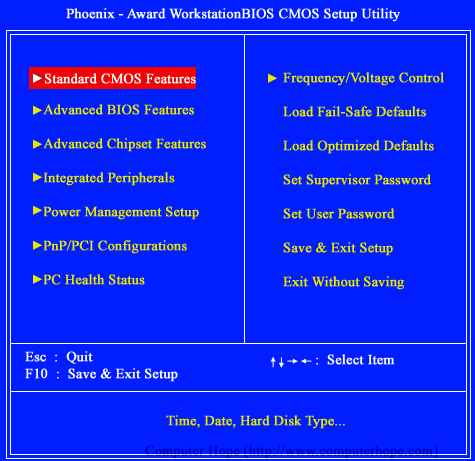
Below is an example of the main screen of the Phoenix - Award CMOS setup. This section enables you to access each of the other sections of the BIOS. Due to the amount of available illustrations for each of the difference screens, we created the below menu to help skip to the desired section.
 |
Available Options:
|
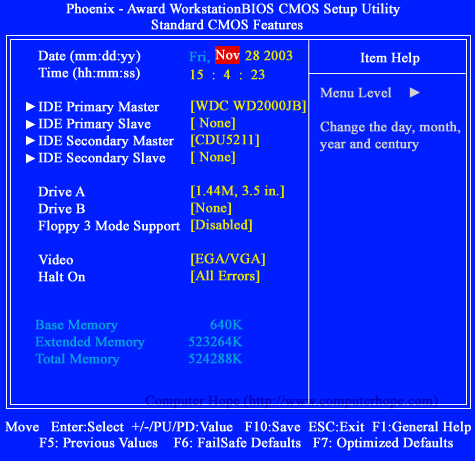
Standard CMOS Features
The Standard CMOS Features is the most commonly used area of this BIOS and enables users to set the time, date, disk drive settings, and other values.
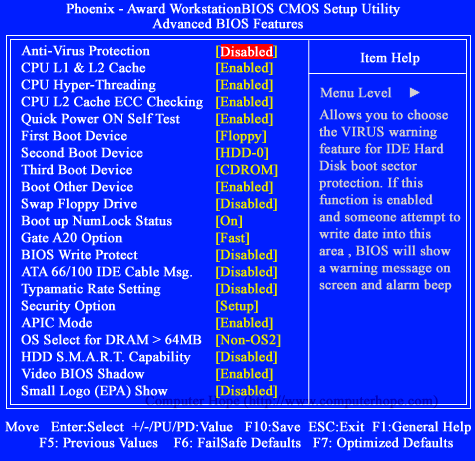
Advanced BIOS Features
Another commonly accessed area of the BIOS, the Advanced BIOS Features section enables users to change numerous settings in their computers BIOS.
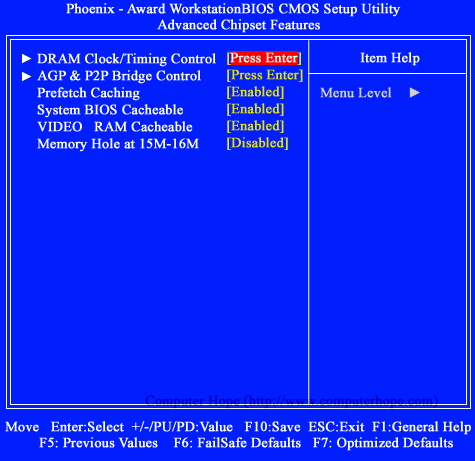
Advanced Chipset Features
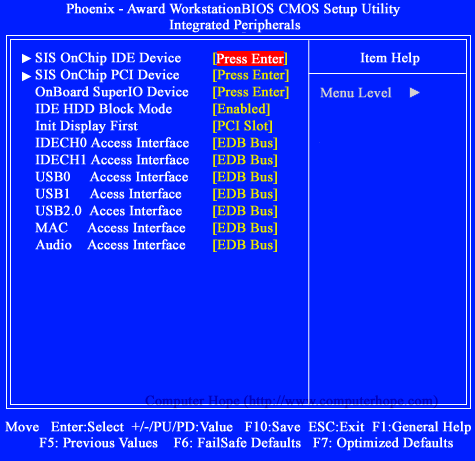
Integrated Peripherals