
Is it possible to have two or more video cards in one computer?
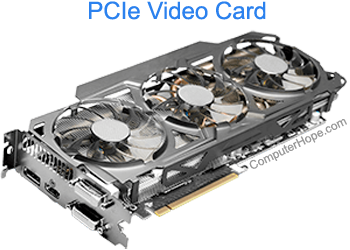
Many users wonder if it's possible to put more than one video card into a single computer. The answer is yes, but depends on the cards and whether or not you want them to work together (e.g., SLI (Scalable Link Interface) or CrossFire). The following sections contain information on different scenarios.
Using multiple cards in general
To install more than one card that don't work together, you must meet the following conditions:
- There need to be available resources on the computer. By this we mean appropriate slots and space.
- Ensure you're not using an EGA (enhanced graphics adapter), CGA (color graphics adapter), or VGA (video graphics adapter) card in one computer.
- Ensure you're using an operating system that supports multiple monitors. Almost all modern operating systems support multiple monitors. Anything earlier than Windows 98 does not support multiple monitors.
Using more than one card together
User who are looking to use more than one card to increase their graphics processing power, such as an SLI or CrossFire setup, must meet the following requirements:
- You need two or more SLI or CrossFire capable GPUs (graphics processing unit) and bridge to connect the cards.
- All cards must use the same GPU, but don't necessarily need to be from the same manufacturer.
- All cards need the same bus width and amount of VRAM (video random-access memory).
- You cannot have two SLI or CrossFire configurations. For example, you can't have two GTX 960s and two GTX 980s in the same machine (see number 2).
Some OEM (original equipment manufacturer) systems have restrictions on how many video cards work with their systems.
SLI and CrossFire only work with GPUs that use a PCIe (PCI Express) interface and are seated in a 16x or 8x PCIe expansion slot.
Before you install
Before installing a secondary video card, we recommend you review the below checklist first to help prevent possible issues in the future.
Windows 98 multiple monitor support requirements
For multiple monitor support to operate, you must meet the below requirements:
- You are running Direct X 5.0 or higher.
- You are using a PCI or AGP card listed below each card for each monitor.
Supported video cards:
ATI Mach 64 GX, GXD, VT
ATI Graphics Pro Turbo PCI
ATI Graphics Xpression
ATI Rage I, II, and II+
ATI All-In-Wonder
ATI 3D Xpression+ (PC2TV)
ATI 3D Xpression+
California Graphics V2/DX
Cirrus 5436
Cirrus 5446
CyberPro 2000A, 2 MB
Diamond Fire GL Pro 1000 PCI (AGP)
Diamond Stealth 64 Video 2001
Diamond Stealth 3D 2000, 3000, and 2000 Pro
ET6000
Hercules Dynamite 128/Video
Hercules Terminator 64/Video
InterGraphics System (IGS)
Jayton Video - 57P
Micro Crystal VR4000
Micro TwinHead 22SD
Number Nine 9FX Reality 332, 334, and 772
Permedia*
S3 Aurora
S3 765 (Must be recognized in Device Manager as Trio64V+)
S3 Trio64V2 (DX/GX)
S3 ViRGE
STB PowerGraph 64V+
STB PowerGraph 3D
STB Lightspeed 128
STB MVP 64 or 64 3D
STB Nitro 3D
STB Velocity 3D
STB WorkStation (2 & 4 output)
TI TVP4020, 8 MB PCI or AGP
Trident 9685/9680/9682/9385/9382/9385
Videologic GraphicStar 410
ViRGE 325
ViRGE VX (988)
ViRGE DX (385)
ViRGE GX (385)
The Permedia video card cannot be used as the primary display adapter (the Permedia NT and Permedia-2 do not apply to this rule).
Windows 98 multiple monitor issues
The following tips help you resolve many common issues with a dual display setup in Windows 98.
Screen savers that only work on the primary monitor
Screen savers that are not designed for multiple monitors only work on the primary monitor. For a screen saver to be active on both monitors, the screen saver must support multiple monitors.
Unable to drag a window from one screen to another
This issue can occur by one of the below possibilities.
- The window is maximized, make sure that the window is sized appropriately to drag.
- Your monitor position is not set properly. Go into your display properties, and then verify that the secondary monitor is set to the appropriate position.
How to arrange multiple monitors
- Click Start, Settings, and double-click the Display icon.
- Click the Settings tab.
- Move the screen icons to the appropriate position based on preference, or how the monitors are set up on your computer desk.
MS-DOS program is not fullscreen
On the appropriate monitor with the MS-DOS window open, press Alt+Enter.
How to view the same desktop across multiple monitors
- Click Start, Settings, and then double-click the Display icon.
- Click the Settings tab.
- Click the monitor that you want to use and select the Extend my Windows desktop onto this monitor option.