
How to troubleshoot a modem in DOS and Windows 3.x
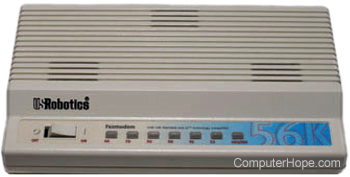
MS-DOS and Windows 3.x programs point directly to the modem and require little setup or troubleshooting. Although you must know what COM port the modem is currently configured to use. Most older modems that came with MS-DOS and Windows 3.x are legacy hardware devices and have jumpers that physically set the modem to a specific port, such as COM1:IRQ4.
If you are attempting to install a 28.8 k or faster modem, the modem is likely plug and play.
Verify that the connections are correctly configured on the modem before continuing with any of the below troubleshooting. For further help, see: How to ensure the modem connects correctly.
Not all WinModems work in Windows 3.x.
Troubleshooting
If your modem software is not communicating with your modem properly, try echoing to the modem by following the steps below.
Exit Windows and get to an MS-DOS prompt. If you are in Windows 3.x Program Manager, click File and click Exit Windows.
At the prompt, type echo atdt12345 > comx (x being the number of your communication port). This command should open up the phone line and dial 12345. If you receive a write fault error message, attempt the other 3 ports to ensure your modem is not installed on another port.
If all 4 ports receive write fault error messages and you have other serial devices, remove those devices and echo to the communication port again.
If you continue to experience the same issues, verify the COM ports are properly set up in BIOS (Basic Input/Output System). If the ports are disabled or not installed, the computer cannot communicate through these ports. Information about BIOS is on our BIOS help and support page.
If you continue to receive the same error message or you do not have any additional serial ports, there may be a physical issue with computer hardware. We recommend you contact the manufacturer of either the modem manufacturer or computer manufacturer.
If you use Windows 3.x or MS-DOS and have difficulty with a WinModem, use the modem's software to test the modem and see if it works. If this software reports the modem works properly, we recommend you contact the manufacturer of that software to verify it is compatible with WinModems. If your WinModem does not include software to test the modem's functionality, we recommend you contact the manufacturer of that modem to verify it is working.