
Help and information on computer passwords
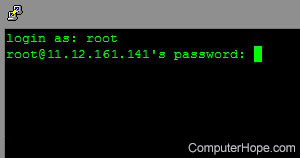
Computer passwords help identify and distinguish users and their access or capabilities on a computer or computer network. Passwords can also help restrict and prevent users from accessing confidential data or accessing programs they should not be viewing.
Password rules and suggestions
When creating a password, create the password using the below rules, making the password more secure.
- Do not use a password you have used in the past.
- Try to change the password at least every 3-6 months.
- Create a password that is at least six characters long.
- Create a password with both digits and letters.
- Do not create a password with a family name or family pet.
- Do not create a password that is your phone number, house number, apt number, etc.
- Create a password that is not in a dictionary.
- Create passwords with spaces in them (if allowed).
Most commonly used passwords
Some examples of the most commonly-used passwords are listed below. If you're using any of these passwords, we highly recommend you change it immediately.
- No password (pressing Enter)
- admin
- password, password1, PASSWORD, or p@ssword
- 123, 1234, 12345, or 123456
- 111111 or 000000
- root
- god
- letmein
- love
- monkey
- pass
- sex
- secret
- money
- asdf
- qwerty
- passme
- welcome
Also, avoid commonly used names, such as charlie, thomas, or fluffy. Do not use well-known names, like sports teams or players, or personal information, such as phone numbers or social security numbers. Finally, avoid simple modifications to these words, such as charlie123.
Password rules
System administrators
If you run a network of computers or are in charge of computer security, try using the below rules to help secure your network and computers.
- Require that passwords be changed every three months (90 days). Almost all network operating systems have features that prompt users to change their password once the specified time is up.
- Set a minimum password length. Most network operating systems support the ability to set a minimum password length.
- Setup password history, if available. If the network operating system supports password history, enable it to prevent the same or previous password from being used again.
- Enable account lockout threshold. This option disables an account after so many failed login attempts. Usually, three failed attempts within a duration of 60 minutes is sufficient.
Below are examples of stronger passwords:
- IAmThe1
- 2Bornot2B!
- 1PaSsWoRd1
- My1PASSword
- !Pa$$word
- (epoH)
Notice these passwords consist of famous quotes with numbers, uppercase and lowercase letters with numbers or special characters, and backwards words such as epoh = hope.
Determining and changing passwords
To determine the type of password required, change the password, or remove it completely, refer to the following sections.
Determining the password type
Before a password can be changed, cleared, or removed, you must determine the which type of password is being used.
- Does the password appear as the computer is booting? If yes, this is a BIOS (Basic Input/Output System) password. BIOS passwords don't allow the computer to boot unless the password is known.
- Does the password appear after the computer is done booting and before the operating system runs? If yes, this is a network, operating system, or third-party password.
- Windows users, does the password appear in Windows before the desktop? If yes, this is a Windows or Windows network password. If pressing Esc gets you into Windows, you have a standard Windows password. However, if this does not bypass the password prompt, it is likely you have a Windows network password.
Creating a computer password
Creating a BIOS or CMOS password
The BIOS or CMOS password is a more secure methods of password protecting a computer, as the computer cannot be used unless the password is known. To create a BIOS or CMOS password, enter your computer's CMOS setup and enter a system password.
Screen saver password
To password protect a screen saver, so the screen saver cannot be disabled without typing the password, refer to the following article.
To create an operating system password
To configure your operating system so it cannot be used without logging in with a password, refer to the following article.
To create a password in a third-party program
Several third-party programs are available to password protect your computer. Once one of these programs is installed, a user should be prompted to enter and enable a password on the computer.
Changing a computer password
If you have not already done so, read determining the password type before following the steps below on changing a computer password.
To change a BIOS or CMOS password
For a BIOS or CMOS password to be changed or cleared, you must know the password. If you have forgotten the BIOS or CMOS password, refer to clearing or removing a computer password section.
If the password is known, to change the password requires you enter the CMOS setup. In the CMOS setup, locate the password section and enter, change or remove the password. If you do not want the computer to have a password prompt, in CMOS, enter the original password and press Enter for the new password.
To change an operating system or Network password
Windows 95 or 98 Standard password:
This information applies to Windows 95 or 98 users who are not connected to a network, but have a password prompt when the computer boots. If you are connected to a network, set a Windows 95 and 98 Network password.
Click Start, Run, and type command and press Enter.
Once at the command prompt, run the following command:
cd \windows
dir *.pwl
A listing of accounts used to log onto the computer should be listed. Locate the pwl file you want to change, and run:
ren name.pwl name.pwb
Where name is the name of the pwl file you want to rename.
Once completed, reboot the computer. The next time the computer boots, enter a new password and then Windows prompts you to confirm the new password.
Windows 95 or 98 Network password:
If your computer logs onto a Computer Network and you are running Windows 95 or 98, changing the password may vary depending on the network.
If the network is a Windows NT network, the password can be changed if expired. Click Start, Settings, Control Panel, and double-click Passwords.
If this option is not available or does not allow you to change the password, contact the network administrator for additional help on changing the password.
Windows NT, 2000 Standard, Network password:
To change your Windows NT, 2000, or XP password, press Ctrl+Alt+Del to open the Windows security window. In this window, there is a button to change the password. Typing in your old password and the new password lets you change the password.
If this option is not available or does not allow you to change the password, you must contact the Network administrator for additional help on changing the password.
Linux and other Unix-like operating systems:
Once logged in to Unix and at the shell, change the password of the current user by running the passwd command.
passwd
You are prompted to enter the current password, prompted to enter the new password, and then prompted to confirm the password.
If your user has sudo rights, change the password of another user by running the following command.
sudo passwd username
To change a third-party password protection program password.
Because of how many programs can password protecting a computer, we suggest contacting the developer for support with any third-party password protection program.
Clearing or removing a computer password
If you have not already, read determining the password type before following the steps below on clearing or removing the correct password.
Clearing or removing a BIOS or CMOS password
If you know the current BIOS or CMOS password and want to remove that password, enter the computer CMOS setup and enter a new password. The prompt should ask you for the current password and then to enter a new password. For the new password, press Enter on the keyboard.
Clearing or removing an operating system password
To reset or remove an operating system password, refer to the following section that applies to your operating system.
Clearing or removing a network password
Because networks require an identification to allow or prevent access to files and programs, a network password can only be changed and not cleared or removed.
To change a third-party password protection program password
Because of how many programs can password protecting a computer, we suggest contacting the developer for support with any third-party password protection program. If you're unaware of what program is protecting the data on the computer, we recommend the hard drive be erased and then the operating system be reinstalled.