
How to install a PC parallel port computer scanner
Connect cables
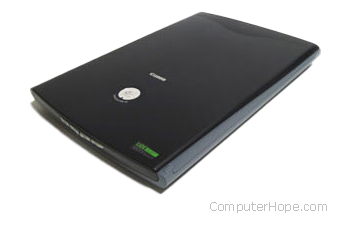
When connecting the scanner, make sure the computer and the scanner are turned off. Also, if you have any parallel port devices (e.g., printer or zip drive), we recommend you temporarily disconnect these devices while installing the scanner. Doing so helps prevent issues or the scanner from being detected. Once the scanner is successfully working, these devices can be re-connected.
Begin first by connecting the parallel data cable to the back of the scanner. It is likely that the scanner has two places to connect the parallel data cable. Ensure you connect the cable to IN, Computer In, or Computer connection.
Once connected, follow that cable to the back of the computer and connect it to the parallel port. When connecting the scanner, be careful not to disconnect any other cables. If cables need to be disconnected to access the parallel port, ensure that those cables are connected back to where they were disconnected.
After connecting the data cable to the computer and scanner, connect the power cable to the scanner.
Set mode in CMOS
Once the computer and scanner are turned on, as the computer is booting, enter the BIOS setup. Verify in the setup that the LPT port mode is properly set and the LPT port mode is set to bi-directional. Unless your scanner manufacturer specifies otherwise, we recommend bi-directional be selected if available.
Install software or drivers
When a scanner is purchased, it should come with drivers and software for the scanner with your operating system. Once you have followed the above steps, use the diskettes or CD (compact disc) to install your scanner drivers to allow the computer to work properly.
If your scanner did not include drivers, the included drivers aren't working for you, visit our scanner drivers index. There, you'll find a listing of computer scanners and links to their driver download sites.