
How to connect and install a computer keyboard
Today, almost all wired keyboards use USB as the interface to the computer. Older computers may use PS/2 as an interface to the computer. If your keyboard is wireless (cordless), it can be communicating over Bluetooth, RF (radio frequency), or IR (infrared).
Below are the steps to connect each of these types of computer keyboards.
To disconnect a keyboard from a computer, do the opposite of the steps provided on this page.
Connecting a USB keyboard
When connecting a USB keyboard, the computer can be off or on during the installation.
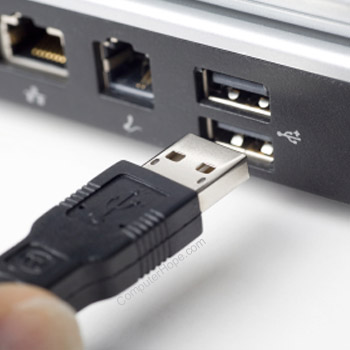
Connect the USB keyboard plug into the USB ports on the back or front of your computer. If you're using a USB hub, it can also connect to the hub. However, we recommend a direct connection to the back of the computer if possible.
If you have a laptop computer, an external keyboard can also connect to one of the USB ports. If no USB ports are available, a USB hub would be needed.
After the keyboard is connected, it should automatically be detected and installed. If the keyboard has any special features, you must install the keyboard software and drivers. All operating systems also have basic mouse settings that allow you to set up and configure basic mouse settings.
Can my laptop work with two keyboards?
Yes. When you connect an external USB keyboard to a laptop, it acts as a second keyboard, and both keyboards could be used at the same time.
What if my keyboard has two USB cables?
Some more advanced USB keyboards (e.g., gaming USB keyboard) have two USB cables. One of these cables is for the keyboard, and the other is for USB port(s) on the keyboard for other USB devices. If you only need the keyboard, only one of these cables can be connected.
Connecting a wireless keyboard
All wireless keyboards have a receiver plugged into the computer (usually by USB connection), and the keyboard connects to that receiver wirelessly. Connect this receiver either into the back or front of your computer. Once connected, make sure your wireless keyboard has batteries or is charged and turned on.
To turn these keyboards on, flip the keyboard over and look at the back of the keyboard. Near the bottom or top of the keyboard should be a switch that can be moved to the on or off position.
To communicate wirelessly with the computer, your keyboard must have a good signal between the computer and the keyboard. Make sure your keyboard has a good line of sight to the receiver. If the receiver has no extension cable, move the USB receiver from the back to the front of the computer.
After the keyboard is connected, it should be automatically detected and installed. If the keyboard has any special features, install the keyboard software and drivers.
How to enable the keyboard
Wireless keyboards have a power switch on the bottom of the keyboard that allows them to be turned on and off. If the keyboard is not detected, make sure the power switch is turned to the on position. Also, if your wireless keyboard uses removable batteries, make sure known good batteries are in the keyboard.
Can my laptop work with two keyboards?
Yes. When you add a wireless keyboard to a laptop, it acts as a second keyboard, and both keyboards could be used simultaneously.
Connecting a PS/2 keyboard
The computer needs to be off when connecting or disconnecting a PS/2 keyboard.
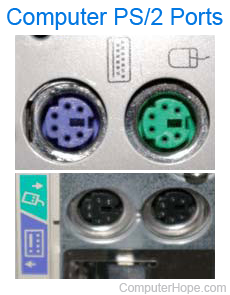
- Connect the keyboard to the PS/2 port on the back of the computer.
- When looking at the back of the computer, you'll notice two PS/2 ports next to each other. Verify you're connecting the keyboard to the purple connection, as shown in the picture below. If the PS/2 ports are not color-coded, the keyboard connection is closest to the left edge (when looking at it from the back). With vertical connections like in the picture below, the keyboard connection may be either port, depending on the case and motherboard. Look for a small keyboard symbol next to the port to identify which one is for the keyboard.
If you are unsure which PS/2 cable is for the keyboard when under your desk, the PS/2 keyboard cable is often thicker than the PS/2 mouse cable.
Newer computers no longer have PS/2 ports. If you have a PS/2 keyboard and a computer with no PS/2 ports, we suggest purchasing a USB keyboard or a PS/2 to USB converter.
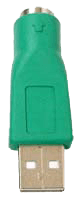
Do all computers have a PS/2 port?
No. Newer desktop and laptop computers have removed the older PS/2 port in favor of the USB ports. If you have an older PS/2 keyboard or PS/2 device, you can get a PS/2 to USB adapter (connector) like the one shown in the picture. This adapter allows the older keyboard to communicate with newer computers by attaching between one of the USB ports and the PS/2 plug.
Install software and drivers
If your keyboard has special features like a touchpad, special buttons, or wireless functionality, model-specific drivers need to be installed for them to work properly. Install them from the disc provided with the keyboard, or download them from the support section of the manufacturer's website.
Troubleshooting
Do I connect the keyboard to the computer or monitor?
Most monitors don't have any ports or places to connect (insert) a keyboard, so you usually connect a keyboard to the computer (tower). If your monitor has USB ports and a USB cable going from the monitor to the computer, a keyboard can connect to the monitor. If you have an All-in-One computer, the keyboard connects to it, which some may mistake as the monitor.
Can I plug any keyboard into my computer?
Keyboards are pretty universal and can work with any desktop, laptop, or portable computer (PC or Mac) with the required keyboard port. When you plug a keyboard into a computer, it should immediately start working. With some more advanced keyboards with special keys or features, those features may not work until the software is installed. If the software is not compatible with your computer or operating system, you can continue to use the basic keyboard functions without the special features. If nothing on the keyboard works, you'll need to troubleshoot the keyboard with one of the links mentioned below.
Can I plug my PC keyboard into my Apple computer?
Yes. All PC keyboards can be plugged into an Apple computer, and macOS will remap the modifier keys to work with the operating system. However, realize that although you have a PC keyboard connected, the Microsoft Windows keyboard shortcuts do not work with macOS. Also, if the keyboard has special keys or functions, they may not all work or activate with macOS.
How to reinstall a keyboard
Because a keyboard should work without installing any additional software, there isn't anything that can be reinstalled or uninstalled. If your keyboard is not working or recognized, try disconnecting the cable from the computer and reconnecting the cable. If this does not help or reset the keyboard, see the following links.