
How to extract or decompress a compressed file
How to decompress a file in Windows
Before extracting the data from a compressed file, you must first determine the compressed file type. On an IBM compatible computer running Windows, this can be determined by the file extension. Most compressed files are either .ZIP, .RAR, .GZ, or .TGZ files. Below are examples of what some compressed file icons look like in Microsoft Windows.
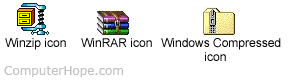
Once the compressed file type is determined, use the appropriate program. For example, many users use WinZip and Pkzip to extract ZIP files and WinRAR to extract RAR (Roshal ARchive) files in Windows. However, we recommend Windows users use 7-Zip since this program is free, open source, and supports all major compressed file formats.
7-Zip can open most common types of compressed files, including .ZIP, .GZ, .TAR, .WIM , and .XZ
If you are using Microsoft Windows XP, Vista, 7, or later, your computer should already be cable of extracting the contents of ZIP files.
If you do not want to or cannot install a program on your computer, you can also compress and decompress files online.
Once a compression program is installed on the computer, you can extract the contents from the compressed file. Below are some basic steps you can extract files.
In Microsoft Windows, locate the compressed file and right-click it. A menu should open that gives you the options to Extract or Extract all the file. Click one of these options to extract the file. A window should open with additional options, such as the location to where you want to extract the files. If you have installed 7-Zip, click 7-Zip and then Extract to "xxxx\," where xxxx is the name of the compressed file.
When extracting the files, pay attention to where you are extracting the files. Extracting the files to the incorrect location, such as the desktop, can extract multiple files to the desktop.
If the compressed file is for a program installation, open the folder containing the extracted files and run the setup to start the installation process.
Decompress a file in MS-DOS or the Windows command line
MS-DOS users need to extract the files using the command line. We recommend users use the pkzip and pkunzip utilities to compress and uncompress their files. Additional help and information about how files can be extracted from the command line is available on our pkzip and pkunzip page.
How to decompress a compressed file in Linux and Unix
Unlike other operating systems, almost all variants of Linux and Unix come pre-installed with some form of command capable of compressing and uncompressing files. Linux and Unix users are likely to be dealing with file extensions such as .TAR, .TGZ, .Z or .TAR.GZ. See the below Linux and Unix command pages for additional information about the commands used to create compressed files and to uncompress files.