
Windows freezes or stops responding frequently
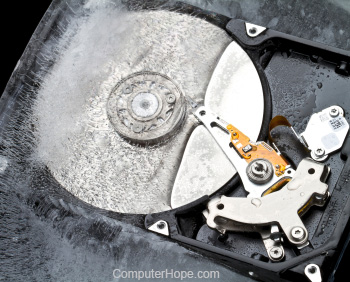
This page provides recommendations on what to do if your computer frequently freezes or completely halts. To determine if your computer is frozen, press the Num Lock button on the keyboard and watch if the Num Lock LED (light-emitting diode) turns off and on.
If you can get the light to turn off and on, press Ctrl+Alt+Del and End Task the frozen program, otherwise, proceed through each of the following sections in order.
Software related issue
A computer locking up or freezing is often is caused by software related issues. If you are encountering lockups when the computer is opening a particular program, make sure you have all the latest updates for all running programs. You can find the latest updates for your software through the software developer or publisher.
If the computer has any malware, virus, or other malicious software, it can also cause many problems. How to remove a virus and malware from my computer.
Too many programs open
Each program or window you open on your computer takes a portion of its resources to keep running. If you have too many programs open at one time, your computer may be low on resources, and as a result, is freezing. Try only running one program at a time to make sure your freezing is not being caused by multiple programs running at the same time.
Driver related issue
A computer lock up can also be caused by outdated or corrupted drivers. For example, if there is an issue that exists with your video adapter drivers, your computer could lock up while playing a game.
First, make sure no errors exist in the Windows Device Manager by opening the Device Manager and verifying that no "Other Devices" are listed. You also want to check the device list to see if any of them have a yellow exclamation mark or red X next to them.
Next, make sure you have the latest drivers for all major devices in your computer (video, sound, modem, and network). For a list of driver-related help pages, see our drivers index.
Operating system related issue
Make sure your operating system has all of the latest updates installed on it.
Heat-related issue
If the computer processor is getting too hot, it can cause the computer to freeze. If you have heard any abnormal noises coming from your computer recently, such as a high squealing, it could indicate a failing fan.
Verify the power supply fan is working by examining the back of the computer and seeing if the fan is moving and moving smoothly. For the other fans in the computer, you have a few options. You can either open the computer and physically inspect them or, if the RPM (revolutions per minute) is mentioned in BIOS setup make sure it doesn't report any errors.
Laptop users can prop their laptop on a book to help air reach the bottom of the laptop and determine if it has a heat-related issues.
Users may also be able to determine how hot their computer is by onboard thermal sensors. If your computer comes equipped with these sensors, make sure your CPU is not running too hot.
Hardware issue
Several of the following suggestions require you to open your computer. While working inside of a computer, be aware of ESD (electrostatic discharge).
A hardware malfunction or misconfiguration can cause a computer to lock up. If you have recently added any new hardware into the computer, temporarily remove it to make sure it is not causing your issue.
Before attempting to remove any hardware, make sure the computer has no conflicts in Device Manager.
If you have not recently installed any new hardware, the next best solution is to remove certain components one by one. For example, you may remove your modem, network card, sound card, or any other expansion cards because they are unnecessary for the computer to operate. Run the computer without these cards to see if they're causing the issue. Also, try unplugging any peripheral (plugged in) devices one at a time to see if they're causing your issues.
A serious issue with Windows
If, after trying the above recommendations and the computer continues to lock up frequently, Windows is corrupt. Try running through the basic troubleshooting steps for your version of Windows on our basic troubleshooting page. If these additional steps do not resolve your issue, we suggest you back up all of your valuable information, and then erase and reinstall Windows.
Hardware failure
If your computer turns off abnormally during or after the installation of your operating system, hardware components inside your computer may be malfunctioning. If so, the failing hardware is likely the RAM (random-access memory), CPU (central processing unit), motherboard, or power supply (in that order).
If you access the same parts from another computer known to be working, try swapping the parts to isolate the faulty hardware. Otherwise, you must have the computer serviced.