Computer Hope

Other Pages

Home
Site map
Computer help

Dictionary
News
Q&A
What's new

Tools

E-mail this page
Print Preview
Edit this page


Reference number: CH000710

How can I share a printer between multiple computers?

Question:

How can I share a printer between multiple computers?

Answer:

Users who have multiple computers in their home or work environment may wish to share a printer with the other computers to help save on cost and for convenience. Below are some of the ways you can share a printer on a network for different types of setups.

Before setting up the printer to be shared on a network, you must decide what type of setup you plan on doing. Below are the different types of setups and their advantages and disadvantages.

Printer connected to a computer / server
Dedicated print server
Network printer

Printer connected to computer / server

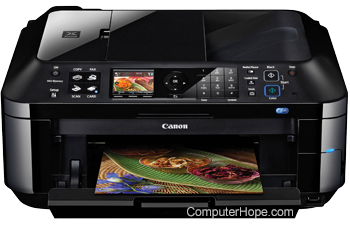
Connecting a printer to a computer and sharing the printer from that computer is the most common solution for sharing a printer because of the ease and price. The primary disadvantage of this is that the computer must always be on in order for the printer to work. Although this solution may not be the best solution for everyone it is usually the easiest and cheapest solution for sharing your printer between all the computers on your network.

Below are steps for sharing your printer with each of the major Microsoft Windows operating systems. For these steps to work you must already have a network setup at your home. Additional information about setting up a network can be found on document CH000469.   

Setting up the printer to be shared on the network

Microsoft Windows 2000 / XP

  1. Open the Windows Control Panel
  2. Double-click the "Printers" or "Printers and Faxes" icon.
  3. If you currently have a printer already installed on the computer right-click the printer icon and click Properties. In the Properties window click the sharing tab and make sure the printer is shared. If you need additional assistance installing a printer see document CH000441 for additional information.
  4. Once setup see document CH000904 for the steps required to connect to that printer from other Windows computers on the network.

Microsoft Windows 95 / 98

  1. Open the Windows Control Panel
  2. Double-click Network
  3. In the Network window under the Configuration tab click the File and Print Sharing  button.
  4. In the File and Print Sharing Window check the "I want to be able to allow others to print to my printer(s)" option. Note: If the computer asks to restart the computer after selecting this option make sure to restart.
  5. Click Ok and then Ok again to close out of the Network Window.
  6. Once back in the Control Panel double-click printers
  7. If you currently have a printer already installed on the computer right-click the printer icon and click Properties. In the Properties window click the sharing tab and make sure the printer is shared. If you need additional assistance installing a printer see document CH000441 for additional information.
  8. Once setup see document CH000904 for the steps required to connect to that printer from other Windows computers on the network.

Dedicated print server

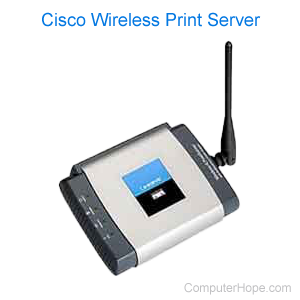
If the above option does not work for you and/or you do not wish to have a computer always turned on and maintained you may want to get a hardware print server. A print server enables you to connect a small network appliance to your network and connect each your printers to it.

Click here to search for available dedicated print servers

Network printer

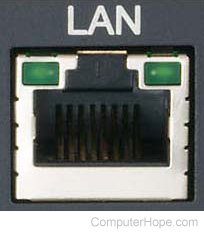
Some printers, often high-end printers have the capability to connect directly to a network or have hardware installed into them that enables the printer to be connected to the Network. If your printer supports this option and has the necessary hardware you should be able to connect the printer directly to the Network and have it detected by the computers.

When these types of printers are connected to a network you'll often be required to enter the network information such as the networks gateway, printer IP, etc.

Additional information:

  • See document CH000904 for additional information about connecting to a network printer.


Index


Category:
Network help
Printer help

Companies:
None

Related Pages:


Resolved

Were you able to locate the answer to your questions?

Home - Computer help - Contact - Dictionary - Links
Link to Computer Hope - Bookmark Computer Hope