
How to find the version of a driver in Windows
Updated: 02/27/2019 by Computer Hope
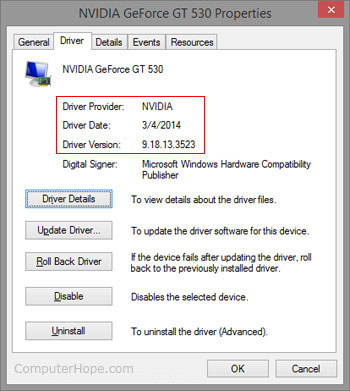
Microsoft Windows users can determine the version and date of their drivers by following the steps below.
- Open the Windows Device Manager.
- In Device Manager, locate and double-click the device you want to view the version. Note: you must click the '+' next to the device type before viewing the device. For example, to view the video card, click the '+' next to Display adapters and double-click the video card beneath it.
- In the device Properties window, click the Driver tab.
- In the Driver tab, the Driver Provider, Driver Date, and Driver Version of that device.
Looking at the Driver Date is a good first indication of whether or not you have an up-to-date driver. If you see the driver is more than 1-2 years old, we recommend you check with the manufacturer to see if there's a later version of the driver. Once you've visited the hardware manufacturer's driver page, you can determine if you have the latest driver by comparing the version available on the site with the one currently installed.