
Help and tips with ripping an audio CD with Apple iTunes
Updated: 11/13/2018 by Computer Hope
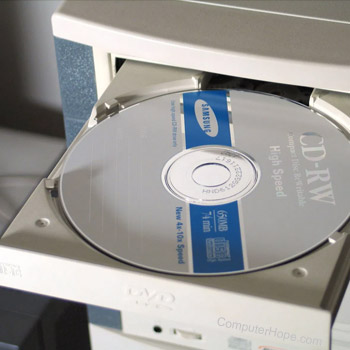
Below are steps for how iTunes users can rip or copy audio CDs (compact disc) to their computer.
- Open Apple iTunes. If you do not have iTunes installed on your computer, you can visit our iTunes definition page for a direct link to the download.
- Insert the audio CD you want to rip into the computer disc drive. Once inserted, iTunes should prompt you to add the CD to your music library. If you do not get this prompt, highlight the CD under devices and click the Import button in the bottom-right portion of the screen.
Note
By default, Apple iTunes saves all ripped songs as AAC (Advanced Audio Coding). While this format is an excellent choice for many users, most users may want to preserve compatibility with all MP3 players and save their songs in MP3 format. To save your files in MP3 format, follow the steps below.
- In Apple iTunes, click Edit.
- Under Edit, click Preferences.
- Click the Advanced tab and then the Importing tab.
- Finally, under Importing in the Import using drop-down menu, select MP3 encoder. We suggest using the default 160 kbps or 192 kbps option.
- Once completed, click OK.
Audio CD tips
- Connect to the Internet and let the program go online to detect and fill in all track and artist information. Although not every CD is listed in the CDDB (compact disc database), if you're ripping multiple CDs to the computer, this saves you time by not having to manually enter the information.
- To use iTunes to rip multiple CDs, we suggest having iTunes automatically start the import process and eject the CD when complete to speed up the process. You can do this by following the above steps to get into the Importing tab. Under the Importing section, in the CD Insert drop-down menu, select Import CD and Eject.