
How to fix MS-DOS compatibility mode issues
If you are having problems with MS-DOS compatibility mode on a Windows computer, the following are potential causes and solutions.
MBR is modified
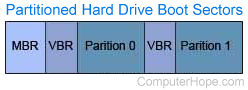
If the System Properties window indicates that the MBR (master boot record) is modified, new software could be causing your issue. If you've recently installed an antivirus program, security utility, or drive manager, you may need to uninstall to fix the problem.
If you have not recently installed any of these programs or utilities, it's a possibility your computer is infected by a virus. Try the recommended steps below.
- Boot from a clean write-protected boot diskette.
- Once at the A:\> prompt, type fdisk /mbr and press Enter.
- A:\> prompt, type sys c: and press Enter. Once the system is transferred, remove the diskette and reboot the computer.
CD-ROM running in compatibility mode
If the Systems Properties window indicates that the CD-ROM (compact disc read-only memory) is running in MS-DOS compatibility mode, attempt the following recommended steps.
- In Windows, click Start, Shutdown, and Restart the computer in MS-DOS mode.
- At the DOS prompt, type cd\ and press Enter to get to the C:\> prompt.
- At the C:\> prompt, type ren autoexec.bat autoexec.ch and press Enter to rename the autoexec.bat temporarily.
- After renaming these files, type ren config.sys config.ch and press Enter to rename the config.sys.
- After these files are renamed, reboot the computer to see if the issue is resolved.
If the issue persists, click Start, Settings, Control Panel, click System, and click the Device Manager tab. Click the "+" next to CD-ROM to expand the device list, and highlight the CD-ROM beneath the CD-ROM category. Once highlighted, click Remove and restart the computer.
If the issue persists, it's a good possibility that either the CD-ROM drive is bad or Windows is corrupted.
To rename the autoexec and config files back to their original file names, follow the first paragraph, and reverse the file names, as shown below.
ren autoexec.ch autoexec.bat
ren config.ch config.sys
Hard drive running in compatibility mode
If the Systems Properties window indicates that the hard drive is running in MS-DOS compatibility mode, attempt the steps below.
If you are running a DDO (disk drive overlay), a utility that installs and sets up a hard drive using a floppy diskette, contact the hard drive manufacturer for updated drivers.
- Boot from a clean write-protected boot diskette.
- Once at the A:\> prompt, type fdisk /mbr and press Enter.
- At the A:\> prompt, type sys c: and press Enter. Once the system is transferred, remove the diskette and reboot the computer.
- Ensure a CD-ROM drive is installed in the computer. Some computers may have CD-ROM drivers loaded, but may not have a CD-ROM drive installed.
- In Windows, click Start, Shutdown, and Restart the computer in MS-DOS mode.
- At the DOS prompt, type cd\ and press Enter to get to the C:\> prompt.
- At the C:\> prompt, type ren autoexec.bat autoexec.ch and press Enter to rename the autoexec.bat temporarily.
- Once this file is renamed, type ren config.sys config.ch and press Enter to rename the config.sys.
- Once each of these files are renamed, reboot the computer to see if the issue is resolved.
Windows 95 users may also be able to edit the NOIDE setting in the registry to resolve this issue. If you are using Windows 98, see the next section.
- Familiarize yourself with the registry and potential issues with editing the registry by reading our registry page.
- Edit the computer registry by running Regedit and open the below path.
HKEY_LOCAL_MACHINE\System\CurrentControlSet\Services\VxD\IOS
- Locate the NOIDE key, highlight it, and delete it by pressing the Del on the keyboard.
Windows 98 only users
- On the Windows 98 CD (compact disc), open the Tools\mtsutil folder.
- In this folder, locate the noide.inf file.
- Right-click the file and choose install.
If the issue persists, it's a good possibility that either the hard drive is bad/corrupted or Windows is corrupted. We recommend you first reinstall Windows. If this does not resolve the issue, we recommend you run the fdisk command, format the hard drive, then reinstall all the software on your computer.