
How to install a computer sound card
Buying tips and help
Most computers and motherboards today have a sound card onboard, which means you may not need to install a sound card.
Before getting started
- Write down important information from the top or bottom of the card such as the model number, serial number, and specifications.
- Ensure you are familiar with ESD (electrostatic discharge) and its potential dangers.
- When physically installing the sound card, ensure the computer is off.
Set jumpers
While today, most sound cards are configured through plug and play or through software configuration, if your sound card has jumpers, verify that the jumpers are properly set. These jumpers are usually used to set the IRQ (interrupt request), I/O, and DMA (direct memory access) addresses.
We would recommend these settings be set to IRQ: 5 I/O: 1 DMA: 220, unless it conflicts with other peripherals currently installed in the computer.
For additional information about resource settings, see our resources page.
Install into expansion slot
Today, sound cards are connected into the PCI (peripheral component interconnect) slot. Locate an available expansion slot in the computer and gently push the card into the slot until it snaps and holds place. Once the card is in the slot, place a screw into the back metal plate to hold the card into position.
Attach internal cables
Most sound cards have the availability of connecting a CD (compact disc) audio cable to the card itself. If present, connect the CD audio cable from the back of your CD-ROM (compact disc read-only memory) to the sound card now.
Attach external cables
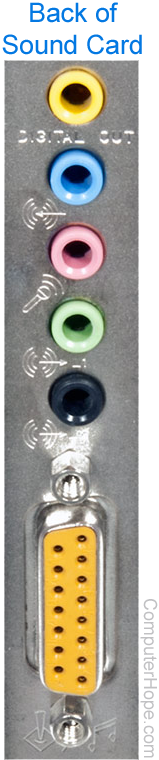
Place the case back onto the computer. Connect the keyboard, monitor, and power. Then, connect either a pair of headphones or speakers to the line out on the back of the sound card.
The picture shows the back of a sound card. With most sound cards, the line out connection is the light green jack.
CMOS setup
It is only necessary to enter BIOS setup if your computer has an onboard sound card. If present, the onboard sound card must be disabled before the new sound works properly.
Software setup
Once the sound card is physically installed into the computer, the sound card should have included software to install the sound card. Use this software to install the card into the computer.