
How to clear Chrome history
Updated: 03/10/2024 by Computer Hope

Most web page data is cached locally on your computer as you browse the Internet. This process helps sites load faster and reduces the amount of data transferred over your connection when you revisit them. Furthermore, this saved data can make it easier to locate a site again if you forgot to bookmark it during your previous session.
To help keep your Internet activities private or free up disk space, you can delete this stored information. To learn how to clear your browsing history in Google Chrome, select your platform from the list below and follow the steps.
Note
If you delete browsing history from your computer, it cannot be recovered.
Desktop or laptop computer
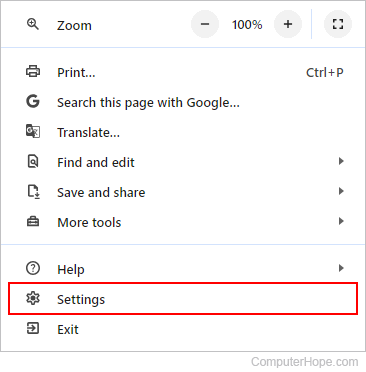
- Click the Customize and control Google Chrome button
 in the upper-right corner of the browser window.
 - Select Settings near the bottom of the drop-down menu.
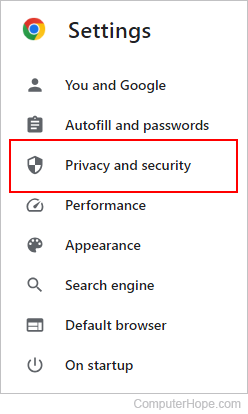
- On the left side, click the Privacy and security tab.
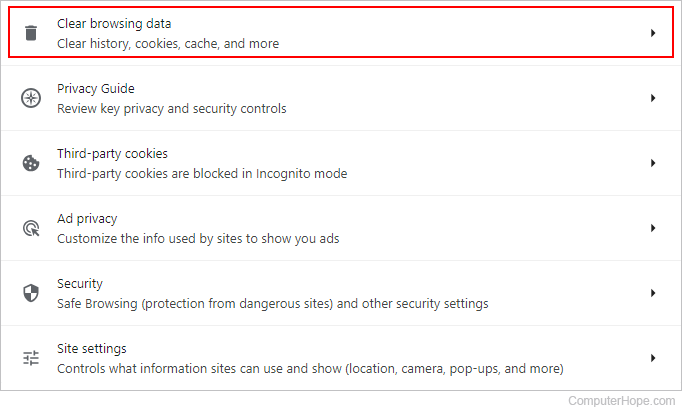
- Under the Privacy and security section, click Clear browsing data.
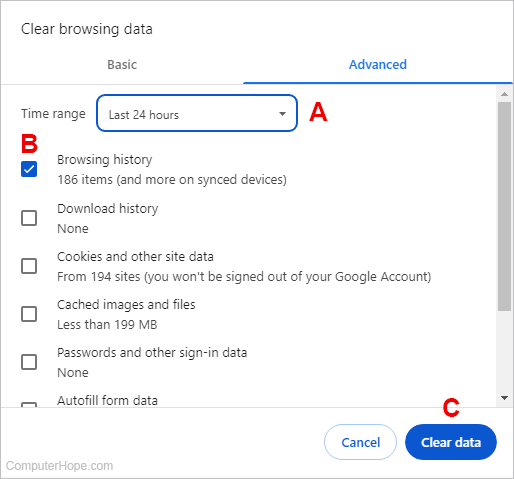
- In the Clear browsing data window, choose a Time range option (A). Make sure the box next to Browsing history is checked (B). Finally, click the Clear data button (C).
Android phone or tablet
- Open the Google Chrome browser on your Android phone or tablet.
- Tap the More menu icon in the top-right corner of the screen next to the address bar.
- In the drop-down menu, tap History.
- Tap Clear browsing data... at the bottom of the screen.
- Select the appropriate boxes.
- Tap the Clear browsing data button.
iPhone or iPad
- Open the Google Chrome browser on your iPhone or iPad.
- Tap the More menu icon in the top-right corner of the screen next to the address bar.
- In the drop-down menu, tap History.
- Tap Clear browsing data... at the bottom of the screen.
- Select the appropriate boxes.
- Tap the Clear browsing data button.