
How to set a program as the default option

In an operating system, different applications may perform the same function, such as playing a sound file, viewing pictures, browsing the Internet, etc. This fact leads to an issue where more than one of these programs attempt to open any media or files types associated with them. Fortunately, this problem can be resolved by going in to an application and setting it as the default program. To proceed, select one of the programs from the list below and follow the instructions.
If you have already installed a program and want to have it set as the default, try closing and re-opening it. Often, this action results in the program prompting you to set as the default.
Apple QuickTime
Follow the steps below to associate audio, video, and other media files within Apple QuickTime.
- Open the Apple QuickTime program.
- Once open, click Edit > Preferences then QuickTime Preferences.
- Click the down arrow next to About QuickTime, select File type Association, and click the File types button or tab.
- Once in the File Association Settings window, check or uncheck each of the file associations you want associated with QuickTime.
If you have other media players installed, you may need to enable or disable their association with the file type you enabled or disabled in Apple QuickTime.

Google Chrome
If you have installed Google Chrome and want it to be the default browser, follow the steps below.
- Open the Google Chrome browser.
- Click the Customize and control Google Chrome button
 in the top-right corner.
 - In the menu, select the Settings option.
- Click the Make Google Chrome the default browser button to make Google Chrome your default Internet browser.

Microsoft Edge
To set Microsoft Edge as your default Internet browser in Windows, follow the steps below.
- Open the Microsoft Edge browser.
- In the upper-right corner of the screen, click the
 button.
 - From the drop-down menu, select Settings at the bottom.
- In the next menu, click the
 button.
 - In the window, under the Web browser section, click the on the current default browser icon.

- In the Choose an app window, select Microsoft Edge from the list.


Microsoft Internet Explorer
If you have another browser installed and want Microsoft Internet Explorer to check if it's set as the default browser, follow the steps below.
- Open the Internet Explorer browser.
- Select Tools > Internet Options in the menu bar. If you do not see the menu bar at the top, press Alt on the keyboard to make the menu bar visible.
- In the Internet Options window, click the Programs tab.
- Check the "Tell me if Internet Explorer is not the default web browser" option. If you do not want Internet Explorer as the default browser, uncheck this option. You can also click the Make default button to set Internet Explorer as the default Internet browser immediately.

Microsoft Windows Media Player
Microsoft's Media Player is a program that associates the files it can open. If there is a certain file extension that you do not want to have associated with Windows Media Player, follow the steps below.
- Open the Windows Media Player program.
- Once open, click Tools > Options in the top menu. If you don't see the top menu, click the down arrow in the top-right corner of the window.
- In the Options window, click the File types tab.
- Check or uncheck each of the boxes you want associated with Windows Media Player.
For example, if you do not want to use the Windows Media Player for your MP3 files, uncheck MP3 audio file (mp3).
If you have other media players installed, you may need to enable or disable their association with the file type you enabled or disabled in Windows Media Player.

Mozilla Firefox
If you have installed Mozilla Firefox and want it to be the default browser, follow the steps below.
- Open the Mozilla Firefox browser.
- Click the Open menu button in the upper-right corner and select Settings.
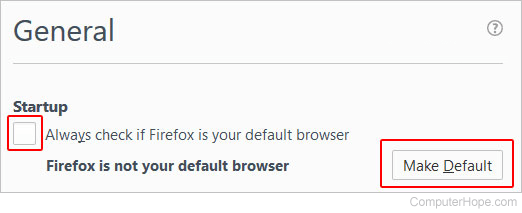
- In the Advanced section, General tab, check the box for Always check to see if Firefox is the default browser on startup. If you do not want Firefox to check if it's the default browser, uncheck this option. You can also click the Make Firefox the default browser button to set Firefox as your default Internet browser immediately.

Opera
If you have installed Opera and would like it to be your default browser, follow the steps below.
- Open the Opera browser.
- Press Alt+P to enter the Settings menu.
-Or-
- In the upper-left corner of the screen, click the Menu
 button.
 - From the drop-down menu, select Settings.
- In the Settings window, look for the Default browser section.

- Click Make Opera my default browser.
RealPlayer
RealPlayer is a media player that associates itself with audio and video files that it can open. If there are any file types you do or do not want to be associated with RealPlayer, follow the steps below.
- Open the RealPlayer program.
- Click Tools > Preferences in the top menu.
- In the Preferences window, click the + next to Content and select Media types.
- Select the "Manually configure media types for RealPlayer" and click the Select button.
- Check or uncheck the programs you want associated with RealPlayer.
Winamp
Winamp is a media player that associates itself with audio and video files that it can open. If there is a certain file extension you do or do not want to have associated with Winamp, follow the steps below.
- Open the Winamp program.
- Click Options > Preferences in the top menu.
- Under File types, highlight the programs you want to be associated with Winamp. If you do not want Winamp to be associated with a particular file, un-highlight each file type.
If you have other media players installed, you may need to enable or disable their association with the file type you enabled or disabled in Winamp.
Other programs
If the program you want to enable or disable as the default program is not listed above, you can usually locate the option for this feature under its Tools, Setup, or Options menu. To disable the default program setting for a program you no longer use, you can also uninstall the program.