
How to create a bulleted and number list in Microsoft Word
This page should answer any of the questions you may have about creating different bulleted and numbered lists in Microsoft Word including any advanced lists. This page applies to Microsoft Word 2000, however, other versions of Microsoft Word should have similar steps.
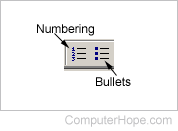
The numbering and bullets button on the formatting toolbar on the top-left of the screen is illustrated above.
How to create a bullet list in Microsoft Word
To create a bulleted list in Microsoft Word, follow the steps below.
The Microsoft Word keyboard shortcut to create a bullet is Ctrl+Shift+L.
- Position the cursor where you want to insert the bullet list.
- On the Home tab in the Ribbon, click the bullet list button, as shown at the top of the page.
- If successful, a bullet should appear. Type any text and press Enter to start the next bullet. To end the bullet list, press Enter twice.
Below is an example of a bullet list.
- One bullet
- Two bullet
How to create a numbered list in Microsoft Word
The Microsoft Word keyboard shortcut to create a numbered list is Ctrl+Alt+L.
To create a numbered list in Microsoft Word, follow the steps below.
- Position the cursor where you want to insert the number list.
- On the Home tab in the Ribbon, click the number list button, as shown at the top of the page.
- If successful, a number one should appear. Type any text and press Enter to start the next number in the numbered list. To end the numbered list, press Enter twice.
Above is an example of a numbered list.
How to create a numbered list with letters
To create a numbered list that also contains a letter list in Microsoft Word, follow the steps below.
- Position the cursor where you want to insert the number list.
- On the Home tab in the Ribbon, click the down arrow next to the number list button.

- In drop-down menu, select one of the numbered list options with letters.
- Type the text for the first lettered bullet item.
- Press Enter to add additional lettered bullet items.
Below is an example of a numbered list using letters instead of numbers.
A. First bullet using letter
B. Second bullet using letter
C. Third bullet using letter
To create a numbered list that also contains a letter list in Microsoft Word, follow the steps below.
- Position the cursor where you want to add a bulleted item using a letter.
- Press Enter and then Tab.
- Press Enter again to add additional lettered bullet items.
Below is an example of a numbered list with letters in it.
- One numbered
- Two numbered
a. Two numbered again
b. Two numbered again - Final numbered
How to create multiple paragraphs without creating a new bullet or number
In some situations, you may need to have multiple paragraphs in a numbered or bulleted list. To do this, follow the steps below.
- Position the cursor where you want to insert the number list.
- Either click the number button or bullet button (as shown at the beginning of the document) or click Format and then Bullets and Numbering.
- When you're ready to insert a new line without creating a new bullet or number, press Shift+Enter.
Below is an example.
- One numbered.
- Two numbered.
More text without a number. - Final numbered.
How to create a bullet list with a numbered list
To create a numbered list that also contains a letter list in Microsoft Word, follow the steps below.
- Position the cursor where you want to insert the number list.
- Either click the bullets button (as shown at the beginning of the document) or click Format and then "Bullets and Numbering..."
- When ready to insert a numbered list in the bullets, press the bullets button or click Format and then "Bullets and Numbering..."
- When you need to switch back to bullets, click the numbering button again or click Format and then "Bullets and Numbering..."
How to create a numbered list with a bulleted list
To create a numbered list that also contains a letter list in Microsoft Word, follow the steps below.
- Position the cursor where you want to insert the number list.
- Either click the number button (as shown at the beginning of the document) or click Format and then "Bullets and Numbering..."
- When ready to insert a bullet list in the numbered list, press the numbering button or click Format and then "Bullets and Numbering..."
- When you need to switch back to the numbered list, click the bullets button again or click Format and then "Bullets and Numbering..."
How to change the bullets used or change the appearance of the numbers
After creating the numbering list or the bullets list, if you need to change the appearance, click Format and then the "Bullets and Numbering..." option. You can adjust the format through the new Bullets and Numbering window. Below, is an example of what this window may look like in Microsoft Word.
