
Stop an MS-DOS window from automatically closing in Windows
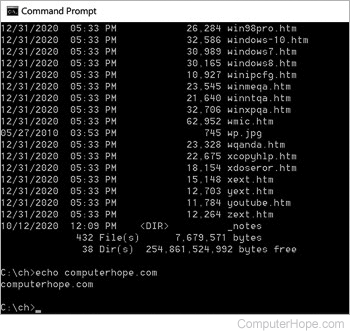
By default, new versions of Windows automatically close the window of any program, including an MS-DOS program or batch file, when the program terminates. Unfortunately, if that MS-DOS command or program outputs or displays any information that the user needs to read, they cannot read it because it closes too fast.
This issue can be resolved by doing any of the below recommendations.
Unfortunately, there is no setting in Windows for disabling the auto-closure of the MS-DOS windows.
Open an MS-DOS window
If you are running an MS-DOS command or program in Windows, try opening an MS-DOS prompt and executing the command or program from within MS-DOS.
Change the path of the command in the shortcut
Microsoft Windows 2000 and Windows XP users can execute the command through CMD.EXE using the /K option. Doing so opens a command window and then executes the command or program. After the command or program has completed, the computer remains at the command prompt. To do this, follow the steps below.
- Create a shortcut to your MS-DOS program or command.
- Once a shortcut is created, right-click the shortcut and click Properties.
- In the Properties window, change the Target location to contain the CMD.EXE command with the /K switch as shown in the example below.
Before
"C:\My programs\test.bat"
After
C:\WINNT\system32\CMD.EXE /K "C:\My programs\test.bat"
Add a pause statement to a batch file
Finally, it is important to realize that the window will not close if Microsoft Windows believes the program is still running. If you're creating a batch file and want the MS-DOS window to remain open, add "pause" to the end of your batch file. This prompts the user to Press any key. Until the user presses any key, the window remains open instead of closing automatically.