
How to open a computer case
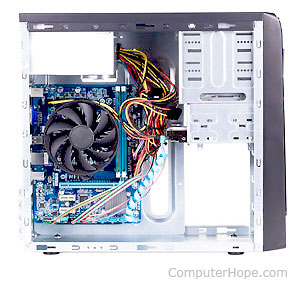
This page provides help on opening a desktop computer case, not a laptop computer case.
Before working inside a computer, disconnect all the cables including the power cable from the back of the computer. Also, make sure you're aware of the potential dangers of ESD (electrostatic discharge), and take precautions to prevent it.
There's no standard for how to open a computer case, which means how you open your case depends on the manufacturer of your case. Below are the three most common methods of how to open a computer case.
Before opening the case, disconnect all the cables from the back of the computer and place it on a table. Next, identify the model of chassis you're using. Below is a short list of different ways a computer case cover is held in place.
- Screw - Case held on with screws.
- Thumbscrew - Case with screws that require no special tools and can be tightened and loosened with your fingers. Often, these screws also have indents that allow them to also work with tools if needed.
- Screwless - Case with no screws, only held together with metal or plastic clamps that release from the case by pressing buttons or switches.
Screw and thumbscrew computer cases
The screws, buttons, or other mechanisms to open a computer case are on the back edges of a computer. If the case has screws, these need to be removed before the case cover can be removed.
Often, the power supply screws are also visible from the back of the computer. However, these are often in the middle of the back of the computer case. The screws you want to remove to open the case are always on the outer edges of the back of the computer.
Once screws are removed from the back of the case, push the side cover of the computer case towards the back of the computer. Either the side of the computer case will slide off, or the complete cover will be removed.
If you've removed a side of the computer and cannot see inside the computer, the wrong side of the computer case was likely removed. Try removing the opposite side of the case to expose the inside of the computer.
Finally, some computer cases use a combination of thumbscrews and screwless mechanisms to hold the side of a computer case in place. If you only needed to remove one screw on the back of the computer, it's likely you're working with this type of case.
Screwless computer cases
There are several techniques on how computer and case manufacturers develop a screwless entry chassis. Therefore, realize that the steps below may not apply to your computer case.
As mentioned earlier, screwless computer cases use buttons, levers, or push arms. For example, NEC, Dell, and other major computer manufacturers often use a screwless entry case. Follow the steps below to open the type of screwless case you have.
Screwless case with single thumbscrew
Despite being a screwless case, some have a single thumbscrew to remove.
- Find and remove the thumbscrew. It's often on the back-right side of the computer case.
- After removing the thumbscrew, if present, place the computer on its side.
- Press in the two small levers on the top and bottom of the case.
The levers may be located in other places, such as the bottom, back, or bottom-front of the computer case.
- Push the side towards the back of the case.
Screwless case with no thumbscrew
If there is no thumbscrew to remove, the case likely utilizes a button to open it.
- Find the button, often on the front-bottom portion of the computer case.
- Press the button to release the side of the case, allowing it to be removed.
Other recommendations
Finally, if after reading the above recommendations you're still unable to get inside your computer, we suggest consulting your computer or computer case manufacturer's documentation. If you did not receive any documentation or have lost it, most manufacturers have online versions of all their documentation on their website. See the third-party contacts page for a complete listing of computer and case manufacturers' contact information and websites.