
How to navigate Windows using a keyboard
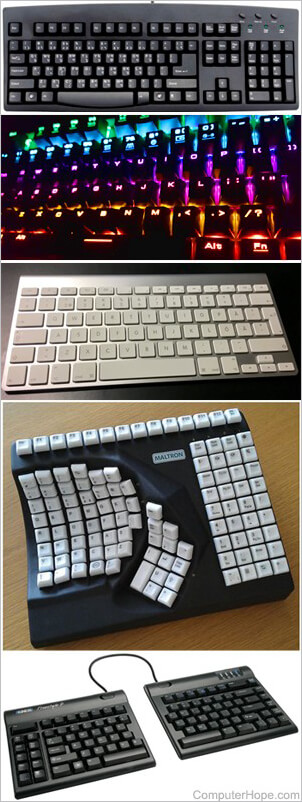
Navigating Microsoft Windows using the keyboard for many commonly performed tasks can dramatically increase your productivity. Also, a situation may arise when the mouse stops functioning or you must work on a computer without one. The following sections contain many essential combinations used to navigate Windows using your keyboard as an alternative to a mouse. Select a link below, or scroll through the entire page to learn all the methods individually.
To navigate this page with the keyboard, use the arrow keys, Tab, and Enter.
Some of these key combinations may have different effects depending on the version of Windows on your computer.
Opening a program from the Start menu
To start, you can access the Microsoft Windows Start menu by pressing the Windows key on the keyboard or by pressing Ctrl and Esc simultaneously.
Because Windows 8 does not have a Start menu, pressing the Windows key or Ctrl+Esc shows the Windows Start screen or goes to the Windows desktop.
In the Start menu, you can use the arrow keys on the keyboard to move up, down, left, or right in the Start menu. Once you've located the program you want to run, press the Enter key.
You can quickly open a program by pressing Windows key, typing the program's name, and press Enter.
Opening a program from File Explorer
To start, press Windows key+E on the keyboard to open Windows File Explorer.
In File Explorer, you can use a combination of the Tab key and the arrow keys to navigate. Tab moves you between sections of File Explorer, and the arrow keys move up, down, left, or right in each section. Once you've located and selected the program you want to run, press the Enter key.
You can quickly open a program by pressing the Windows key, typing the program's name, and press Enter.
Opening a program on the desktop
To run a program with an icon (shortcut) on the desktop, you can move to the desktop by pressing the Tab key on your keyboard. Pressing Tab while on the desktop switches between the desktop, Start, and each item on the taskbar. You can determine what area you're currently at by looking for an item that is selected. A selected item is highlighted or has a border of dots.
Sometimes, you may have to press Tab several times before getting to the desktop icons. Once one of the desktop icons is selected, you can move to other icons using your arrow keys.
Once the icon on the desktop you want to run is selected, press Enter to open that program.
Opening the Windows command line
Press the Windows key on the keyboard. The Windows search box is now active, allowing you to enter text to search for files or programs in Windows. Type cmd and press Enter, or select the Command Prompt program in the Windows search results.
To run the command line as administrator, use the arrow keys. For example, after following the above steps, press → to move to the app options and then ↓ to highlight "Run as administrator," and press Enter.
The Windows command line opens, and you can now enter commands as desired. Further help with using the Windows command line is found in the following link.
Closing, minimizing, maximizing, or moving a window
Closing a window
Press Alt+F4 simultaneously to close the current open program or window.
You can also press Alt+spacebar simultaneously, then arrow down (↓) to the Close or Exit option in the menu and press Enter.
Minimizing or shrinking a window
To minimize a window, press the Windows key and down arrow simultaneously (sometimes twice).
Maximizing a window
To maximize a window, press the Windows key and up arrow at the same time.
Moving a window
Before you can move any window, it must not be maximized. To make the window appear in windowed mode, press Alt and spacebar simultaneously, move to the Restore option using the arrow keys, and press Enter. In windowed mode, you can move a window if you press Alt+spacebar, select Move from the menu, then use the arrow keys to move the window.
Closing or changing tabs
Closing a tab
In most programs, pressing Ctrl+F4 at the same time closes a tab.
Switching tabs
To move left to right between tabs in the active window, press Ctrl+Tab simultaneously.
To move right to left between tabs in the active window, press Ctrl+Shift+Tab simultaneously.
Moving between open windows and applications
To move between any open programs on your computer, press and hold Alt, then press the Tab key. If this is done successfully, a window appears that displays each of the open programs on your computer. Repeatedly pressing Tab while continuing to hold Alt moves between each of the open programs. When the program you want to switch to is selected, let go of both keys to make it your current window.
Navigating between fields and buttons on a window
To move your cursor between objects or fields in a window (such as a dialog box), use Tab, spacebar, arrow key, and Enter. Tab is usually the default, but if it does not work, try using the arrow keys. If you must press a button, such as OK or Cancel, press spacebar or Enter.
Manipulating and moving through text
Below are the different methods of moving through text in a document without the aid of a mouse. Not only does this help users without a mouse, but it can also save you a great deal of time when working with text documents.
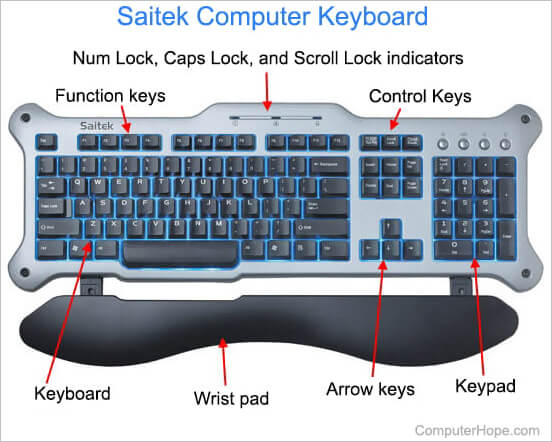
Arrow keys - Using the arrow keys on the keyboard, move the cursor up, down, left, or right in the document.
Ctrl and Arrow keys - Pressing Ctrl while pressing the left or right arrow keys moves the cursor one word at a time. Using this shortcut is much faster than only using the arrow keys. Holding Ctrl while pressing up or down moves through each of the paragraphs in the document.
End and Home keys - Pressing End takes you to the end of a line or document while pressing Home moves you to the beginning.
Shift key - Using Shift lets you highlight text. For example, pressing the Shift key while using the right or left arrow keys highlights the text to the left or right. If you hold down Shift while pressing the down arrow keys, you highlight one line at a time in that direction.
You can also use Shift in combination with the other recommendations above. For example, pressing and holding Shift and Ctrl and using the arrows highlights one word at a time. Pressing Shift and pressing End highlights from the current cursor position to the end of the line or document.
Scrolling in a window
Scrolling up or down in a window is often accomplished with the up and down arrow keys, Page up and Page down, or the spacebar.
Right-clicking an icon or other element of Windows
In some situations, you may need to right-click an icon, text, or other Windows elements. To do this without a mouse, select the icon or move the cursor to the text you must right-click. Then, press Shift and F10 at the same time.
Checking and unchecking a checkbox
Some Windows settings pages require you to check or uncheck a checkbox to change settings. Press Tab to cycle through each entry on a settings page. Then, press spacebar to check or uncheck a checkbox for the highlighted entry.