
How to disable or enable the Num Lock key at startup
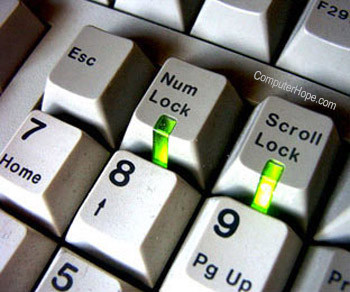
Many Windows users prefer that when they turn on their computer, the Numlock feature of their keyboard is automatically turned on. This option is not available in the Control Panel, but you can accomplish it by directly editing the Windows registry.
Your account must have Administrator privileges to make the following configuration changes.
Windows 10
To configure Windows 10 so that Numlock is turned on when you start the computer, the registry needs to be changed following the steps below.
Open the Registry Editor
- Press the Windows key+R on your keyboard to open the Run window.
- Type regedit and press Enter. If a User Account Control dialogue window opens asking for confirmation, click Yes.
Be very careful when changing your registry, because an incorrect change might affect other features on your computer. We strongly recommend you make a backup of your registry before you begin. In the Registry Editor, go to File → Export and save a copy of your registry.

Choose an easy to remember location such as your desktop, and give the file a descriptive name, such as "June 6 registry backup". If you ever need to restore your registry settings, you can double-click this .reg file to reset your registry to the saved state.
Make changes to the registry
- In the Registry Editor, navigate to HKEY_CURRENT_USER \ Control Panel \ Keyboard. On the right, you will see the registry entry InitialKeyboardIndicators.

- The InitialKeyboardIndicators value defines whether Numlock is turned on when you start the computer. Its value can be either 0 (Numlock is turned off at startup) or 2 (Numlock is turned on at startup). To set Numlock to be on every time you start the computer, double click InitialKeyboardIndicators, change the value data to 2, and click OK.
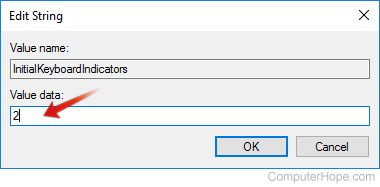
- Repeat this process for the other user entries in your registry (unfortunately, you'll have to do it manually for each one). In your HKEY_USERS registry folder, you will see other user accounts listed as S-1-.... For each of these, go to their Control Panel \ Keyboard \ InitialKeyboardIndicators value, and change it to 2.

If the Control Panel \ Keyboard \ InitialKeyboardIndicators entry does not already exist, you do not need to make any changes for that particular user.
Disable fast startup
In the following steps, you disable a Windows feature called Fast Startup. This feature, also known as Hybrid Boot, uses your computer's sleep or hibernate mode to make starting up the computer faster. You need to disable this feature if you want your custom Numlock settings to work after you reboot.
- Open the Control Panel. You can open it from the Power User Tasks Menu by pressing Windows key+X and selecting Control Panel.
- Click Hardware and Sound.
- Click Power Options.
- Click Choose what the power buttons do.
- Under Define power buttons, click Change settings that are currently unavailable.
- Under Shutdown settings, uncheck the box labeled Turn on fast startup (recommended).

- Click Save changes.
Older versions of Windows
In earlier versions of Windows, including Windows 8, Windows 7, and Windows Vista, follow these steps:
- Press the Windows key+R on your keyboard to open the Run window.
- Type regedit in the Open text box and press Enter to open the Windows Registry Editor. If a User Account Control dialogue window opens, click the Yes button to continue.
- In the registry, navigate to HKEY_CURRENT_USER \ Control Panel \ Keyboard.
- On the right, double-click InitialKeyboardIndicators. Change the value data to 0 (Numlock off when computer starts), or 2 (Numlock on when computer starts).
Configuring Numlock in your system BIOS
To control how your Numlock behaves, don't forget to check your BIOS setup for additional options. Check your computer/motherboard documentation for details about the BIOS settings specific to your computer.