
Control Panel

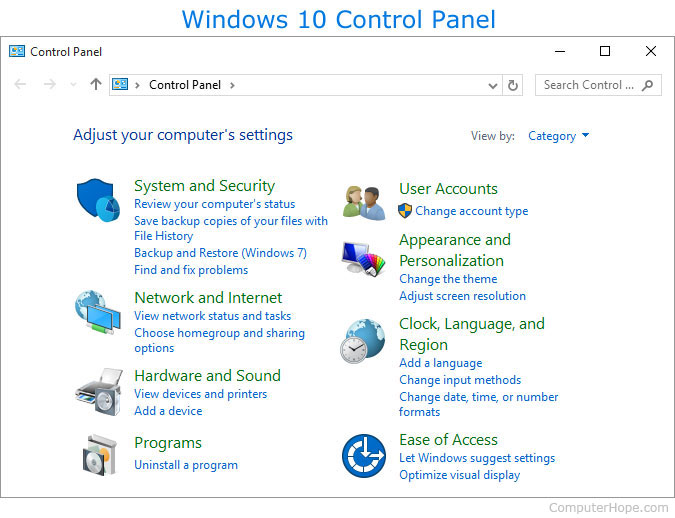
The Control Panel in Microsoft Windows lets users change computer hardware and software features. Settings for the mouse, display, sound, network, and keyboard represent a few examples of what may be modified in the Control Panel. Below are examples of how the Control Panel appeared in Windows.
In Windows 7, Windows 8, and Windows 10, you can use the search box in the top-right corner of the Control Panel window to find the area you're looking to adjust. For example, type firewall to search for the Firewall settings in the Control Panel.
In Windows 8 and Windows 10, Microsoft is trying to transition users away from using the Control Panel in favor of Windows Settings.
A Mac computer, Chromebook, smartphones, and tablets, do not have a Control Panel. The closest equivalent is System Preferences on a Mac and Settings on a Chromebook.
Sections of the Windows Control Panel
There are eight main areas on the Control Panel, containing different tools designed to optimize your computer.
- System and Security - A section to check your computer's status, backup and restore, and others.
- Network and Internet - View network status.
- Hardware and Sound - View which devices are on your computer and add devices.
- Programs - Uninstall programs.
- User Accounts - Change user accessibility.
- Appearance and Personalization - Change desktop options, like fonts and screen readers.
- Clock and Region - Change date and time.
- Ease of access - Optimize your display settings.
The evolution of the Windows Control Panel
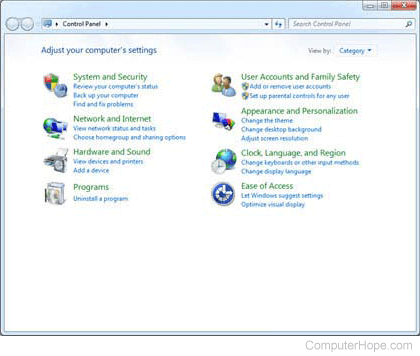
Microsoft Windows 7 Control Panel
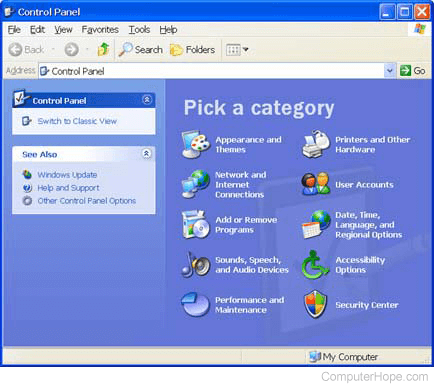
Microsoft Windows XP Control Panel
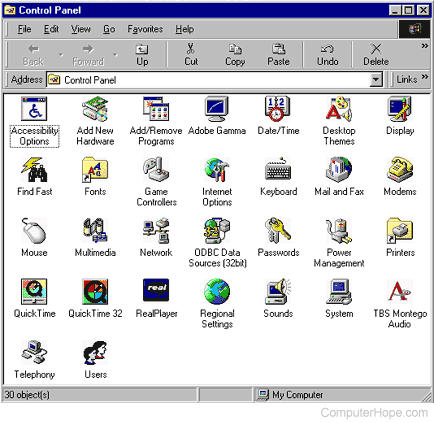
Microsoft Windows 98 Control Panel
Add/Remove programs, Control, cPanel, File manager, Menu, Operating system terms, Settings, Task manager, Windows Accessories