
How to access a home computer from work or school
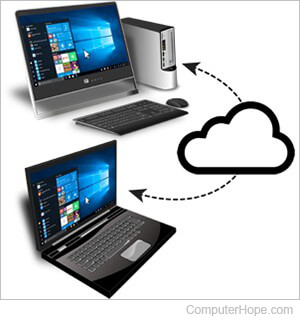
If you need to control a remote computer, or you'd like someone else to control your computer remotely, there are several options available. Below is a listing of some popular methods of remotely connecting to another computer for remote access or assistance.
Remote desktop software and services
Quick Assist

Introduced with Microsoft Windows 10, Quick Assist is an easy way for Windows users to remotely connect to other Windows computers. If you're using Microsoft Windows 10 or 11 computer and are connecting to another Windows 10 or 11 computer, try Quick Assist first as it's already installed and requires no download.
TeamViewer

TeamViewer is an online service that connects two networked computers running its client software. A one-time password is provided on the remote computer (the one to be controlled), which is entered on the client computer for access. The remote computer's display is shared on your computer, and you can control its mouse and keyboard from yours. The software and service are free to use for personal use or available for a fee to corporate customers.
LogMeIn

LogMeIn is a remote login SaaS. It provides a secure web interface for accessing and controlling remote computers as a cloud service. LogMeIn does not offer a free service plan, although a free 14-day trial is available.
GoToMyPC

GoToMyPC is remote desktop software designed for "ease-of-use form over function," that lets you remotely view and control another computer. Acquired by LogMeIn in 2017, GoToMyPC offers a 7-day free trial. Client software is available for Windows, macOS, iOS, and Android.
RealVNC
The original VNC (Virtual Network Computing) program that allows users to remotely connect to other computers running VNC. RealVNC has three different versions. The free version that supports a standard connection, and the Professional and Enterprise editions with encryption, One-port HTTP (hypertext transfer protocol) & VNC, file transfer, and more.
TightVNC

A free and open source VNC program that lets you remotely connect to another computer and control it. The program permits file transfers between computers and supports multiple platforms, including Windows, macOS, Linux, and Unix.
Laplink Everywhere

Laplink is commercial remote desktop software that offers one-click access, secure file transfer, remote Outlook access, and automatic synchronization.
Windows Remote Desktop

Users of Windows Professional (Windows 10 Pro, Windows 8 Pro, etc.) can use Windows Remote Desktop to remotely access another Windows computer.
Potential problems and additional information
Below is additional information about potential problems you may encounter when using any of the solutions above.
- Firewall - Any firewall protecting your home, work, or school network must be open for many of these programs or services to communicate with other computers. If you have a software firewall running on your computer, you must explicitly open the port required by the program.
Some schools and corporations have a hardware firewall that block outside Internet traffic, making it difficult or impossible for many of these solutions.
- Static IP vs. dynamic IP - Many of the programs require you to specify the IP address of your computer. If you do not have a static IP (Internet Protocol) address, the address changes each time you connect to the Internet.
- Modem vs. always-on connection - If you connect to the Internet using a dial-up modem instead of broadband, you must keep your modem connected to the Internet.
- Plug-ins and additional software - Online services that allow remote connections to another computer over a browser require a plug-in or a third-party program be installed in the browser. Some work and school computers may prohibit you from doing this.
- The computer must be on - The computer you want to connect to must remain powered on, or the remote connection fails.