
How to resize an image
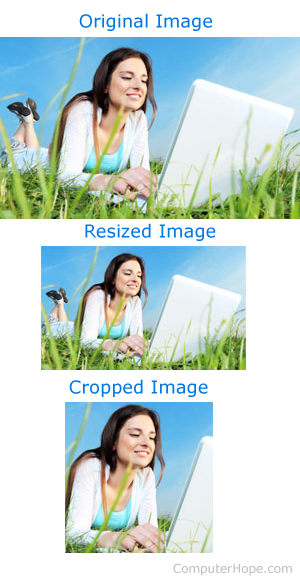
When posting a picture online or sending it through e-mail, it may be necessary to resize the image to keep small in size and dimension. Below are the steps to resize images in an image editor or from a web pages that resize images for you.
To only use a portion of the image and not resize the full image, you'll want to crop the image. For help with how to crop, see: How to crop an image or picture.
Online solution
Several websites that allows users to resize their images without using one of the programs below. If you cannot access to any of these programs, you may want to try one of the online services below.
IrfanView
- Open the image in IrfanView.
- Click Image and then Resize/Resample.
- Either specify the size in pixels you want to make the image or click the half button to cut the image size in half.
Each time the half button is pressed, it reduces the image size in half.
The GIMP
- Open the image in The GIMP (GNU image manipulation program).
- Click Image at the top of the image tool bar.
- Click Scale Image.
- In the Image size, specify the dimensions you want to use and click the Scale button.
Microsoft Paint
Microsoft Paint users can use the Resize option in the Image section on the Home tab. However, this option often degrades the overall quality of the image. We suggest users use one of the above programs or solutions for resizing their images instead.
Adobe Photoshop
- Open the image in Adobe Photoshop.
- Click Image.
- Click Image size.
- Specify the size of the image you want to have. It's often easier for most users to specify the size using pixels as the measurement.