
How to find a file on a computer
All computer operating systems can find files on the hard drive or other drives connected to the computer. Click one of the links below to help find files and apps on your computer or mobile device.
If you've recently opened the file on your computer recently, it may be easier to find the file in the recent documents feature.
Windows 11
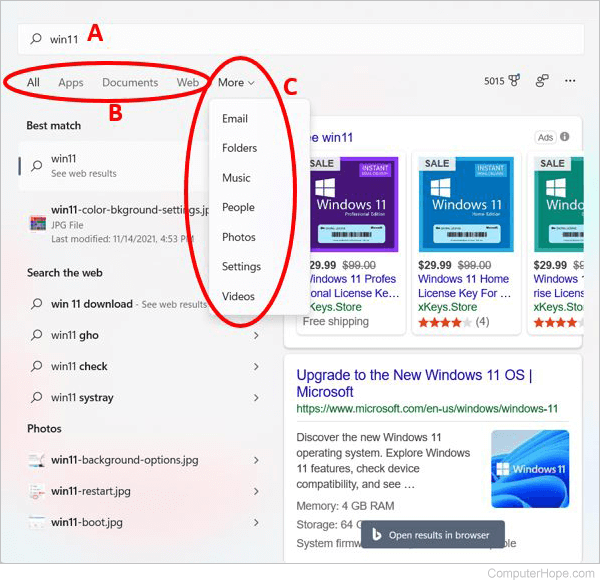
- Press the Windows key on your keyboard, then type part or all the file name (A) you want to find. See the search tips section for tips on searching for files.
- In the search results, click the Apps, Documents, or Web section header (B) to view a list of files that meet the search criteria. For more choices of search results, click the More section header (C) and select an option from the drop-down menu.
- Click the file name you want to open.
You can use the arrow keys to arrow up or down to the app, file, document, or setting you want to view and press Enter to open it.
Windows 10

Microsoft Windows provides an easy-to-use search feature that helps you find any file on your computer, even if you don't know its full name. Whether you must find a document, spreadsheet, picture, or video, the Windows search feature helps you find it. Choose your computer's Windows version from the list below and follow the steps to search for a file. Search examples and tips are also available by clicking the search tips link below.
- Press the Windows key on your keyboard, then type part or all the file name you want to find. See the search tips section for tips on searching for files.
- In the search results, click the Documents, Music, Photos, or Videos section header to view a list of files that meet the search criteria.
- Click the file name you want to open.
You can use the arrow keys to arrow up or down to the app, file, document, or setting you want to view and press Enter to open it.
Windows 8
- Press the Windows key to access the Windows Start screen.
- Start typing part of the file name you want to find. As you type, results for your search are shown. See the search tips section for tips on searching for files.
- Click the drop-down list above the Search text field and select the Files option.
- The search results are shown below the Search text field. Scroll down through the search results list to find the file you are looking for, then click the file name to open it.
Windows Vista and Windows 7
- Click Start to open the Start menu.
- In the Search text field at the bottom of the Start menu, type part or all the file name you want to find. See the search tips section for tips on searching for files.
- In the search results, click the Documents or Files section header to view a list of files that meet the search criteria. You can also click the See more results link at the bottom of the search results to see a complete list of files that meet the search criteria.
- Double-click the file you want to open.
Windows XP
- Click Start to open the Start menu.
- In the Start menu, click the Search option.
- In the Search Results window, fill out all or part of the file name field in the Search Companion section. See the search tips section for tips on searching for files.
- If the computer has more than one hard drive, or you want to search a USB (universal serial bus) flash drive or CD/DVD, click the Look in the drop-down list and select the appropriate drive.
- Click the Search button to execute the search.
- Files meeting the search criteria are shown in the Search Results window. Double-click the file you want to open.
How to find a file using Windows Explorer
- Open Windows Explorer.
- In the left navigation pane, click Computer or This PC.
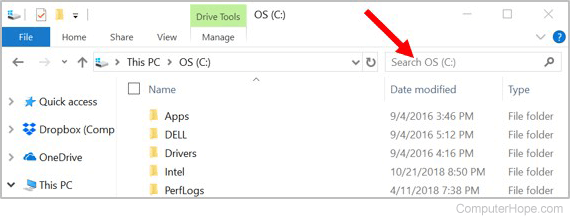
- Near the top-right of Windows Explorer, click in the Search field and enter part or all the file name you want to find.
To find a file on a specific drive, click the drive under Computer or This PC in the left navigation pane. Then enter the file name you want to search for in the Search field.
iPad and iPhone
- Go to the home screen.
- Swipe from the left edge of the screen to the right edge of the screen.
- Type the file into the search bar at the top of the screen.
- Tap the Search button.
Android tablets and phones
- Open the Settings menu.
- Tap Storage.
- Tap Files or File manager.
- Navigate through the folders to find your desired file.
Search tips
Below are a few tips to help users find files on their computer.
Find all GIF picture files on the computer
Type *.gif In the search text field. The *.gif indicates any file that ends with a file extension of .gif. The .gif can be replaced with any file extension. Below are a few examples of the common extensions you may use.
- *.doc or *.docx = Microsoft Word documents
- *.xls or *.xlsx = Microsoft Excel documents
- *.jpg = Another image extension (JPEG pictures)
- *.htm and *.html = HTML (hypertext markup language) web pages
- *.mp3 = MP3 music files
- *.mp4 = MPEG-4 movie files
See the file extension page for a complete listing of extensions.
Find any files that contain help in the name
Type *help*.* in the search text field. The *help* indicates any file containing the word "help" in the file name, and the ".*" indicates that the file can end with any extension.
Additional information, examples, and help with wildcards, as seen in the above examples, are available on our wildcard page.