
How to remove TSRs and startup programs
This page contains steps on removing TSR (Terminate-and-Stay-Resident) programs temporarily from memory, and how to prevent them from automatically loading each time your computer boots.
How to temporarily remove a TSR from memory
The information below contains steps to temporarily remove from memory TSRs and currently running programs. Realize, that after rebooting the computer many of these will reload. To permanently keep these programs from loading, skip down to the next section.
Removing a TSR in Windows 8, 10, and 11
Press and hold Ctrl+Alt+Delete, then click the Task Manager option. Or press and hold Ctrl+Shift+Esc to open the Task Manager directly. Click the Processes tab, select the program you want to end, and click the End Task button.
Removing a TSR in Windows 2000 to Windows 7
Press and hold Ctrl+Alt+Delete, then click the Task Manager option. Or if you're running Windows XP, it should immediately open the Windows Task Manager window. In Task Manager, click the Applications tab, select the program that you want to end, and click the End Task button.
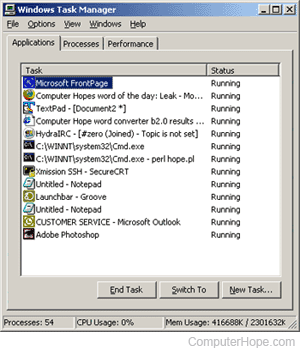
As shown in the picture above, the Applications window only displays programs that are currently open and visible to the user. Other TSRs and Windows Processes are shown in the Processes tab. Clicking the Processes tab displays each of the processes running and the system resources they're using, as shown below.
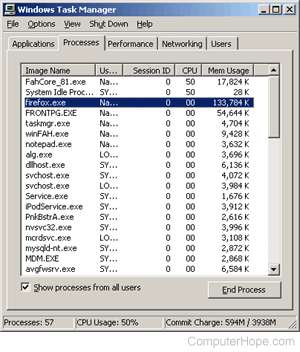
We recommend you only click End Process for programs you know. If you are unsure what a process is, searching for the name of the file returns the results of each process.
You cannot End Task any of the systems processes.
Removing a TSR in Windows 95, 98, and Me
Press and hold Ctrl+Alt+Delete. Once these three keys are all properly pressed together, a Close Program window appears.
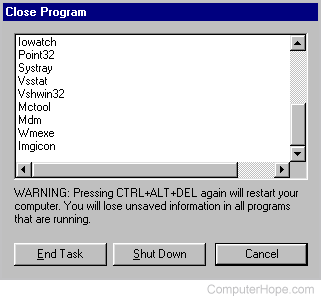
Highlight any of the listed items except Explorer and Systray and click the End Task button. Repeat this process until you only have Explorer and Systray.
Additional Information:
- There is no way to highlight more than one of these icons.
- Some programs may not be removed the first attempt, continue to the next if available.
- When End Tasking, you may receive This Program is Not responding click End Task again.
- Pressing Ctrl+Alt+Del twice in a row reboots the computer.
- Each of the items you are removing comes back the next time you reboot the computer unless they are removed.
Removing a TSR in Windows 3.x
To remove any currently running programs in the background, minimize all open Windows, including Program Manager.
Once each of the windows are minimized, any currently running applications should be shown as a small icon. Open and close each of these icons, except the Program Manager.
Permanently disable TSRs from loading automatically
Because many TSRs load up automatically when your computer starts, you may find it a burden to manually unload each of these programs each time you reboot the computer. Below are the steps to remove these programs from starting up automatically.
Permanently disable TSRs in Microsoft Windows 8, 10, and 11
- Press and hold Ctrl+Alt+Delete, then click the Task Manager option. Or press and hold Ctrl+Shift+Esc to open the Task Manager directly.
- Click the Startup tab.
- Select the program you want to stop from loading automatically and click the Disable button.
If you cannot locate the program that is automatically loading, you can find it in the system registry or via a software utility.
Permanently disable TSRs in Microsoft Windows XP, Windows Vista, and Windows 7
- Click Start, Programs, and then Startup.
- Right-click and delete the file you do not want to start automatically.
If you cannot locate the program that is automatically loading, try locating it in the system registry or the msconfig utility.
Permanently disable TSRs in Microsoft Windows 2000
- Click Start, Programs, Startup.
- Right-click and delete the file you do not want to start automatically.
If you cannot locate the program that is automatically loading, try locating this program in the system registry or in msconfig.
Permanently disable TSRs in Microsoft Windows 98 and Windows Me
- Click Start, Programs, Startup.
- Right-click and delete the file you do not want to start automatically.
If you cannot locate the program that is auto loading, try the following steps. Locate the program in the autoexec.bat, win.ini, system registry or Windows 98SE. Windows Me can disable programs through the System Configuration or in msconfig.
Permanently disable TSRs in Microsoft Windows 95
- Click Start, Settings, Taskbar & Start Menu Programs.
- Click the Start Menu Programs tab.
- Click the Advanced button.
- Open the Programs folder.
- Open the Startup folder and remove the program you do not want to start automatically.
If you cannot locate the program automatically, try to locate it in the autoexec.bat or win.ini. Windows 95 and NT users should also look in the system registry.
Permanently disable TSRs in Microsoft Windows NT 4.0
- Click Start, Settings, Taskbar & Start Menu Programs.
- Click the Start Menu Programs tab.
- Click the Advanced button.
- Open the Programs folder.
- Open the Startup folder and remove the program you do not want to start automatically.
If you cannot locate the program that is automatically loading, try locating it in the system registry.
Permanently disable TSRs in Microsoft Windows 3.x
- Open File Manager.
- Locate and open the Startup folder.
- Delete the program you do not want to startup from the startup folder.
If you cannot locate the program that is automatically loading, try locating it in the autoexec.bat, win.ini.
Permanently disable TSRs in autoexec.bat
This section only applies to Windows 3.x, Windows 95, and Windows 98 users. If you are uncertain what version of Windows you are running, see our Microsoft Windows versions page.
If the program is still loading each time you boot your computer after following the instructions above, it may be loading in your autoexec.bat. For information about autoexec.bat, including how to modify it, see our Autoexec.bat and Config.sys guide.
Permanently disable TSRs in win.ini
This section only applies to Windows 3.x, Windows 95, and Windows 98.
If the program continues to load and you've checked the startup folder and autoexec.bat, it's also possible it may be loading in the win.ini file. To check this file, follow the steps below.
- Windows 3.x users, click the File menu and select Exit to get to an MS-DOS prompt.
- Windows 9x users, click Start and Shutdown and restart the computer in MS-DOS prompt.
- Once at the MS-DOS prompt, run the following two commands.
cd \windows
edit win.ini
- In the win.ini file, the should be several lines of text. Locate the lines that read:
LOAD=
RUN=
- Verify these lines are LOAD= or RUN= with no text after the equals sign. If text is following either of these statements, this may be the program loading each time your computer boots.
- To temporarily disable these lines, you can place a semicolon in front of these lines, as shown in the example below.
;RUN=
- To save this file, open the File menu (Alt+F), choose Exit, and Save changes.
Permanently disable TSRs in system registry
This section only applies to Windows 95, Windows 98, Windows Me, Windows 2000, Windows XP, and Windows Vista users. If you are uncertain what version of Windows you are running, see our Microsoft Windows versions page.
Windows 98 users should disable startup programs through the System Configuration before doing the system registry.
If the program continues to load after rebooting your computer, the last place to check is the system registry. Before attempting to edit or change the system registry, we recommend you review our registry overview, to better understand the potential risks of modifying your registry.
After familiarizing yourself with the system registry, open the registry key below to see if the program or TSR is loading in the system registry.
[HKEY_LOCAL_MACHINE\SOFTWARE\MICROSOFT\WINDOWS\CURRENTVERSION\RUN]
If you locate the program that is loading, delete this program from the key above.
Do not delete any other files from any other keys.
Permanently disable TSRs in system configuration
This section only applies to Windows 98 and Windows Me users. If you are uncertain what version of Windows, see: What version of Windows do I have?
To disable startup programs through the System Configuration, follow the instructions below.
- Click Start, Programs, Accessories, System Tools, and then System Information.
- In the System Information window, click the Tools drop-down menu and select the System Configuration utility.
- Select the Startup tab and uncheck the programs you do not want to load automatically.
System Configuration utility and msconfig
The information below only applies to Windows XP and Vista users. If you are uncertain what version of Windows you are running, see our Microsoft Windows versions page.
To disable programs from automatically loading, follow the instructions below.
- Press Windows key+R to open the Run box. Then, type msconfig and press Enter.
- In the System Configuration Utility window, click the Startup Tab. Uncheck each of the startup tasks you no longer want to load. If you are uncertain what startup programs are causing your issues, uncheck all the items. Then, slowly start checking each of the items until you determine the source of the issue. Restart the computer after checking each item. Allow the program you checked to startup with Windows to determine if it's the source of the issue.
Which TSRs can I safely disable?
Unfortunately, there isn't a specific list of TSRs that you could safely disable on your computer. While most TSRs are unnecessary, that list can depend on the version of Windows and the software installed on your computer.
The best recommendation is, if you are unsure about a TSR you see on your computer, perform an Internet search for the TSR. Performing a search for the file name of the TSR, which usually has a .exe file extension, yields the best results. Review the top search results for information on the TSR and if it can be safely disabled.
However, before researching the TSRs you see on your computer, we highly recommend you run an antivirus scan to remove any viruses and malware. Some viruses and malware utilize TSRs to infect a computer. Removing those viruses and malware often remove associated TSRs from your computer. Once your computer is cleaned, you can then check for TSRs and research which ones to disable.