
How to prevent Windows startup programs from loading

There are different ways a program can automatically load when Windows first starts. Below is a full list of where to find startup programs and how they can be disabled.
Windows 8, 10, and 11
Users of Windows 8, 10, and 11 can disable startup programs via the Windows Task Manager.
- Press the Ctrl+Alt+Del keys at the same time.
- Click Task Manager.
- In the Task Manager window, click the Startup tab.
- Right-click any startup program you want to disable and click Disable.
Windows XP, Vista, and 7
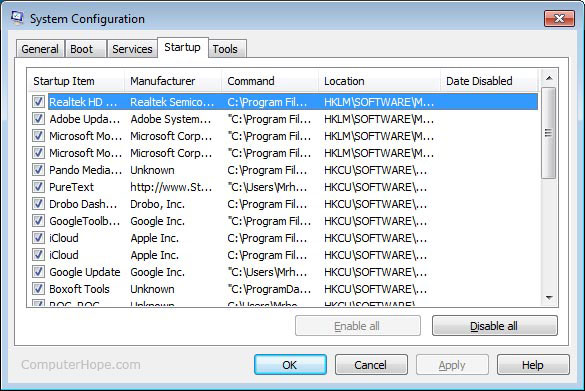
Most Windows users can use the msconfig utility to disable startup programs by following the steps below.
- Click Start, and then Run.
- Type msconfig into the text box, and press the Enter.
- In the System Configuration window (shown below), click the Startup tab.
- Uncheck each of the programs you don't want to load upon startup.
Windows Startup
Another location startup programs are placed is the Windows Startup folder. To view this folder, follow the steps below.
- Click Start, Programs, Startup, then locate the program you want to remove. Right-click the program and select delete from the drop-down menu to prevent the program from loading automatically on startup.
- If you see the program you want to remove, but have Windows 95, click Start, Settings, and then Taskbar & Startup Menu. Click the Start menu programs tab, click the Advanced button, click the Programs folder, and then Startup folder. Highlight the program you do not want to startup automatically and press Del on your keyboard.
Windows registry
The Windows registry is another common location to locate programs loading up automatically. If you are unfamiliar with the registry and its potential dangers, see the registry help page. Once you have familiarized yourself with the registry, follow the steps below.
- Click Start, Run, type Regedit, and press Enter.
- Click HKEY_LOCAL_MACHINE.
- Click Software.
- Click Microsoft.
- Click Windows.
- Click Current Version.
- Click Run.
- In the Run folder, locate the program(s) you don't want to boot upon startup.
- Once located, highlight the file and press Del.
- Exit out of the registry and reboot the computer.
Windows Services
Microsoft Windows can also automatically load a program through Windows services. Follow the steps below to check the services currently setup on your computer.
User must have administrative rights to perform the steps below.
- Click Start, Settings, and then Control Panel.
- Open the Administrative Tools and click Services.
- Locate the service you want to disable and double-click it.
- Change the Startup type from automatic to disabled.
Windows win.ini
Although not as common as the previous recommendations, with early versions of Windows the win.ini can also contain programs that load automatically. The win.ini, like most initialization files, can cause issues with the computer if not edited correctly. Follow the steps below for instructions on how to remove programs from the win.ini file.
We recommend you write down whatever is deleted in case it needs to be added back into the win.ini.
- Click Start, Run, and then type win.ini into the text box.
- Towards the top of the document, look for run= line. Verify that nothing similar to the program that is loading at startup is after run= line. If this line appears to contain a command line pointing to the program you are experiencing the issue with, delete everything after run=.