
How to troubleshoot printer issues
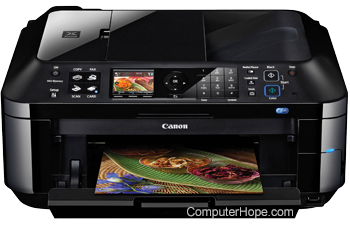
If you are experiencing problems with your printer, the troubleshooting tips below may help you resolve the issues.
Printer does not have power indicator
First, make sure that the printer is turned on. When a printer is on, it should have some light or LED (light-emitting diode) (usually green or blue) indicating it's receiving power.
If you do not have any indicator light, make sure the printer is connected to a working power outlet by verifying each end of the power cable. Next, press the printer power button.
If, after performing the above steps the printer still does not display a power status indicator light, your printer may have a serious internal hardware issue. We suggest contacting the printer manufacturer for repair or replacement.
Cables not connected properly
Your printer should have two cables connected to it: the power cable and the data cable. Make sure the power and data cables (parallel cable or USB cable) are connected to both the printer and computer.
Printer error (orange or blinking light)
After your printer has completed its initial startup, you'll see a solid colored light. If the indicator is orange or blinking, often this is an indication of a printer error. A paper jam or an issue with the ink or toner cartridge can cause the error.
As there are not standards for all printers, if you see a blinking light, visit the manufacturer's website or review the printer manual for specific error details.
No paper or paper jam
Without paper, your printer cannot print. Make sure there is paper loaded into the printer paper cartridge or tray. Next, verify that no printer paper is jammed or partially fed into the printer. If you suspect paper is stuck somewhere it shouldn't be, refer to our help page for paper jams.
Inkjet printer ink related issues
Often when you're encountering an ink related issue, your printer status indicator light (mentioned above) should be flashing. If this is not occurring, you may want to skip to the next section. However, if you've recently inserted a new ink cartridge, you may want to try the below suggestions.
Printer self-tests
Most printers have a way of printing a test page. A printer test page lets you determine if the printer is working. The printer self-test is usually accomplished through software or buttons on the printer. If you don't know to access and use the self-test feature on your printer, refer to the printer manual or visit the printer manufacturer's website.
Also try performing a software self-test to determine if the computer can see the printer and it's able to print. Follow the steps below to perform this test.
Microsoft Windows users
- Open the Control Panel.
- Click or double-click the Printers, Printers and Fax, or Devices and Printers icon.
- Right-click the printer you want to test and select the Properties or Printer Properties option. If you do not see your printer listed, your printer is not installed.
- In the printer's Properties window, click the Print Test Page button.
- If the printer can print a test page, your printer is installed and set up properly. However, if you cannot print in other programs, the program you are attempting to print from likely has issues.
Older versions of Windows with older printers
If you have an older printer and run MS-DOS, Windows 3.x, Windows 95, Windows 98, or Windows NT, attempt the following software test.
- Open the Windows command line.
- Get to the root directory by typing cd\ and pressing Enter.
- Reroute dir to printer by typing dir > lpt1 and pressing Enter.
The above should take the directory listing and print it to the printer. If this does not print, refer to your operating system troubleshooting section.
The command above doesn't do a paper feed, so you must press your FF or PP options on the printer, or try manually ejecting the paper.
Printer drivers
If your printer does not have any flashing lights and is connected properly, it's possible you may be encountering a driver related issue. We suggest visiting our printer driver listing, which links to all major printer manufacturer driver pages, and download the latest drivers for your printer.
Parallel (LPT) printers
If the printer you're connecting to the computer is an LPT (parallel port) printer, we also suggest verifying the below settings if your printer is not working.
Parallel port in BIOS
- Enter the computer's BIOS setup.
- Once in BIOS, verify that the parallel port is enabled or installed.
- Next, verify the printer or parallel port mode. If your parallel port is set to ECP (extended capabilities port) mode, we suggest trying a different mode.
Other parallel device
If you use a parallel printer with other parallel devices, such as a scanner, temporarily disconnect these devices to verify they are not causing issues with your printer.