
How to install a computer power supply
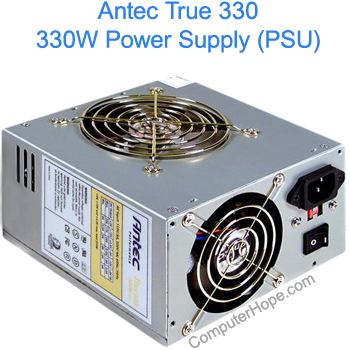
To install a power supply in your computer, follow the steps and guidelines below.
Before getting started
- Write down important information from the top or bottom of the power supply, such as the Model Number, Serial Number and specifications (e.g., voltage and watts).
- Ensure you are familiar with ESD (electrostatic discharge) and its potential dangers.
- When installing a power supply, turn the computer off and disconnect the cord connected to the power supply.
Remove previous power supply
If you are replacing a power supply inside the computer, it needs to be removed. First, disconnect the power supply from all the devices it is powering inside the computer, including the motherboard and any internal drives. Next, locate all screws that fasten the power supply to the case and remove them. Then, slide the power supply out and remove it from the computer.
Install power supply
Once the previous power supply is removed, place the new power supply into the computer and fasten the screws into the back of the power supply. Some computer cases also have a screw inside the computer case. If present, also fasten a screw into this hole.
Connect cables
Once the power supply is installed into the computer case and screws fastened, attach the power supply cable from the power supply to the motherboard. Next, connect each of the power connectors for the hard drive, CD-ROM (compact disc read-only memory), floppy drive, and any other peripherals.