
How to find how long my computer's been running

Determining how long your computer has been running, also known as uptime, depends on the operating system you're running on the computer. Below are ways to determine how long a computer has been up for different operating systems.
Most Linux and Unix systems
Users who are running Linux, Unix, or variants of either operating system can determine the uptime on a computer by running the uptime command.
Windows Server
In Windows Server 2012 and later you can use the net stats srv command as shown below to see the system uptime.
net stats srv
Windows Vista, 7, 8, 10, and 11
We suggest you use the Uptime tool. You can also gain additional information including the uptime of a computer with any of the free third-party utilities.
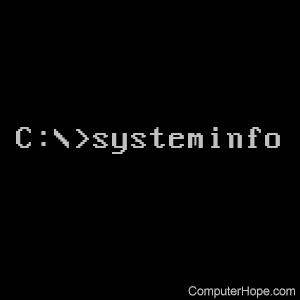
Windows Vista, 7, 8, 10, and 11 users can also run the following systeminfo command to see the boot time for determining how long the computer's been running. You can also gain additional information including the uptime of a computer with any of the free third-party utilities.
systeminfo | find "System Boot Time"
Windows users can also use the wmic command to view the OS (operating system) last boot time by running the following command.
wmic os get lastbootuptime
In Windows Task Manager you can find the up time by going into the Performance tab and look at the bottom of the CPU (central processing unit) stats for the total up time. This doesn't tell you when the computer boot but will tell you how long the computer has been running.
Finally, you can also determine the last boot time by running the following command in the PowerShell command line.
Get-CimInstance Win32_OperatingSystem | Select-Object LastBootUpTime
Windows XP
Microsoft Windows XP Home users
We suggest you use the Uptime tool. You can also gain additional information including the uptime of a computer with any of the free third-party utilities.
Microsoft Windows XP Professional users
Windows XP Professional users can run the systeminfo command to see the boot time for determining how long the computer's been running. You can also gain additional information including the uptime of a computer with any of the free third-party utilities.
Windows 2000
We suggest you use the Uptime tool or trying one of the suggestions below.
Broadband and Network users
If your Windows 2000 computer is always connected to a network connection, you can use the network's duration as a way to determine your uptime. To do this, follow the steps below.
- Right-click the network icon in the systray.
- Click Status.
- In the Status window, a duration is listed and is a good indication of your uptime, unless you've lost connection since your computer boot.
Third-party utilities
Windows 98 and Me
Windows 98 users can display the uptime information by following the steps below.
- Click Start.
- Click Programs.
- Click System Tools.
- Click System Information.
- In the System Information window, on the right side, look for uptime.
Windows NT
We suggest you use the Uptime tool.