
How to connect an external display to my laptop
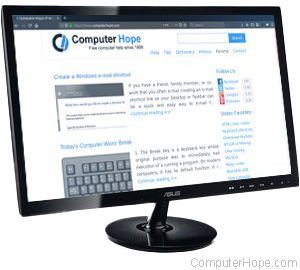
All modern laptops can connect to an external display, such as an LCD (liquid-crystal display) or LED (light-emitting diode) monitor, projector, or TV. The external display can extend your viewing area, giving you more space for applications, or mirror your laptop screen (show the same thing on both screens). The following sections show you how to connect an external display to your laptop computer. To proceed, select your operating system from the list below and follow the instructions.
How to connect to an external display in Windows
To connect the external display to a laptop, locate the correct port on the body of your laptop. Most laptops utilize on or more of the following connections: HDMI (High-Definition Multimedia Interface), DisplayPort, or USB-C (Thunderbolt 3). Some older laptops use DVI (digital visual interface) or VGA (video graphics adapter). These various connections are shown in the images below.
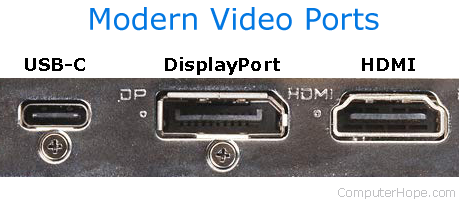
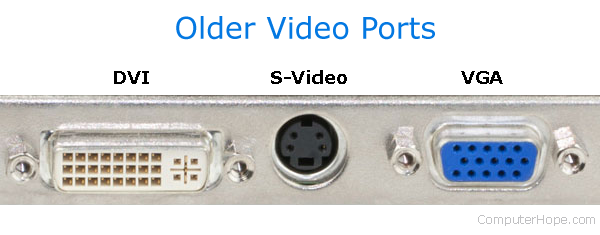
Once you plug the display into your laptop, you may be required to press one or more keys on the laptop's keyboard to "activate" the external display. This keyboard shortcut varies depending on the laptop, but is often one of the following: press and hold the Fn key, and press F3, F4, F5, F7, F8, F9, or F10.
The activation function key usually has a picture of a monitor on or above it. Consult your laptop's manual if you can't find the key. If you are still having trouble, or you must download a copy of the manual, visit the laptop manufacturer's website.
Change what's displayed on the secondary monitor
In Windows, press Windows key+P to show the Project options (for controlling a projector or external display).
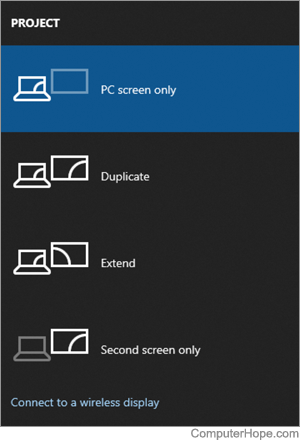
- PC Screen Only - Only the primary display is active. The external display is not used.
- Duplicate - The same image is shown on both displays. If the displays have different resolutions, the resolution of the smaller display is used for both.
- Extend - The external display extends the primary. Application windows can be moved from one display to the other if you click-and-drag the window's title bar.
- Second screen only - The primary display is disabled, and only the secondary display is enabled.
If your external display uses Miracast (HDMI over Wi-Fi Direct), click Connect to a wireless display to connect to it.
How to connect an external display in macOS
To connect your MacBook or MacBook Air to an external display in macOS, you must plug it into an HDMI, Thunderbolt, or USB-C port using the appropriate cable. If the external display doesn't show your desktop when you plug it in, you may need to select it in System Settings. However, doing so depends on the version of your device's operating system. To proceed, select your macOS version below and follow the steps.
Many modern laptops have limited ports. Consequently, you may need to add an adapter to facilitate connectivity. For example, to connect a TV to an Apple computer, you may need an HDMI to Mini DisplayPort adapter.
macOS Ventura and Sonoma
Below are steps for switching between displays in macOS versions 13 and 14.
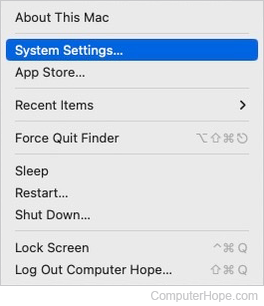
- At the top-left corner of the desktop screen, click the Apple icon.
- Select System Settings from the Apple menu.
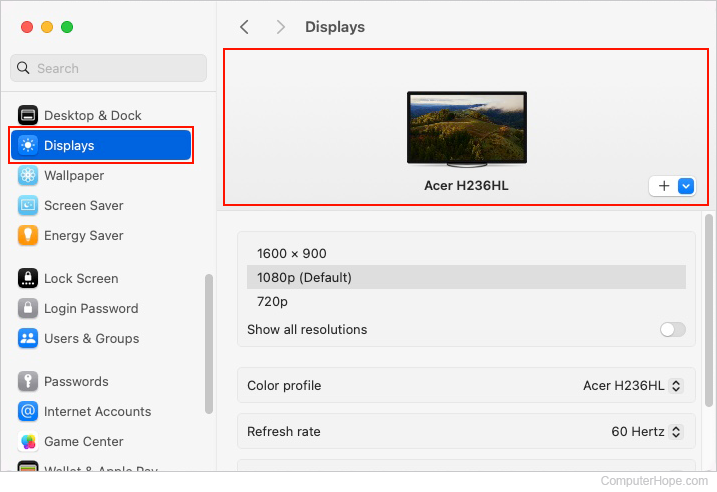
- In the sidebar, scroll down and click the Display selector. Then, in the right section under Displays, click your preferred external display.
macOS Mojave, Catalina, Big Sur, and Monterey
Here is how to switch between displays in macOS versions 10 through 12.
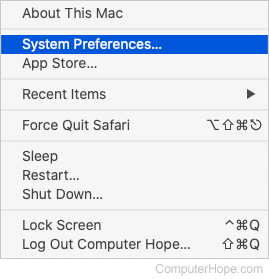
- In the menu bar, click the Apple icon to open the Apple menu.
- In the Apple menu, click System Preferences.
- Click the Displays shortcut icon.
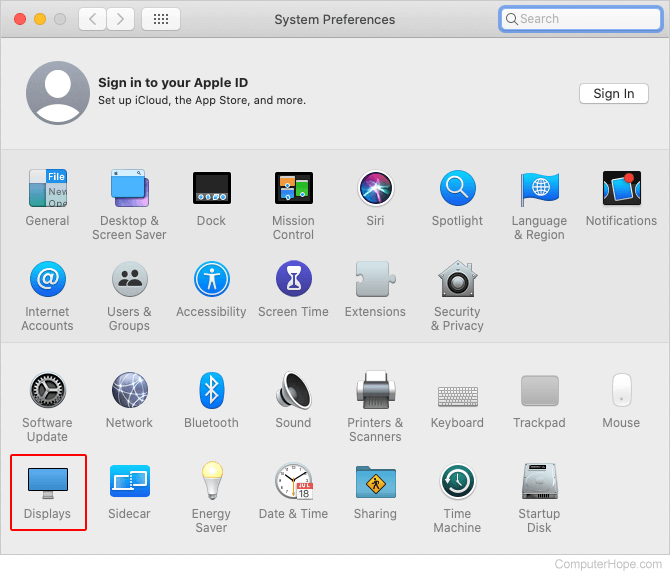
- In the new window, to the right, click the appropriate display.
Laptop connected to a docking station
If your laptop connects to a docking station, there should be several video ports on the back of it for a monitor. However, the types of ports varies from brand to brand. Depending on the docking station, the laptop may have to remain open for a dual monitor display.
How do I disable the auto-switch or specify an external display?
Some laptops have an external display "auto-switch" feature, which can be configured in the BIOS (basic input/output system).
Will a monitor work with my laptop if my laptop screen is broken?
In many cases, yes. If only the laptop's screen is broken, an external monitor usually still works with your laptop. However, if there are other malfunctioning components, such as the video card, the external display may not work.