
Why are web page images not showing?
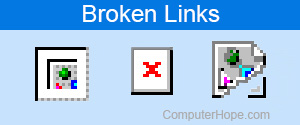
While browsing the Internet, various factors determine whether or not images load properly. There are also a few ways that image issues manifest themselves. For instance, pictures might not appear or show as a broken link (similar to the examples in the image). The following sections contain explanations and suggestions for fixing these problems.
Select the option that best describes your situation from the list below and follow the instructions to proceed.
Browser does not display any images on any page
If you don't see any images at all, it's likely an issue on your end and not the web page you're visiting. More specifically, it may be due to browser settings or incompatibilities. Before proceeding, ensure your Internet connection is working by going to a website you have never visited.
Try a different browser
One of the best ways to determine if it's your computer or the website is by trying a different browser. For instance, if you're using Chrome, you could try Firefox or Microsoft Edge. If you can view images on a different browser, that indicates something is wrong with the browser you use normally.
Browser configuration
Most web browsers support the ability to turn off images. This option can also help with load times for users who have a slower Internet connection or are only interested in the text on a page. Choose your browser from the list below and follow the steps to verify that images are enabled.

Google Chrome
To enable displaying images in Google Chrome, follow these steps.
- Open Google Chrome.
- Click the
 icon in the upper-right corner of the window.
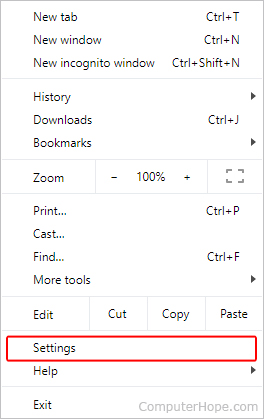
 - Select Settings from the drop-down menu.
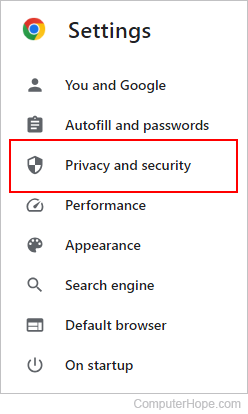
- On the left side of the screen, click Privacy and security.
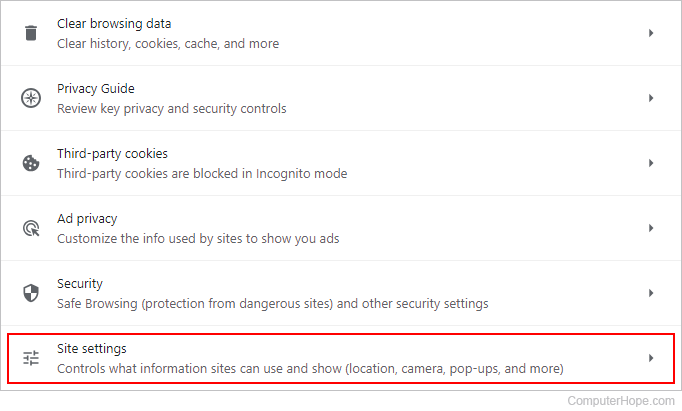
- Expand the Site Settings option.
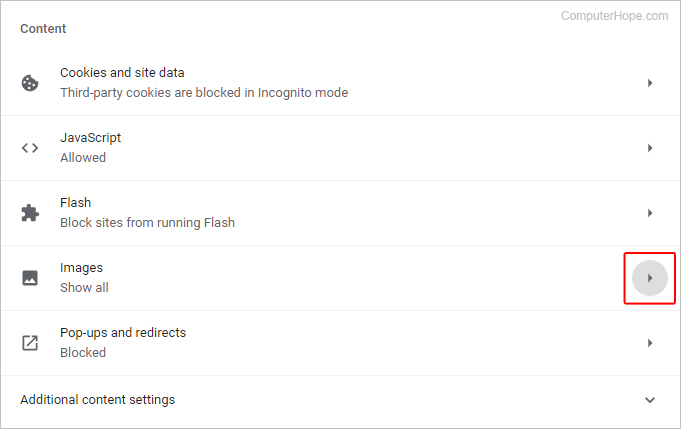
- Scroll down to the Content section and click Images.
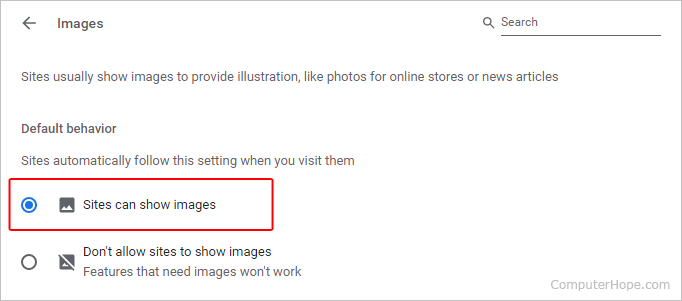
- Under the Default behavior section, ensure that the circle next to Sites can show images is selected.
- Close and reopen Chrome.

Mozilla Firefox
To enable displaying images in Firefox, follow these steps.
- Open Mozilla Firefox.
- Type about:config in the address bar.

- Click the Accept the Risk and Continue button.

- Type permissions.default.image into the search bar.
- In the center of the screen, make sure the value is set to 1. If not, click the small pencil icon and change it.

- Close and reopen Firefox.

Microsoft Edge
To enable displaying images in Microsoft Edge, follow these steps.
- Open Microsoft Edge.
- In the upper-right corner of the screen, click the
 icon.
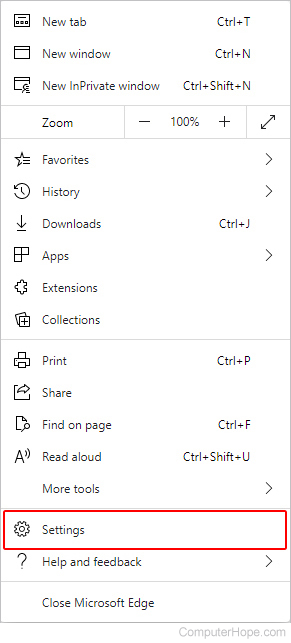
icon. - At the bottom of the Settings and more menu, select Settings.
- On the left side of the screen, select Cookies and site permissions.
- Under the Site permissions section, click the box labeled Images.

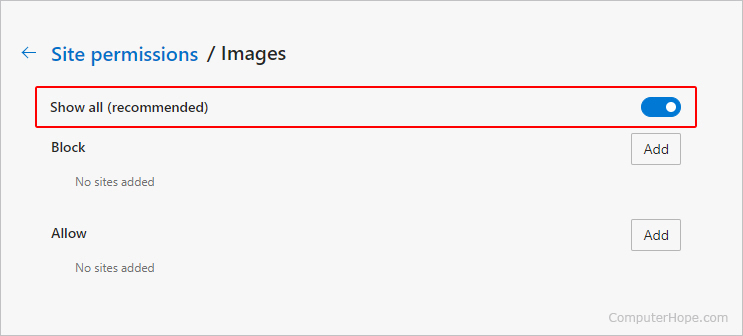
- On the Site permissions / Images screen, use the toggle switch to enable Show all (recommended).
- Close and reopen Microsoft Edge.

Internet Explorer
To enable displaying images in Internet Explorer, follow these steps.
- Open Internet Explorer.
- Click the Tools
 icon in the top-right corner of the window.
 - Select Internet Options.
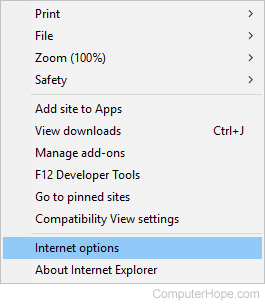
- In the Internet Options window, click the Advanced tab.
- In the Settings under Multimedia, make sure the Show Pictures checkbox is checked ✓.
- Click Apply, then OK.
- Close and reopen Internet Explorer.
If your issue persists, you can try the steps in our basic Internet Explorer troubleshooting page.
Internet Explorer cannot open JPG
If the image is saved as a JPG in CMYK (cyan, magenta, yellow, and key) color mode, Internet Explorer 8.0 cannot open it.

Safari
In Safari, to enable and disable images in the browser, you must access the developer options. The following sections show you how to turn on this feature and toggle images on and off.
- Open the Safari browser.
- Select
 from the menu bar at the top-left corner of the screen.
 - Select Settings... from the drop-down menu.
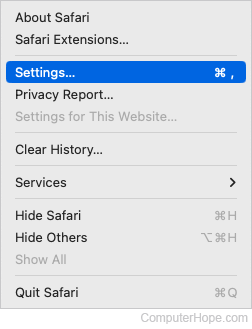
- Click the Advanced tab, and check the box next to Show Develop menu in menu bar.
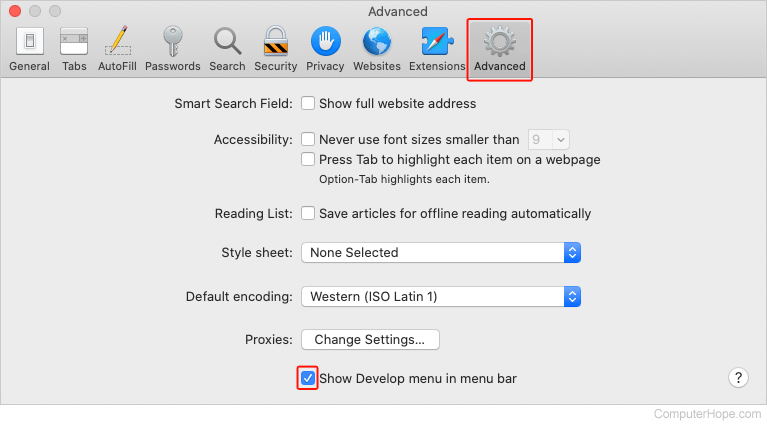
- You should now see the Develop selector in the Apple menu bar at the top of the screen; click it.

- In the drop-down menu, make sure there isn't a check mark next to Disable Images. If there is, click the selector to allow them once again.
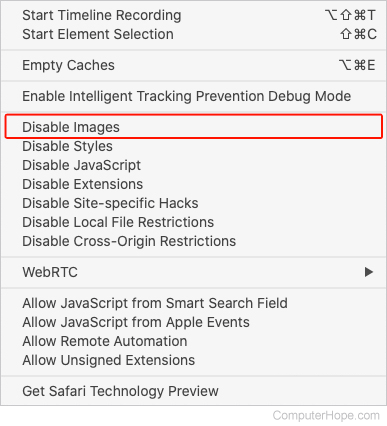

Opera
To enable displaying images in Opera, follow these steps.
- Open Opera.
- In the upper-left corner of the screen, click the
 icon.
icon. - Select Settings from the drop-down menu.
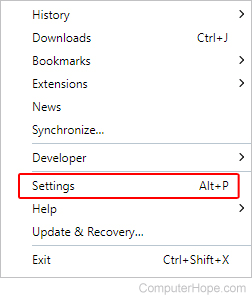
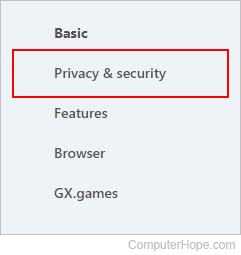
- On the left side of the tab that appears, click Privacy & security.
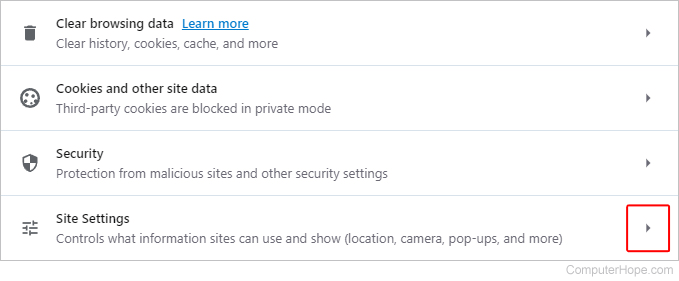
- In the Privacy and security section, click Site Settings.
- Scroll down the list and select Images.

- Under the Default behavior section, ensure that the circle next to Sites can show images is selected.
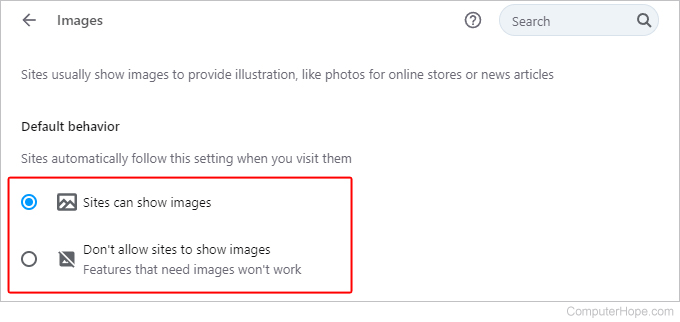
- Close and reopen Opera.
Clear cache and cookies
If you've determined that images are enabled in your browser settings, the next step is to clear your cache and cookies. This action effectively "resets" anything saved from previous visits to websites and help fix the problem. Once you've cleared your cache and cookies, close and reopen the browser. Then, try accessing the site with the missing images again.
Browser updates
Another factor in page functionality is the browser's version. If you're using an out-of-date browser, it may be causing issues with the way pages are loading, including images. Once you've updated your browser, close and reopen it. Then, try the site with the missing images again.
Browser shows images, but some are missing
When only certain images are missing, it's usually a problem with the website you're visiting and not your computer or browser. More specifically, some images don't load for one or more of the following reasons.
Possible causes
- The web page is not pointing to the correct URL (uniform resource locator) of the image.
- The server or computer hosting the image has moved or removed the image, and the web page has not yet been updated.
- The web page or computer hosting the image is getting too many requests and can't send you the image.
- Your protection software is blocking the image.
Possible solutions
The following sections contain suggestions for resolving the issues surrounding specific websites or pages that are missing images.
Check an alternate server
One way to diagnose this problem is to see if the image is being hosted on an alternate server. If it is, try to locate it. Right-click the image or broken link icon and select Properties from the drop-down menu. You should see the Internet address of the image.
Copy that link, paste it into the address bar, and remove the name of the image. For example, if you performed this action on the image at the top of the page, you would copy "https://www.computerhope.com/issues/pictures/broken-links.png", then remove "broken-links.png" from the URL. Some websites list the directory of files (Computer Hope has this feature disabled), thus giving you the location of the image. Doing this is also a good method for determining whether or not the computer hosting the image is still active.
Disable spyware protection
If you trust the site you're visiting and have spyware protection (e.g., Malwarebytes or McAfee Total Protection), try temporarily disabling it to verify it's not blocking the images.
Try the page later
Sometimes, a website's server or hosting service is too busy to send you the requested images. Try visiting the web page in a few hours or the next day.
Try another source
Try searching for the file name in a popular search engine, such as Google, to see if the image is located elsewhere. The name of the image file is the last part of the URL. In the earlier example, searching "broken-links.png" may allow you to find the image elsewhere on the web.
Windows host
If you're running Microsoft Windows, verify your "hosts" file is not blocking or redirecting the website you're visiting. For more information, see our lmhost file definition page.