
How to open Safe Mode
Safe Mode helps troubleshoot computer problems, including software and hardware issues. To access Safe Mode in Windows or macOS, select the link below for the operating system you have on your computer.
Accessing Safe Mode for Windows or macOS requires a working keyboard. If the keyboard on your computer does not work, you cannot access Safe Mode.
Windows 11
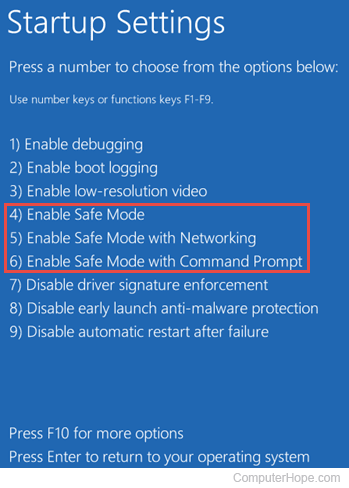
To access Safe Mode in Windows 11, follow the steps below.
- Press the Windows key, type Change advanced startup options, and press Enter.
- In the Recovery options section, click the Restart now button for the Advanced startup option.
- Click Restart now in the pop-up window.
- After a moment, you will see a menu with four options. Select the Troubleshoot option.
- On the next screen, select Advanced options.
- On the next screen, select Startup Settings.
- Click the Restart button on the following screen.
- A screen like the one pictured should appear. Select the appropriate Safe Mode option by pressing the corresponding number on your keyboard.
Alternative method
- Press the Windows key+R together to access the Run option.
- Type msconfig in the Open: field.
- In the System Configuration window, click the Boot tab.
- On the bottom-left side, in the Boot options section, check the box for Safe boot.
- Select the Minimal option, click Apply, and click OK.
- Restart the computer, and it should load to Safe Mode.
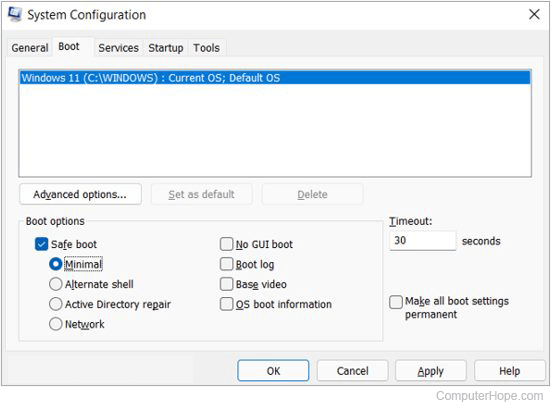
If you use the option above to access Safe Mode, you must follow the same steps and uncheck the Safe boot option when you're done. Otherwise, your computer continues to boot to Safe Mode each time you restart it automatically.
Windows 10
To access Safe Mode in Windows 10, follow the steps below.
- Press the Windows key, type Change advanced startup options, and press Enter.
- Under the Recovery tab, select the Restart now option under Advanced startup.
- After a moment, you see a menu with three options. Select the Troubleshoot option.
- Select Advanced options, Startup Settings, and then the Restart button.
- A screen like the one pictured should appear. Select the appropriate Safe Mode option by pressing the corresponding number on your keyboard.
Alternative method
- Press the Windows key+R together to access the Run option.
- Type msconfig in the Open: field.
- In the System Configuration window, click the Boot tab.
- On the bottom-left side, in the Boot options section, check the box for Safe boot.
- Select the Minimal option, click Apply, and click OK.
- Restart the computer, and it should load to Safe Mode.
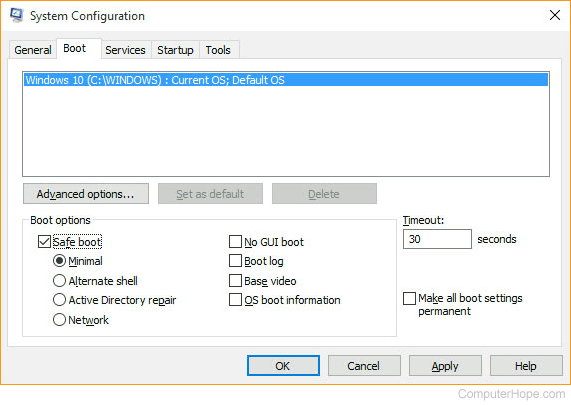
If you use the option above to access Safe Mode, you must follow the same steps and uncheck the Safe boot option when you're done. Otherwise, your computer continues to boot to Safe Mode each time you restart it automatically.
Windows 8
To access Safe Mode in Windows 8, follow the steps below.
- Press the Windows key, type Change advanced startup options, and press Enter.
- Under the Recovery tab, select the Restart now option under Advanced startup.
- After a moment, a menu with three options; select Troubleshoot.
- Select Advanced options, Startup Settings, and then the Restart button.
- A screen like the one pictured should appear. Select the appropriate Safe Mode option by pressing the corresponding number on your keyboard.
Alternative method 1
The following method does work if you have an SSD (Solid-State Drive). If you have an SSD, try the next section.
- When the computer is booting, press and hold Shift and tap the F8 key repeatedly until the Recovery screen appears.
- Click the See advanced repair options option on the Recovery screen.
- On the Choose an option screen, select the Troubleshoot option.
- Select Advanced options and then Windows Startup Settings.
- On the Windows Start Settings screen, click the Restart option.
If you have trouble getting to the Recovery screen in step 1 above, you may have to try it several times, with several reboots of your computer.
The standard Choose Advanced Options screen should appear when the computer restarts, similar to the example below. Use your arrow keys to move to Safe Mode and press Enter.
Choose Advanced Options for: Microsoft Windows 8
(Use the arrow keys to highlight your choice.)
Repair Your Computer
Safe Mode
Safe Mode with Networking
Safe Mode with Command Prompt
Enable Boot Logging
Enable low-resolution video
Debugging Mode
Disable automatic restart on system failure
Disable Driver Signature Enforcement
Disable Early Launch Anti-Malware Driver
Start Windows Normally
Description: Start Windows with only the core drivers and services. Use
when you cannot boot after installing a new device or driver.
Alternative method 2
- Press the Windows key+R together to access the Run option.
- Type msconfig in the Open field.
- In the System Configuration window, click the Boot tab.
- On the bottom-left side, in the Boot options section, check the box for Safe boot.
- Select the Minimal option, click Apply, and click OK.
- Restart the computer, and it should load to Safe Mode.
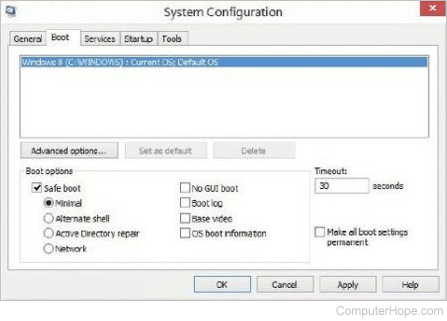
If you use the option above to access Safe Mode, you must follow the same steps and uncheck the Safe boot option when you're done. Otherwise, your computer continues to boot to Safe Mode each time you restart it automatically.
Windows 7 and Windows Vista
If you are running Safe Mode because you cannot get to Windows, try loading the last known good configuration. See: How to load the last known good configuration.
To get into the Windows Vista and Windows 7 Safe Mode, as the computer is booting, press and hold the F8 key, which brings up the Choose Advanced Options screen shown below. Use your arrow keys to move, highlight Safe Mode, and press your Enter key.
On some computers, if you press and hold a key as the computer is booting, a stuck key message occurs. If this occurs, continuously tap F8 upon startup rather than holding it.
Trouble Getting into Safe Mode - If, after several attempts, you cannot get the Windows Advanced Options Menu screen to come up by pressing F8, turn off your computer while it is loading into Windows. When the computer is turned on the next time, Windows notices the computer did not successfully boot and displays the Safe Mode screen below.
Choose Advanced Options for: Microsoft Windows Vista
Please select an option:
Safe Mode
Safe Mode with Networking
Safe Mode with Command Prompt
Enable Boot Logging
Enable low-resolution video (640x480)
Last Known Good Configuration (advanced)
Directory Services Restore Mode
Debugging Mode
Disable automatic restart on system failure
Disable Driver Signature Enforcement
Start Windows Normally
Description: Start Windows with only the core drivers and services. Use
when you cannot boot after installing a new device or driver.
Once done in Safe Mode, restart the computer to get back into normal Windows. See the below how to get out of Safe Mode if you have further questions.
Alternative method
- Press the Windows key+R together to access the Run option.
- Type msconfig in the Open field.
- In the System Configuration window, click the Boot tab.
- On the bottom-left side, in the Boot options section, check the box for Safe boot.
- Select the Minimal option, click Apply, and click OK.
- Restart the computer, and it should load to Safe Mode.
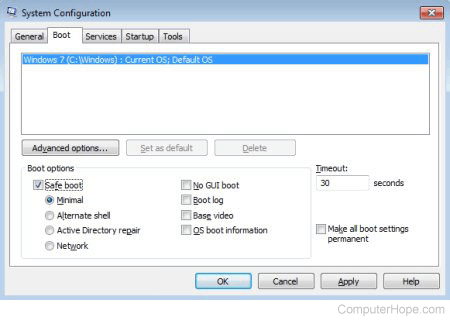
If you use the option above to access Safe Mode, you must follow the same steps and uncheck the Safe boot option when you're done. Otherwise, your computer continues to boot to Safe Mode each time you restart it automatically.
Windows XP and Windows 2000
If you're running Safe Mode because you cannot get to Windows, try loading the last known good configuration. See: How to load the last known good configuration.
To get to the Windows 2000 and XP Safe Mode, as the computer is booting, press and hold F8, which brings up the Windows Advanced Options Menu screen shown below. Use your arrow keys to move to highlight the Safe Mode option and press your Enter key.
On some computers, if you press and hold a key as the computer is booting, a stuck key message occurs. If this occurs, continuously tap F8 upon startup rather than holding it.
Trouble Getting into Windows 2000 or Windows XP Safe Mode - If, after several attempts, you cannot get the Windows Advanced Options Menu screen to come up by pressing F8, turn off your computer while it is loading into Windows. When the computer is turned on the next time, Windows should notice that the computer did not successfully boot and give you the Safe Mode screen.
Windows Advanced Options Menu
Please select an option:
Safe Mode
Safe Mode with Networking
Safe Mode with Command Prompt
Enable Boot Logging
Enable VGA mode
Last Known Good Configuration (your most recent settings that worked)
Directory Services Restore Mode (Windows domain controllers only)
Debugging Mode
Start Windows Normally
Reboot
Return to OS Choices Menu
Use the up and down arrow keys to move the highlight to your choice.
Once done in Safe Mode, restart the computer to get back into normal Windows. See the how to get out of Safe Mode section if you have further questions.
Windows 98 and Windows Me
To get to Windows 98 and Me Safe Mode, press and hold either the F8 or Ctrl key as the computer is booting up. If done correctly, a "Windows 98 Startup Menu" or "Windows Me Startup Menu" screen, similar to the example below, should appear. In this menu, choose option 3 by pressing 3 and press Enter.
On some computers, if you press and hold a key as the computer is booting, a stuck key message occurs. If this occurs, continuously tap F8 on startup rather than holding it.
Microsoft Windows 98 Startup Menu
=============================
1. Normal
2. Logged (\BOOTLOG.TXT)
3. Safe mode
4. Step-by-step confirmation
5. Command prompt only
6. Safe mode command prompt only
Enter a choice: 1
F5=Safe Mode Shift+F5=Command prompt Shift+F8= Step-by-step confirmation [N]
Once done in Safe Mode, restart the computer to get back to normal Windows. See the below how to get out of Safe Mode if you have further questions.
Windows 95
To get to Windows 95 Safe Mode, as the computer is booting, when you either hear a beep or when you see the message "Starting Windows 95." Press F8 on the top of your keyboard. The "Windows 95 Startup Menu" screen, similar to the example below, should appear if done correctly. In this menu, choose option 3 by pressing 3 and press Enter.
Microsoft Windows 95 Startup Menu
=============================
1. Normal
2. Logged (\BOOTLOG.TXT)
3. Safe mode
4. Step-by-step confirmation
5. Command prompt only
6. Safe mode command prompt only
Enter a choice: 1
F5=Safe Mode Shift+F5=Command prompt Shift+F8= Step-by-step confirmation [N]
Once done in Safe Mode, restart the computer to get back to normal Windows. See the below how to get out of Safe Mode if you have further questions.
Windows Command Prompt
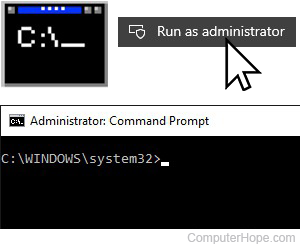
Window users can enable Safe Mode through an elevated version of the Command Prompt.
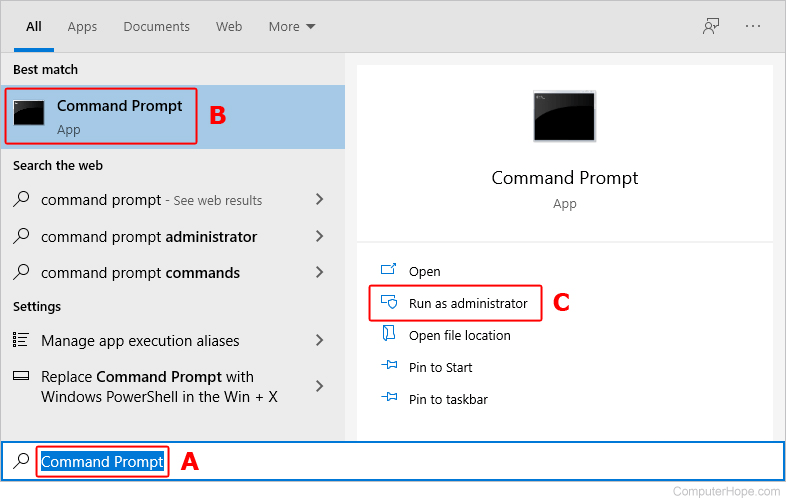
- Press the Windows key and type Command Prompt (A).
- In the search results on the left, use the arrow keys to highlight the Command Prompt program (B).
- On the right side of the window, click Run as administrator (C).
- Click the Yes button in the prompt.
- Enter the following command.
bcdedit /set {current} safeboot minimal
- Your computer is now set to boot to Safe Mode.
- Restart Windows or enter the following command to restart from Command Prompt.
shutdown /r
To access the Internet or troubleshoot network issues, enter Safe Mode with networking capabilities by typing bcdedit /set {current} safeboot network instead of the command mentioned above.
See our bcdedit command page for further information on this command.
macOS
How you get macOS into safe mode depends on which version you're running. To proceed, select the appropriate entry from the list below and follow the steps. If you're unsure which version is on your device, see our page: How to determine the version of macOS on a computer.
macOS Ventura and Sonoma
Here is how to get into safe mode in macOS versions 13 and 14.
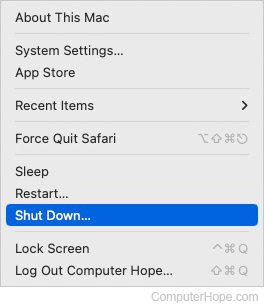
- At the top-left corner of the desktop screen, click the Apple icon.
- In the Apple menu, click Shut Down.
- In the prompt, click the Shut down button to confirm your choice.

- Press and hold the power button on your Mac until the text "Loading startup options" appears on the screen.
- Select the volume from which you'd like to boot.
- Press and hold the Shift key, then click Continue in Safe Mode.
- Once macOS finishes loading, "Safe Boot" is shown in the upper-right corner of the screen.
macOS High Sierra, Mojave, Catalina, Big Sur, and Monterey
- Turn on or restart your Mac.
- Press and hold Shift while your computer boots.
- When you see the login window, release Shift.
- Log in to your Mac.
- Once macOS finishes loading, "Safe Boot" is shown in the upper-right corner of the screen.
You might have to log in a second time.
How to get out of Safe Mode
To get out of Safe Mode on Windows or macOS, restart the computer.
Many users believe they are still in Safe Mode because the colors or video may not look correct. Unless it says "Safe Mode" in the corners of the screen, you are not in Safe Mode. If your colors are distorted, or you have video problems, see: How to view or change the screen resolution of a monitor.
What if I can't get out of Safe Mode?
If you reboot the computer and it's still in Safe Mode, you may need to disable the feature manually.
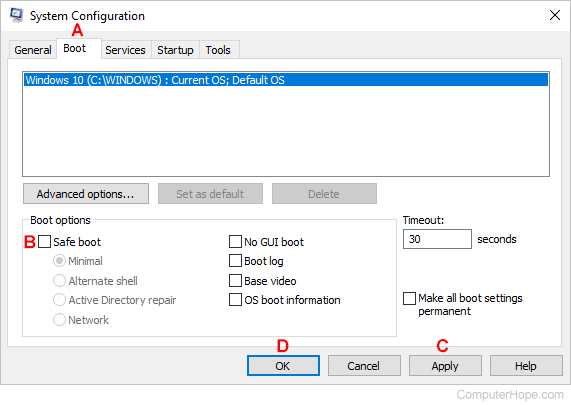
- Press the Windows key, type msconfig, and press Enter.
- In the window, click the Boot tab (A).
- In the Boot options section, uncheck the box next to Safe boot (B).
- Click Apply (C), then OK (D).
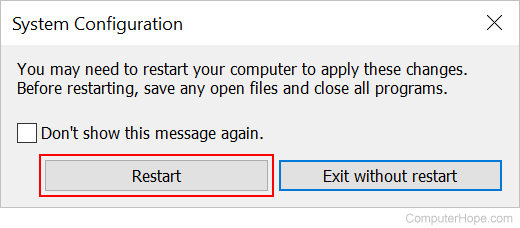
- If prompted, click the Restart button. Otherwise, restart the computer manually.
What if I still can't get out of Safe Mode?
If you're still unable to get the computer out of Safe Mode, another problem exists with Windows, preventing it from loading normally. We recommend you see the basic troubleshooting page for ideas to resolve your issue.
Which Safe Mode option should I choose?
Users running later versions of Windows get different options for different versions of Safe Mode. For example, you may have options for "Safe Mode," "Safe Mode with Networking," and "Safe Mode with Command Prompt." Below is a brief description of each of these different modes.
Safe Mode
The basic Safe Mode option is usually what most users want to choose when troubleshooting their computers. The only downside is that this option has no additional support.
Safe Mode with Networking
Users who need access to the Internet or the network while in Safe Mode should select this option. This mode is helpful when you must access the Internet while in Safe Mode to get updates, drivers, or other files to help troubleshoot your issue.
Safe Mode with Command Prompt
This version of Safe Mode gives you access to the command line (MS-DOS prompt).