
High contrast

The high contrast setting is an accessibility feature built into Windows that assists people with vision impairment. You may change the size and color of fonts and the background for ease of viewing. To enable high contrast, select your version of Windows below and follow the steps.
Windows 8 and 10
Windows 8 and 10 users can toggle the high contrast color scheme on and off by pressing and holding Alt, the left Shift, and the Print Screen key all at the same time.
To manually adjust the settings, follow the steps below.
- Open the Windows Settings app by pressing the Windows key+I keys (hold down the Windows key and press "i").
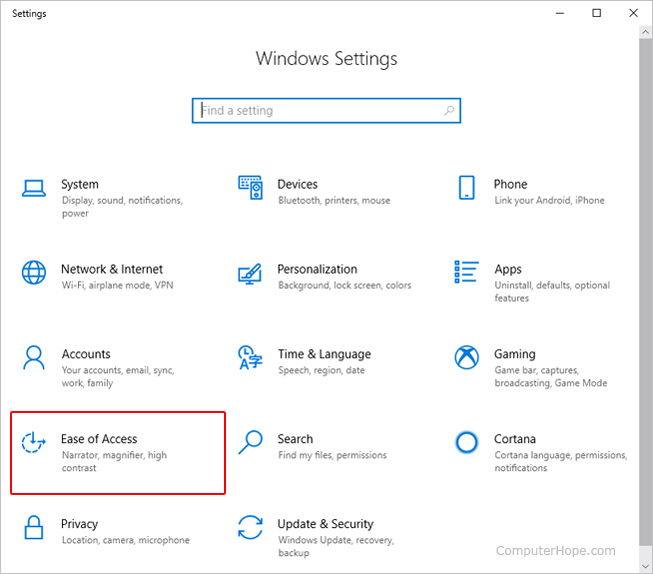
- On the Windows Settings screen, select the Ease of Access option.
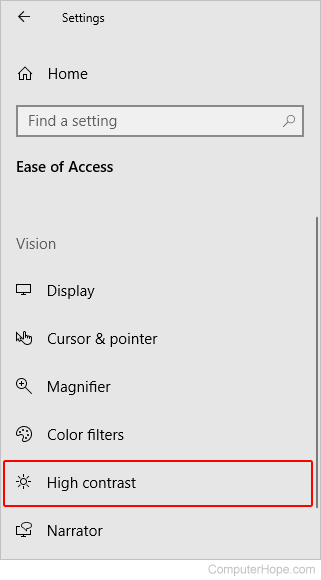
- In the left navigation menu, select the High contrast option.
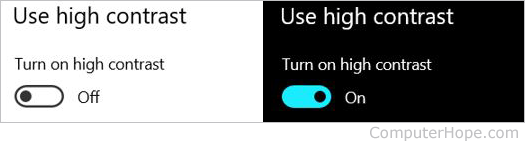
- On the High contrast screen, click or tap the toggle switch to turn high contrast on or off.
Windows Vista and 7
Windows Vista and 7 users can turn on and off the high contrast color scheme by pressing and holding Alt, the left Shift, and the Print Screen key all at the same time.
To manually adjust the settings, such as displaying a warning message when entering this mode or disabling this feature, follow the steps below.
- Open the Control Panel.
- In the Control Panel, double-click the Ease of Access Center icon.
- Click the Set up High Contrast icon or Optimize visual display.
- From this window, you'll be able to adjust all the High Contrast color scheme settings.
Windows XP
- Open the Control Panel.
- Double-click the Accessibility Options icon.
- In the Accessibility Options window, click the Display tab.
- Check the box to Use High Contrast.