
Edit command
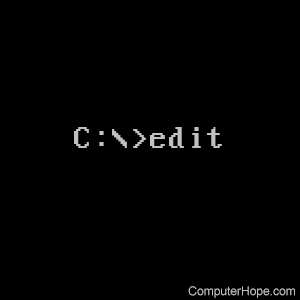
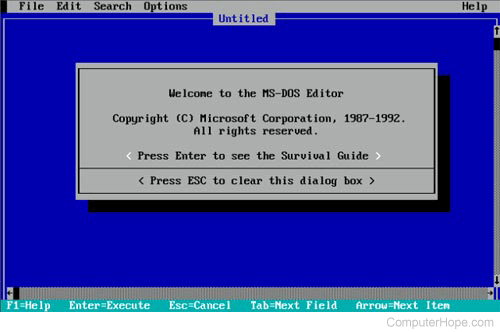
The MS-DOS text editor, edit, lets you view, create, or modify any text file on your computer. While running edit, a screen similar to the picture below is shown.
Availability
Edit is an external command available for the following Microsoft operating systems.
- MS-DOS 5.x and above
- Windows 95
- Windows 98
- Windows Me
- Windows NT
- Windows 2000 (32-bit)
- Windows XP (32-bit)
- Windows Vista (32-bit)
- Windows 7 (32-bit)
The edit command is a legacy 16-bit program, which is incompatible with 64-bit operating systems. Therefore, 64-bit versions of Windows do not come installed with, and cannot run, the edit command. On 64-bit Windows systems, use Notepad to edit files instead. See: Why is the edit command missing in Windows?
Edit syntax
EDIT [/B] [/H] [/R] [/S] [/<nnn>] [/?] [FileName...]
| /B | Forces monochrome mode. |
| /H | Displays the maximum number of lines possible for your hardware. |
| /R | Load file(s) in read-only mode. |
| /S | Forces short file names. |
| /<nnn> | Load binary file(s), wrapping lines to <nnn> characters wide. |
| /? | Display a summary of command line options. |
| [FileName...] | Specifies initial files(s) to load. Wildcards and multiple file specs can be given. |
Edit examples
edit c:\autoexec.bat
Open the file c:\autoexec.bat to be edited, if it exists. If the file does not exist, a blank blue screen is shown.
If you are using new versions of Windows running under a 64-bit processor, the edit command no longer works. See: How to open a file.
Using "copy con"
If you are running an MS-DOS version 4.x or lower, or edit.com is not found on your hard drive, use the following command to create a file.
copy con FileName
After entering the command above, a file with the name specified is created.
After typing all the lines you want to be in the file, press and hold Ctrl+Z. Once you see "^Z" on the screen, press Enter and one file should be copied.
Using edit to create a new file
Using edit lets you to create a new file. For example, if you wanted to create a file called myfile.txt, type the command below.
edit myfile.txt
This command would bring up a blank edit screen. Type your text and save the file, and myfile.txt is created with the text you entered.
Additional information
- Edit is only able to open a file with a maximum of 65,280 lines.
- If your mouse drivers are not loaded while in MS-DOS or the Windows command line, you may have no mouse support. It is still possible to navigate the Editor using keyboard shortcuts as seen in the below list.
- Pressing Alt lets you quickly navigate through edit without having to memorize all the commands listed below.
Commands available in edit
| Home | Move cursor to the beginning of the line. |
| End | Move cursor to the end of line. |
| Ctrl+↑ | Scroll up one line. |
| Ctrl+↓ | Scroll down one line. |
| PgUp | Scroll up one screen at a time. |
| PgDn | Scroll down one screen. |
| Ctrl+PgUp | Scroll left one screen. |
| Ctrl+PgDn | Scroll right one screen. |
| Ctrl+Home | Scroll to the top of the file. |
| Ctrl+End | Scroll to the bottom of the file. |
| Ctrl+← | Move left one word. |
| Ctrl+→ | Move right one word. |
| Enter | Starts a new line or moves text after the cursor down. |
| Del | Deletes one character that cursor is on or currently selected text. |
| Backspace | Deletes one character before (left) the cursor. |
| Tab | Moves cursor or text to the next tab stop, or indents line if at first character. |
| Insert | Switch between insert and overwrite mode. |
| Ctrl+Y | Deletes the current line. |
| Ctrl+V | Pastes contents currently in the buffer, if any. |
| Ctrl+P | Allows special characters to be inserted into edit. |
| Shift | Using Shift in combination with any of the above scrolling or moving commands highlights text, such as Ctrl+Shift+→. |
| Ctrl+C | Copies currently selected text into the buffer. |
| Ctrl+X | Cuts the currently selected text into the buffer. |
| Shift+Tab | Removes indents on the selected line. |
| Ctrl+Q+F | Find text. |
| Ctrl+Q+A | Find and replace text. |
| F3 | Repeat the last search. |
| F5 | Switch to the next edit window, if any. |
| Ctrl+F4 | Closes second edit window. |
| Ctrl+F6 | Open new edit window. |
| Ctrl+F8 | Resizes edit window. |
| F1 | Displays help. |