
How to open, view, and edit the contents of a file on a computer
A file may be compiled or created only to be viewed by a particular program. The examples below open a plain text file. If the file looks like garbage when opened, the program is not capable of viewing the file. Make sure the program you must open the file is installed and associated with the file type. If you don't know what program to use, determine the file extension and review our file extensions page for a listing of associated programs.
Select your operating system in the list below for instructions on viewing the contents of a plain text file.
Microsoft Windows users
Double-click the file that you want to open. The program associated with the file opens that file.
You can open multiple files, such as Word documents, Excel spreadsheets, plain text files, PDF (Portable Document Format) files, and more, at the same time. The associated programs open each file and display them on the computer screen.
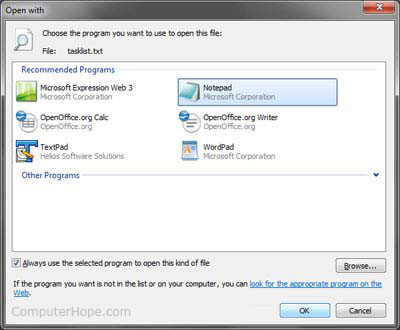
If the file is unassociated with a program, you will receive an "Open With" prompt. If you don't know which program to use, try using WordPad or Notepad.
If the file is associated with a program, but you want to use a different program, hold down Shift and right-click the file. Select Open With from the drop-down, and select the program you want to use to open the file.
Alternative method
- Open the program you want to use to view the file. For example, if you wanted to view the file in Microsoft Word, you would open it first.
- Once the program is opened, from the file menu, select Open or use the keyboard shortcut Ctrl+O.
- In the Open window, browse to the location of the file, select the file, and click OK or Open.
Windows users can also use the methods mentioned below to open a file using the Windows command line.
MS-DOS and Windows command line users
List files
If you need to view a list of available files in the current directory, you can use the dir command.
Edit command
Locate the file that you want to view. The example below, we are opening the file autoexec.bat in the current directory.
edit autoexec.bat
If the file does not exist, was entered improperly, or is empty, a blank window similar to the example below is shown.
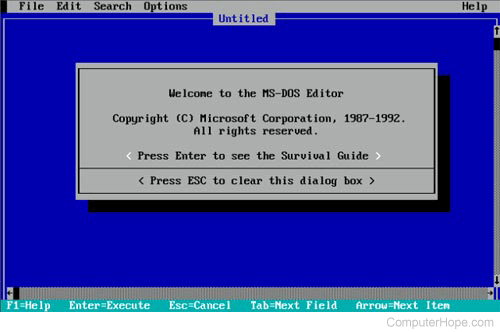
Once you have edited the file or typed the information for the file, click File, and choose Exit. If you do not have a mouse, see the edit command page for keyboard shortcuts and other navigation tips.
After clicking exit, if any changes were made, you'll be asked to save the file. Click Yes to finalize your changes.
Start command
New, 64-bit versions of Windows no longer support the edit command. You can also use the start command to open a file in a text editor, such as Notepad, using the following command.
start notepad hope.txt
In the example above, if the file "hope.txt" did not exist in the current directory, you are prompted to create a new file.
The start command can also be used to open any file on your computer. For example, if you have Microsoft Word installed on the computer and want to open a Word document from the command line, you would enter the following:
start hope.doc
Type command
If you only want to view the file's contents, you can also use the type command:
type hope.txt
In the example above, the command would display all of the contents of the hope.txt to the file. If the file is a large file, it keeps scrolling unless you press the pause key. For large files, you can also pipe the command to more as shown in the example below.
type hope.txt | more
In the previous example, the type command displays the contents one page at a time. Pressing Enter advances the output one line at a time and pressing spacebar advances one page at a time.
Copy con
If you cannot use any of the methods above, you can also use copy con to create a file.
copy con hope.txt
Once you have entered the above command, the hope.txt file is created.
After you have typed all the lines, you want to be in the file, press and hold Ctrl+Z. After ^Z is shown on the screen, press Enter to save the file.
The copy con method only creates a basic file. It does not allow you to edit a file or go back and fix any errors made while creating a line in the file.
macOS users
On a Mac computer, you can double-click a file to open the file in the program associated with the type of file you are opening. Once the file is opened, you can view the file's contents and make changes to it.
You can also open a file by selecting it on the desktop, or in the Finder application. Then press Command + down arrow key.
Microsoft Windows Explorer
Windows users have an extra utility in the way of Explorer. Any file you need to find can be searched through it. Press Windows key and E at the same to access Windows Explorer.
Unix and Linux users
List files
If you need to view a list of available files in the current directory, you can use the ls command.
Opening, creating, editing, and viewing files in Linux
Because of all the available options for each Linux variants we've given this section a page of its own in the following link.