
How to change a file extension
Although any file can be renamed, it doesn't mean that, after it is renamed, it can be opened with any program. For example, you can rename a .BAT to a .EXE, however it will not run because a .EXE file is a compiled file. To change the file type, it must be converted or saved as the destination file type, with the appropriate file extension.
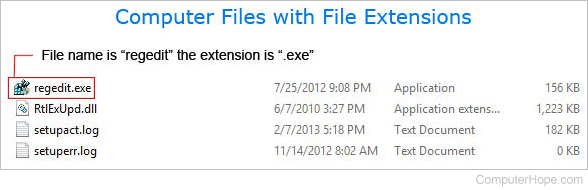
Below is a listing of how to change the file extension for each of the major IBM compatible operating systems.
Windows users
Before renaming a Windows file extension, you must have show file extensions enabled. By default, this option is disabled.
Assuming the file is named myfile.txt, we rename it to myfile.doc.
- Right-click the file (not the shortcut).
- Select Rename in the menu
- Erase the .txt from myfile.txt.
- Type .doc (it is important to have the dot to separate the file name and file extension).
Renaming multiple file extensions
To rename or change the file extensions of multiple files, we recommend you enter the Windows command line and follow the steps below.
MS-DOS and Windows command line users
Open an MS-DOS or Windows command line.
Change the directory to where the file is located. In our example below, we rename the file myfile.txt to myfile.doc.
move myfile.txt myfile.doc
Unless the file already exists, no message is displayed or an "OK" message indicates the file was renamed.
Renaming multiple file extensions
To rename multiple files that have the same file extension without the aid of a different program, we recommend you follow the steps below.
The example below we rename all the files in the current directory that end with .txt to .old.
ren *.txt *.old
In our example, we are using an asterisk as a wildcard that tells the command line that we want every file name.
Unix and Linux users
Change the directory to where the file is located. In our example below, we rename the file myfile.txt to myfile.htm. Additionally, this example is done from the shell and not a GUI (Graphical User Interface).
mv myfile.txt myfile.htm
If the operation is successful, you will be returned to the shell prompt.