
How to fix Windows fonts that are poor quality and not smooth

Each version of Windows handles fonts differently, but all versions have utilities (such as ClearType and smooth fonts) to improve text readability. To learn how to make the text you read in Windows more legible, select your version of Windows from the list below and follow the instructions.
Windows 11
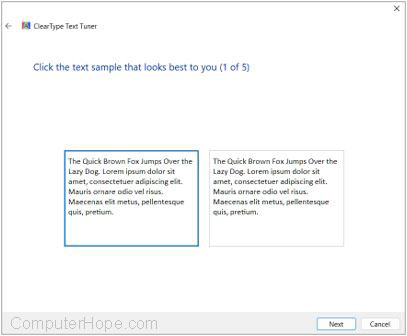
By default, the ClearType feature is enabled. However, to customize the text even more, you can run the ClearType Text Tuner by following the steps below.
- Press the Windows key on the keyboard.
- In the search field at the top of the Start menu, type cttune.exe and press Enter.
- The Windows ClearType Text Tuner program opens, allowing you to improve the quality of how the text looks on your screen. Click Next on each screen and make the appropriate selections based on the prompts.
Windows Vista, 7, 8 and 10
By default, the ClearType feature is enabled. However, to customize the text even more, you can run the ClearType Text Tuner by following the steps below.
- Click Start or press the Windows key on the keyboard.
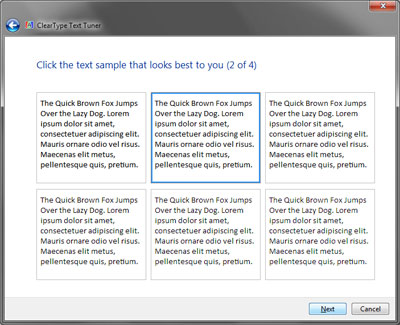
- In the search and run box, type cttune.exe and press Enter.
- This action opens the Windows ClearType Text Tuner program, which should resemble the example picture below. This program lets you improve the quality of how the text looks on your screen.
Windows XP
By default, Microsoft Windows XP has smooth fonts enabled. However, adjusting this setting can sometimes help improve the look and quality of your text. To adjust or change settings in this feature, follow the steps below.
- Open the Control Panel.
- Double-click the Display icon.
- Click the Appearance tab.
- Click the Effects button.
- Verify that the Use the below method to smooth edges of screen fonts box is checked. We recommend you utilize the standard method, but some users may find it better to use ClearType.
- The appearance of a font can be improved by increasing your video resolution.
- Verify your computer has the latest drivers for the video card.
Windows 98, Windows Me, and Windows 2000
By default, Microsoft Windows has smooth fonts disabled. Enabling this feature can sometimes dramatically increase the quality of your fonts. To enable this feature, follow the steps below.
- Open the Control Panel.
- Double-click the Display icon. In the Display menu, click the Effects tab and check the box on smooth edges on-screen fonts. After that, click Apply and then OK.
- The appearance of a font can be improved by increasing your video resolution.
- Verify your computer has the latest drivers for the video card.
Windows 95
- By default, Microsoft Windows has smooth fonts disabled. Enabling this feature can sometimes dramatically increase the quality of your fonts. To enable this feature, you must install Microsoft Plus. Once the installation is complete, click Start, Settings, Control Panel, and double-click the Display icon. Under the Effects tab, check the box next to smooth edges on-screen fonts, click Apply, and click OK.
- The appearance of a font can be improved by increasing your video resolution.
- Verify your computer has the latest drivers for the video card.