
Why does Windows restart without warning?
If your Windows computer is restarting by itself without any warning, review the following troubleshooting steps for help with resolving the problem.
This page is for computers that are restarting by themselves, not computers that turn off and remain off. For computers that remain off, see: Why does my computer turn off without warning?
Software issue or error

Since the release of Windows XP, Microsoft designed Windows to automatically reboot when errors occur, such as a BSoD. Although this feature is nice for random errors, in some cases, it can make it difficult to troubleshoot or repair specific ones. To disable or enable this feature, select your version of Windows below and follow the instructions.
Windows 8, 10, and 11
- Open File Explorer.
- Right-click This PC in the left navigation pane.
- Select the Properties option in the pop-up menu.
- In the About window, click the Advanced system settings link in the right navigation menu or below the device specifications section.
- The System Properties window opens with the Advanced tab selected. In the Startup and Recovery section, click the Settings button.
- In the Startup and Recovery window, uncheck the Automatically restart check box.
- Click OK.
Now, if the computer generates an error, it will not automatically restart and should display an error message, most likely a BSoD.
Windows XP, Vista, and 7
- From the desktop, right-click My Computer.
- Select the Properties option in the pop-up menu.
- In the System Properties window, click the Advanced tab.
- On the Advanced tab, click the Settings button in the Startup and Recovery section.
- In the Startup and Recovery window, uncheck the Automatically restart check box.
- Click OK.
Now, if the computer generates an error, it should not automatically restart and should display an error message, most likely a BSoD.
Hardware issue or error
Some steps below require you to open your computer. While working inside the computer, be cautious of ESD (electrostatic discharge).
Any failing hardware component in your computer could cause your computer to generate an error or reboot without warning. If you have recently attempted to add a new hardware device, remove that device to ensure it is not causing the issues.
Ensure you are not encountering any hardware conflicts by viewing Device Manager for errors.
Hardware drivers can also cause this issue. If you have recently installed new hardware drivers, you may want to try an earlier version of those drivers. Additional information and help with computer drivers is available on our drivers page.
If you updated drivers and removed any newly added hardware, and the random reboots continue to occur, the computer memory may be bad.
If the memory is working correctly and not causing the issue, an improperly installed hardware device can also cause random reboots. Ensure all cables and expansion cards are connected properly inside the computer. The best way to determine this is to disconnect and reconnect all cables and reseat each expansion card.
Computer virus
Some computer viruses, such as the blaster virus, are designed to reboot your computer without warning. Usually, these viruses make the computer reboot every 5, 10, 15, or 30 minutes after the computer has booted.
If you believe your computer has a virus, ensure an antivirus program is installed, and the virus scanner definitions are up-to-date.
Heat-related issue
Most computers today are designed to turn off or automatically reboot if the computer processor, video card, or other devices in the computer get too hot. If you hear any abnormal noises coming from your computer, it could be a sign of a failing fan, which can cause hardware components to overheat.
First, verify the fan on the power supply is working by examining the back of the computer. Check if the fan is moving, moving fast, and moving smoothly (e.g., not wobbling or scraping against the insides of the power supply). For all other fans in the computer, you must open the computer and verify all fans are working (e.g., processor fan, video card fan, and case fans).
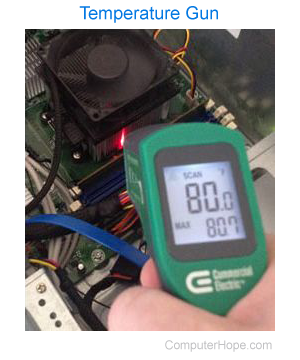
A temperature gun, like the one shown in the picture, can gauge how hot the hardware components or integrated circuits are inside the computer. In the picture we have the gun pointed at a CPU (central processing unit) heat sink.
If your BIOS monitors the speed, or RPM (revolutions per minute), of the fans, enter the BIOS setup and verify it does not report any errors. For help getting into BIOS setup, see: How to enter and exit the BIOS or CMOS setup.
If this is a laptop computer, there is often a fan on one side of the laptop. Ensure this fan is blowing air out of the laptop and check if you can feel hot air coming from the laptop. You may also consider getting a cooling pad if your laptop is getting hot often. For further help, see: What should be the temperature of my computer processor?
It's also important to clean the fans to remove dust or dirt. Built-up dust and dirt can reduce the spin speed of the fan. Cleaning the entire computer to remove dust and dirt can improve airflow and reduce heat buildup.
Issue with the operating system
If your computer continues to reboot, after following the recommendations above, you're likely experiencing an issue with the Microsoft Windows operating system. To help determine if this is the case, try the steps below.
- Reboot the computer and enter BIOS setup when the computer begins to boot up.
- After loading the computer into the BIOS setup, let the computer idle for a few minutes.
If the computer doesn't reboot after idling in BIOS and you've tried the other solutions above, try activating a restore point in Windows before the problem started to occur.
If activating a previous restore point does not work, or there are no restore points available to activate, you likely need to reinstall Microsoft Windows.