
POST troubleshooting steps
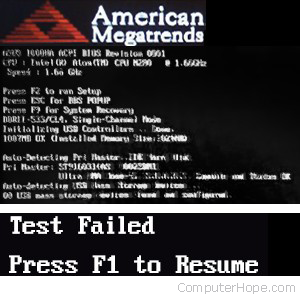
The POST (power on self-test) is a set of procedures that a computer runs through each time it is turned on. It ensures that all of the system's hardware is working properly before trying to load the operating system. If the computer does not pass POST, it will not boot.
If you're experiencing POST errors when you boot your computer, the following steps may help you fix the problem.
Make sure the computer turns on. If nothing happens (no lights, no sound, no fans, etc.), see: Why won't my computer turn on?
If your motherboard has a post indicator with a letter, number, or several lights, see the motherboard documentation to determine the POST problem.
Some steps below recommend removing physical parts from inside the computer. While working inside the computer, it's highly recommended you be aware of ESD (ElectroStatic Discharge) and its potential hazards.
Remove new hardware
If any new hardware was recently added to the computer, remove that hardware to make sure it is not causing your issue. If your computer works after removing the new hardware, it can mean a few things. Either the new hardware is not compatible with your computer, a system setting needs to be changed, or the new hardware is defective.
Remove any disks or USB devices
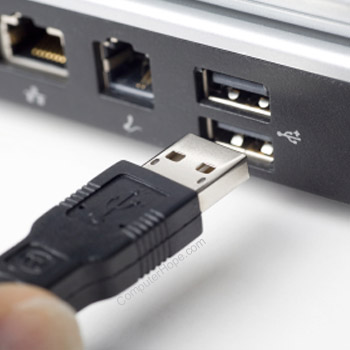
Remove any disks, CDs, or DVDs that are in the computer. If any USB devices (iPods, drives, phones, etc.) are connected, disconnect all of them as well. Reboot the computer and see if anything changes.
Disconnect external devices
Remove everything from the back of the computer, except the power cable. Turn on the computer and see if it beeps normally. If the computer has never beeped, keep the monitor or display connected to see if any change occurs.
Reconnect and check power cords
If the computer is not getting enough power or the power is getting interrupted, the computer can encounter problems. Disconnect your power cables from any power strip or UPS (Uninterruptible Power Supply) and connect the computer directly to a known good wall outlet.
Identify beep code
If you are receiving a sequence of beeps, see the beep code page for a listing of different beep codes and their explanation. You can also check your motherboard or computer documentation for information on the beep codes. These beep codes are meant to help identify which computer component is failing or bad. If your beep code is not listed, continue troubleshooting.
Check all fans
Make sure all fans are running on the computer. If a fan has failed (especially the heat sink fan for the CPU), your computer could be overheating or detecting the fan failure, causing the computer not to boot.
Check all cables
Verify all the cables are securely connected to the computer and that there are no loose cables by firmly pressing in each cable.
- All disk drives should have a data cable and power cable connected to them.
- Your power supply should have at least one cable going to the motherboard. Many motherboards may also have additional cables connected to them to supply power to the fans.
Disconnect all expansion cards
If the above recommendations still have not resolved the irregular POST, disconnect the riser board (if applicable) and each of the expansion cards. If this fixes the problem or allows the computer to POST, connect one card at a time until you determine which card is causing the problem.
Disconnect all drives
If you cannot diagnose the problem by the beep code (or you do not hear a beep code), power off the computer. Then, disconnect any IDE (Integrated Development Environment), SATA (Serial AT Attachment), SCSI (Small Computer System Interface), or other data cables from the motherboard. When they are disconnected, try booting the computer again.
If this resolves your irregular POST or generates error messages, reconnect each device until you determine which device or cable is causing the issue. In some situations, it can also be a loose cable connection that causes the issue.
Remove the RAM
If you continue to experience the same problem with all the above hardware removed, remove the RAM from the motherboard and turn on the computer. If the computer has a different beep code or was not beeping but is now, turn off your computer and try the suggestions below. Make sure to turn off the computer before adding and removing the memory and then turning it back on to see if the suggestion resolves the issue.
- Re-insert the memory into the same slot.
- If you have more than one stick of memory, remove all but one stick of memory and try rotating through each stick.
- Try one stick of memory in each slot.
If you can get the computer to boot with one or more of the sticks of memory installed, you are likely dealing with some bad memory. Try to identify which stick of memory is bad and replace it.
If you can get the memory to work in one slot but not another slot, the motherboard is likely defective. You can either workaround the issue by running the memory in a different slot that does work or replace the motherboard.
Power cycle the computer
In some situations, a computer may have power related issues often caused by either the power supply or the motherboard. To help determine if this is the issue, try turning the computer on, off, and back on as fast as possible, making sure the computer power light goes on and off. In some situations, you may get the computer to boot.
Try this method only as a temporary workaround or as a last resort to get any valuable information from the computer.
Disconnect and reconnect the CPU
For users who're more comfortable working inside their computer, reseat the CPU (Central Processing Unit) by removing it and re-inserting it into the socket. You should also apply a fresh layer of thermal compound between the CPU and the heat sink.
Loose BIOS chip
If your motherboard has a BIOS (Basic Input/Output System) chip, it can become loose over time due to heat expansion and cause an irregular POST (Power-On Self-Test). Gently press down on the BIOS chip to make sure it has not become loose.
Bad motherboard, CPU, RAM, or power supply
If, after trying all of the above recommendations you still have an issue, you likely have a bad motherboard, power supply, CPU, or RAM (Random-Access Memory) stick. The next step would be either to replace these components or have the computer serviced. If you plan on doing the repairs yourself, we suggest you replace or swap in parts from another computer that is known to work. Replace the motherboard first, then the RAM, the CPU, and finally, the power supply.