
Why won't my computer turn on?
If you have a desktop computer that does not turn on after pressing the power button, use the following information and troubleshooting steps to help fix the problem.
This page relates primarily to desktop computers. If you have a laptop that won't turn on, see: Why does my laptop not turn on?
I'm unsure if my computer is turning on
If you're uncertain if the computer is turning on, check if the case fan (generally on the back of the computer) is spinning. If a fan is spinning, the computer is getting power, and this page may not apply to your issue.
If the computer turns on but doesn't pass a POST (power-on self-test), sounds a beep code, or isn't showing any picture on the display, see: POST troubleshooting steps.
Power cord not connected properly
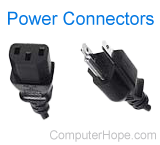
It may seem obvious, but verify the power cord is connected to the back of the computer and plugged into a power outlet. If it appears to be connected correctly, disconnect and reconnect both ends of the power cord to ensure the cable is not loose.
Power strip or outlet
If you have a power strip (surge protector) or UPS (uninterruptible power supply), disconnect the computer power cord from it and connect the cord directly to the wall outlet.
If connecting the computer directly to the wall outlet still does not work, verify the outlet works by connecting another electrical device.
Bad power cable
Verify the cable supplying power to your computer is not bad or damaged by swapping it out for another one.
If you don't have another power cable to test with, see if a friend or a family member has one to borrow. Alternatively, purchase a new power cable online.
Some computer monitors may use the same type of power cable as your computer. If your monitor power cable is removable and has the same connector type, try using it to power the computer as a test.
Power supply switch
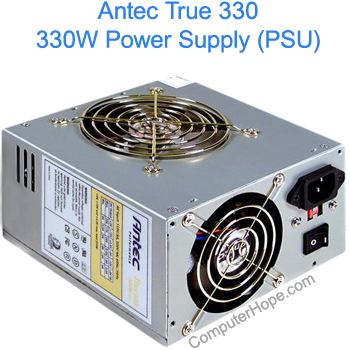
Like that shown in the picture, some power supplies have a power switch on the back. Check the back of the computer and make sure there are no additional buttons turned off by accident.
A power supply switch often has a "0" and "1", which is binary for "off" (0) and "on" (1).
Incorrect power supply
If you built the computer and cannot get it to turn on, the power supply may be defective or is insufficient for your hardware's needs. Verify the power supply meets the requirements of your motherboard, processor, and video card.
Third-party hardware
If any computer hardware was recently added, we recommend you temporarily disconnect or remove it to ensure that it's not causing your issue.
If, after you've added new hardware, the computer turns on but is not beeping and the monitor isn't displaying anything, see: POST troubleshooting steps.
Bad power supply, button, power board, or inverter
If your computer still receives no power after following the steps in the sections above, the power supply may have failed. If you don't want to replace it yourself, we suggest taking the computer to a repair center.
If you have a desktop computer and plan on trying to repair it yourself, open the computer and verify the power connections. Disconnect the main power cable and reconnect it to make sure it is not loose. Also, verify the power button cable is correctly connected to the motherboard.
If the power button gets stuck when you push it or it doesn't push down very far, the power button is defective or has a bad contact. Repairing a bad power button is difficult and may require help from a computer repair shop or replacement of the computer case.
Test the power supply using a multimeter to check if it outputs the correct voltage. If the voltage output is low, the power supply is likely bad and needs to be replaced.
Loosely connected hardware
Each time your computer tries to turn on, it runs a POST. If any computer hardware components fail this test, the computer does not continue to boot.
When working inside your computer's case, take appropriate precautions to prevent ESD (electrostatic discharge) that may damage sensitive electronics.
Unplug all cables from the back of the computer. Open the computer and reseat all expansion cards and memory. After these cards are reseated, ensure all cables are firmly connected by disconnecting and reconnecting them.
After everything is disconnected and reconnected, connect only the power cable to the back of the computer and turn on the computer. If the computer turns on, turn it back off and reconnect all the cables.
Bad motherboard
If the power supply connections look ok, but the computer still doesn't turn on, the motherboard may be bad. First, open the computer case and visually check the motherboard. Look for any bulged or blown capacitors.
If you recently did soldering work on your motherboard, some solders may have connected two or more contact points that it shouldn't have. Those improper connections can cause the computer not to power up or boot.
Other possible causes for motherboard failure include the following:
- Crack in the circuit board.
- Broken pins or prongs for an integrated circuit.
- Melted integrated circuit due to overheating.
Replacing bulged or blown capacitor is possible, but the motherboard defects above likely require it to be replaced.
Other bad hardware components
If the power supply and motherboard are in good shape and confirmed not to be the problem, another component may be bad. Try replacing the following hardware components in the order listed.
- Processor and heat sink
- Video card
- Sound card
- Disc drive
- RAM (random-access memory)
- Hard drive
A defective disc drive, RAM, or hard drive often doesn't cause a computer not to power up or boot. However, it's still possible they could cause a powering up problem if they are shorting out the motherboard somehow.