
How to find what is running on a Windows computer

At any time, there are many items performing various tasks on your computer. Even if you haven't opened a specific program, like Microsoft Word or Adobe Photoshop, there are background processes and other apps that help the operating system do its job. The following sections show you how to view what is currently running on your computer.
Windows Task Manager
The Microsoft Windows Task Manager is the go-to tool for viewing processes, apps, and services that are currently active on a computer. If your computer is running slowly, you may also use Task Manager to view which programs are utilizing a high amount of CPU (central processing unit) or memory resources. The sections below show you how to open the Task Manager and give an overview of its tabs relevant to the running computer processes and applications.
How to open the Windows Task Manager
Open the Windows Task Manager by pressing the Ctrl+Alt+Del keys on your keyboard at the same time, and select Task Manager on the screen that appears. Alternatively, right-click the Windows Taskbar and select Task Manager from the pop-up menu.
Recent versions of Windows also support the ability to get to the Task Manager through the Power User Tasks menu, which is accessed by pressing Windows key+X.
Viewing applications and processes
As shown in the image below, in Windows 8, Windows 10, and Windows 11, the Windows Task Manager opens with the Processes tab selected. In Windows 7 and earlier, the Task Manager opens with the Applications tab selected. In both cases, the programs that are currently open and running are displayed.
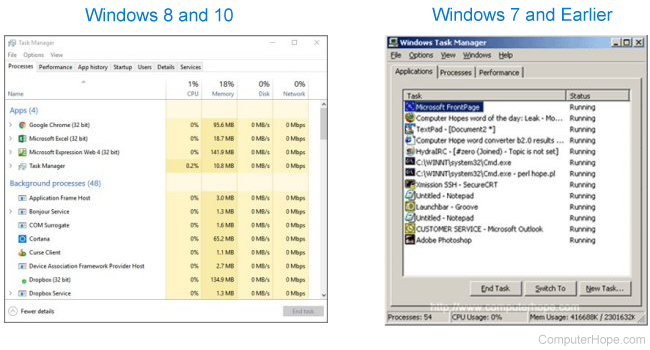
Processes tab
A process is a specific instance of a program. For example, if you're running Google Chrome, each software tab you have open is considered a process. If you're using Notepad, the file you're currently working on is a process. In newer versions of Windows, the Applications and Processes tabs are combined; the Task Manager displays the "parent" application and its processes under the Processes tab.
Resource usage
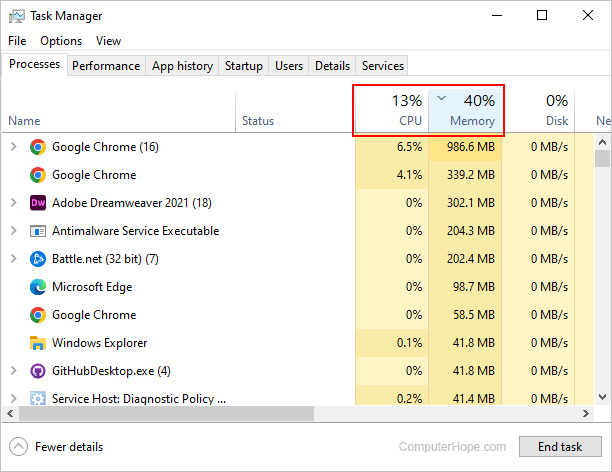
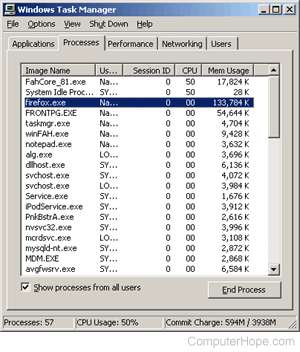
Identify which processes are consuming the most resources by clicking the "CPU" or "Memory" (titled "Mem Usage" in Windows 7 and earlier) column headers. Doing so sorts the process list in ascending or descending order depending on how many times you click. In other words, clicking the header multiple times toggles between highest-to-lowest and lowest-to-highest usage. The images below show these column headers in different versions of Windows.
Windows 8 and newer
Windows 7 and earlier
Using End task or End Process
From the Processes or Applications tab (depending on your version of Windows), you can terminate any application that is shown. There are a few reasons you might want to do this, but mainly, processes and apps are "end tasked" because they're not responding or cannot be closed. To close anything under the Processes or Applications tab, select it and click the End task or End Process button in the lower-right corner of the window.
Windows process tool
Unfortunately, not all processes and services are displayed by the Windows Task Manager. If you're concerned about hidden malicious software, run a utility such as HijackThis, process the log, and use our Windows process tool.