
Basic Microsoft Windows 95 troubleshooting
Error messages encountered during boot before Windows loads
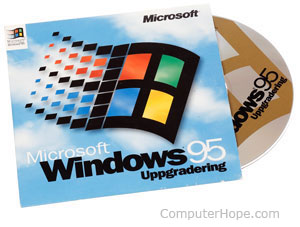
Before following the steps below, if you're getting an error make sure to search our site for the error message first and look through our Windows 95 Q&A.
- Ensure your computer BIOS (basic input/output system) settings are correctly configured to the hardware that is installed in your computer. Improper settings in the BIOS may cause various errors when first booting an IBM compatible computer. These errors often occur as the computer is first booting and may stop the load process of the computer.
- Like previous versions of Microsoft operating systems, Windows 95 still utilizes the autoexec.bat and config.sys for backward compatibility. Errors that occur before Windows loads are often caused by a misconfiguration in the autoexec.bat and config.sys.
Error messages while Windows is loading
Errors that occur while Windows 95 is loading or prevent Windows from loading may be caused by issues in the win.ini or the system.ini. These issues is often resolved by restoring a backup of the win.ini and the system.ini. Below are steps that can be taken to restore a backup of these files.
- Exit to an MS-DOS prompt.
- At the MS-DOS prompt, type cd\windows and press Enter.
- From the C:\Windows> prompt, type dir system.* and dir win.* to look for backups of the system.ini or win.ini, and if what they're named. Look for a system and win file that end with ---, bac, or bak. If this file is present then continue with the remainder of the steps. Unfortunately, if this file is not found these steps will not work.
- If you were able to locate a backup file, type ren system.ini system.ch and ren win.ini win.ch to rename the current system.ini and win.ini files.
- Finally, type copy system.??? system.ini and copy win.??? win.ini where ??? is the name of the backup extension you were able to locate.
Other error messages that occur while Windows is loading or after Windows is loaded
Errors that have occurred while Windows is loading or after Windows has completed loading are often caused by the following. A program that is automatically loading at the same time as Windows, problem or misconfiguration of a hardware device, or a computer virus.
- If errors occur but Microsoft Windows still loads, verify no issues or conflicts exist in Device Manager. If errors are found, read through our Device Manager page for steps on resolving issues.
- Ensure that if programs are loading automatically, the errors are not associated with these programs. Often, utilities like antivirus programs may load when Windows first starts and cause errors to occur. If you believe the startup errors are associated with another program, refer to our basic software troubleshooting.
- If your computer has an antivirus program installed, make sure it is up-to-date and that no viruses are detected. If your computer does not have an antivirus program, you may want to consider installing one to make sure no viruses are causing your problems.
Other error messages
If you're experiencing other error messages, it's likely these errors are being caused by the program you're running or a hardware device. We recommend you see the basic troubleshooting overview for your hardware device or program.
Computer running slowly
- Make sure your computer has at least 100 MB free of hard drive space. If your computer has less than 100 MB free, it may cause the computer to operate more slowly.
- Run Microsoft ScanDisk and Defrag on the computer. Additional information and help with these commands is on our ScanDisk overview and our Defrag overview.
- Click Start, Search, and select For Files or Folders. In the search window, search for a file named *.tmp and make sure you are searching or looking in the local C: drive. Once the search has completed, delete any files found.
- Close any programs that are running in the background or disable background programs from automatically loading each time your computer boots.
- Windows 95 utilizes the autoexec.bat and config.sys. Therefore, make sure your autoexec.bat and config.sys are optimized. Changing the way programs load into memory, removing unnecessary lines, and change the order of lines in your config.sys can all help. See the autoexec.bat and config.sys overview for additional information.
- If you have not already restored a backup copy of your system.ini and win.ini files, we recommend you restore an older version of these files. See the above "Error messages while Windows is loading" section for help.
- Ensure that no errors or conflicts exist in the Device Manager.
- Make sure Windows 95 is up-to-date by checking Microsoft Windows update page. Also, ensure your computer has the latest drivers for the hardware devices installed in your computer.
- If your computer has an antivirus program installed, make sure it is up-to-date and that no viruses are detected. If your computer does not have an antivirus program, you may want to consider installing one to make sure no viruses are causing your problems.
Issue with hardware device
If you are having difficulties with a hardware device, see the basic troubleshooting overview for steps that can be taken to help resolve your hardware issues.
Other
If you still have errors or cannot resolve your issue, search Computer Hope, check our on-line help, and our questions and answers page for additional help. If, after checking these locations you are still unable to resolve your issue, feel free to contact our support team.