
Issues and questions related to the Windows taskbar
The Windows taskbar is one of the core components of the operating system's GUI (Graphical User Interface) and has many features and uses. The following sections contain helpful information and troubleshooting tips related to the taskbar. To proceed, choose a topic that interests you from the list below, or read the sections in order.
Information about the taskbar
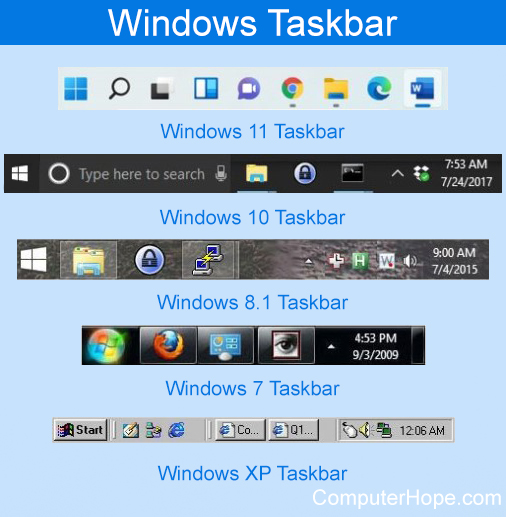
The taskbar is located at the bottom (by default) of the Microsoft Windows desktop. In addition to showing the running programs, the taskbar also displays the Start button and Start menu, pinned programs, the time, notification area and, in some versions, Quick Launch. The following illustration shows various iterations of the taskbar in the different versions of Windows.
I've lost my Windows taskbar; how do I get it back?
If you don't see the taskbar, it's usually because it is hidden or was dragged down too far. To remedy this issue, try the steps below.
How to toggle auto-hide for the taskbar
- Press the Windows key, type Taskbar settings, and press Enter.
- In the Taskbar window, look for the "automatically hide" option.
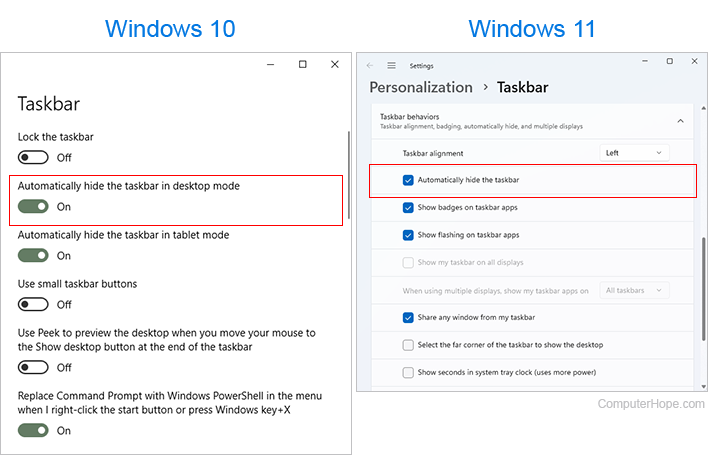
- Click the toggle switch or uncheck the box next to the Automatically hide the taskbar entry to restore its default functionality (showing at all times).
In Windows XP and earlier
- In the lower-left corner of the screen, click Start.
- Click Settings, then Taskbar, then Start Menu.
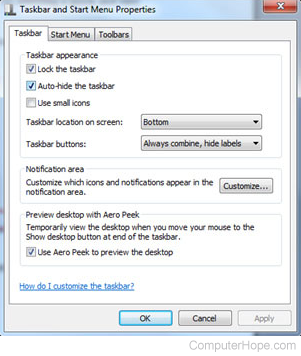
- In the Taskbar and Start Menu Properties window, click the box next to Auto-hide the taskbar to toggle this setting.
If Auto Hide is not enabled, move the Taskbar up
- Press Ctrl+Esc or the Windows key to display the Start Menu.
- Determine where the Start Menu appears. By default, it should be in the bottom-left corner (or at the bottom-middle of the screen in Windows 11).
- Press Esc. When a small gray line appears, move the mouse cursor over it. Once the cursor is in the appropriate position, it should change to a double-headed arrow. At that point, click-and-drag the taskbar up to restore it to its original position.
Load to Safe Mode to fix the taskbar
If you still cannot get the taskbar to show, reboot the computer in Safe Mode. Then, restart the computer again to restore the taskbar.
Restore Windows to an earlier point or version
If, after trying the three options above, the taskbar is still not showing, your computer may have corrupt system files that are preventing the taskbar from showing. To fix this issue, try restoring Windows to an earlier version or previous restore point.
My taskbar moved to the left, top, or right side of the screen
Sometimes, users mistakenly move the taskbar to the left, top, or right side by accidentally dragging it to one of these locations. To return the taskbar to the default position (the bottom of the screen), follow the steps below.
How to move the taskbar
The ability to move the taskbar to the top or sides of the desktop is not available in Windows 11.
In Windows 10 and earlier, the taskbar cannot be moved if it's locked. Before attempting to do so, right-click a blank spot on the taskbar, select Properties, and make sure Lock the taskbar is not checked.
- Move the mouse cursor to where the time is displayed on the taskbar. In later versions of Windows, like Windows 10, move your cursor to an empty area of the taskbar.
- Press and hold the left mouse button, then move the cursor to the area on the screen where you want to move the taskbar.
- Once you see the taskbar move to its new location, release the left mouse button.
How do I resize the taskbar?
Newer versions of Windows no longer allow you to resize the taskbar.
To resize the taskbar, move your mouse cursor to the top edge of the taskbar. When the mouse is in the correct position, the cursor should change to a double-headed arrow pointing up and down. Press and hold the mouse button and move the taskbar up or down to increase or decrease its size.
I lost an icon on my taskbar or systray; how do I get it back?
Icons on the taskbar or systray are associated with programs currently installed or running on your computer. Consequently, if one of these icons is missing, you must open or install the associated program to restore it.
Can I add an icon to my taskbar or systray?
In Windows 11, the quick launch feature is no longer available. Instead, you must pin program icons or shortcuts to the taskbar.
If your computer is running Windows 95 or Windows NT, icons cannot be added to the taskbar or systray.
In Windows 98 to Windows 10, it is possible to add an icon to the quick launch portion of your taskbar. To add the quick launch portion to your taskbar, follow these steps.
- Right-click the time in your systray.
- In the pop-up menu, select Toolbars.
- Verify the quick launch option is checked.
- Once checked, a new section to the right of Start appears with small icons.
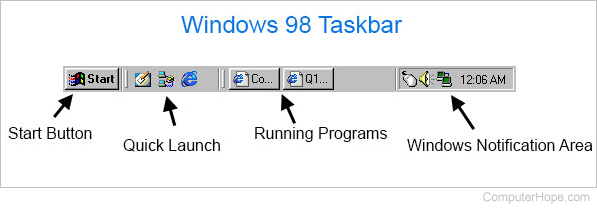
- Drag shortcuts from your desktop or other areas to the quick launch taskbar section to add an icon.
I have two or more rows on my taskbar
The Microsoft Windows taskbar can be stretched to display up to 15 rows of open programs. Often, users mistakenly lengthen this bar to display two or more extra rows. If this seems to be the case for you, see our section above: how to resize the taskbar.
How to pin a program to the taskbar
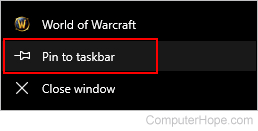
In Microsoft Windows 7, Windows 8, Windows 10, and Windows 11, pin any program to the taskbar. To do so, right-click the shortcut or program icon and select Pin to taskbar from the drop-down menu.