
What type of computer memory to use in a memory upgrade
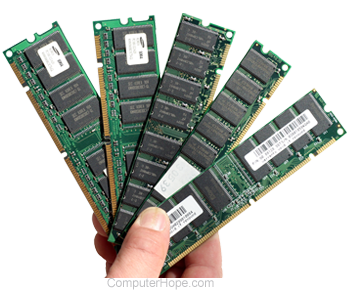
The following tips and information help you decide what type of memory to buy when upgrading your computer.
Determining the type of memory required
If you're considering a memory upgrade, the first step is determining which memory is currently installed and what types of memory your motherboard supports.
Use a third-party tool or service
One option is to use a third-party software utility or online service that provides details about the components in your computer. These utilities can scan your computer and give a detailed report of all installed hardware, including memory. For example, the Crucial System Scanner is a free utility that scans your computer and gives details about installed memory and any available memory slots.
Documentation
The best method of determining the RAM (random-access memory) to use with your computer is through the computer or motherboard manufacturer documentation. If you do not have your product documentation, you can find it online through the computer manufacturer or the motherboard manufacturer website.
For example, your motherboard documentation may list something similar to the example below.
Supports DDR4 2666/2400/2133 SDRAM.
Supports up to 4 non-ECC unbuffered DIMMs.
Up to 8 GB per DIMM, with a maximum total memory size of up to 32 GB.
The example above shows that the motherboard supports DDR4 SDRAM DIMM at speeds of 2666, 2400, and 2133 MHz.
Visually examine the memory
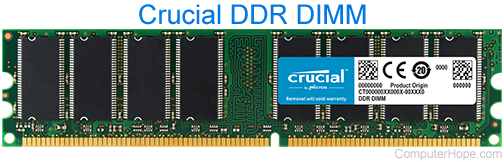
You can also open the computer. Taking precautions not to cause ESD (electrostatic discharge), remove one of the memory sticks and physically examine the memory for any identifying stickers or printed labels.
What to look for in memory
Below is a short list of what to look for when determining your computer's memory needs.
Memory type
What type of memory does the computer use? Some examples of the different memory types include DDR-SDRAM, DDR2-SDRAM, DDR3-SDRAM, DDR4-SDRAM, DIMM, DRAM, EDO, FPM, SDRAM, LIMM, RDRAM, RAMBUS, RIMM, SIMM, and SODIMM. Today's computers usually use a variant of DIMM/SDRAM memory.
Amount of pins
How many pins does the computer accept? 72-pin, 30-pin, 168-pin, 184-pin, or 240-pin? The answer depends on the type of memory.
Speed of memory
There are two primary measurements of memory speed.
- The "speed" of memory generally refers to how often the memory can read or change its data per second. This speed is measured in MHz and strongly affects the overall performance of your CPU (central processing unit).
- Latency is the (very short) time it takes for the memory to respond to information requests, access data stored in memory, and send that data to the CPU. Latency is measured in ns (nanoseconds).
Although latency is an important metric, differences in latency are relatively minor in compatible RAM modules. When deciding what memory to use in your computer, the speed measured in MHz is generally the more important number to consider.
If you install memory sticks of varying speed ratings in your computer, the lower speed is used, and you don't receive the potential benefit of the faster module's speed. When possible, use RAM modules of equal speed. Ideally, you want all RAM installed in your computer to be identical.
Error-checking
ECC (error-correcting code) memory is used in servers and professional workstation computers. It sacrifices some of its speed to provide error protection by verifying there are no errors whenever data is modified in RAM.
Errors may naturally occur in RAM because of electromagnetic interference or hardware faults. As a result, bits can become "flipped" in RAM; some bits that should be set to 1 are set to 0, or vice versa. These errors are usually not fatal for casual applications like video games or web browsing. For example, if a single pixel in the background of a video game is the wrong value, you might not notice or care. However, ECC is a necessary feature for professional applications that require a high degree of accuracy, such as financial transactions or scientific calculations. ECC doesn't prevent errors entirely, but it reduces their probability to nearly zero.
Not all motherboards support ECC, and those that support ECC are usually more expensive. The ECC RAM modules are also more expensive than non-ECC RAM of equivalent speed. If you're unsure if you need ECC, you probably don't. Building a computer without ECC support usually means getting more bang for your buck in terms of your computer's performance.
Voltage
What are the voltage requirements? Make sure you determine the voltage requirements of the memory (e.g., 1.5v, 1.8v, or 2.5v).
Contact material
The contact material on the memory is also important when buying computer memory. The contact area is coated in either gold or tin and should match the material of the memory slots. Mismatching the memory and memory slot contact material can cause corrosion.
Proprietary
Finally, is the memory in your computer proprietary? If not, is there memory your computer manufacturer recommends?
If you have a more recent computer (made in the last five years), this should not be a concern.
Other terms
See our memory terms page if there's any other jargon confusing you.
Before purchasing memory
Ensure the computer has the available memory slots for the memory you are installing. For example, if you're installing an additional 8 GB of memory in the computer and plan on using two 4 GB memory sticks, make sure you have two available slots. If you do not have available slots, you can remove pre-existing memory and install new memory. However, any memory removed is subtracted from your total. Below is an example of a possible scenario.
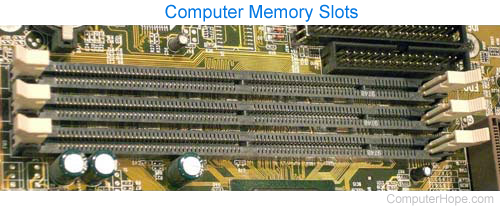
A computer has 4 GB of memory from four different 1 GB sticks of RAM, and has no more available slots. To upgrade to 8 GB, the four 1 GB sticks would need to be replaced with four 2 GB sticks. Alternatively, two 1 GB sticks could be replaced by two 4 GB sticks.
When dealing with memory, 1 GB = 1,024 MB
Installing the memory
When you're ready to install the memory you purchased, follow the steps and precautions in our guide below.