
How to rotate or turn an image
Rotating, reversing, turning, or flipping an image lets you correctly display an image taken with a camera or scanned in with a scanner at a different angle.
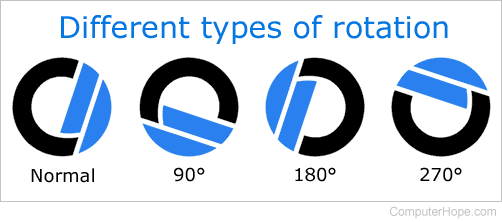
Below are the steps to rotate your images in each of the major image editors, apps, and programs.
Rotating an image in Microsoft Windows Explorer
All the latest versions of Windows (Windows XP and later) can rotate images within Windows Explorer. Follow the steps below to rotate an image using Windows.
- Open Windows Explorer.
- Browse to the location of the image you want to rotate. If you are unsure where the image is located, try My Pictures.
- Once the image is found, click the image once to highlight the file.
- If Windows Explorer is not showing the picture as a small icon (thumbnail), click View at the top of Explorer and select Medium, Large, or Extra Large icons.
- Finally, once the image file is highlighted and you see the image as a thumbnail, right-click the image and select either rotate left or rotate right.
Not all types of images support the above steps. If you have no option to rotate left or rotate right, try one of the other suggestions mentioned below.
Rotating an image in Microsoft Paint
- Open the image in Microsoft Paint.
- On the Home tab, click the Rotate option.
- Select a Rotate option from the list and the image will be rotated.
In Microsoft Paint, you cannot specify a degree angle to rotate the image. Only 90 and 180-degree angle options are available for rotating.
Rotating an image in Adobe Photoshop
- Open the image in Adobe Photoshop.
- Click Image
- Click Rotate Canvas
- Select 180, 90 CW (clockwise), 90 CCW (counterclockwise), or Arbitrary to manually specify your angle.
Rotating an image in GIMP
- Open the image in GIMP (GNU image manipulation program).
- Use the rectangle marquee to select what portion of the image you want to crop.
- Click Image at the top of the image toolbar.
- Click Transform
- Click 90 CW, 90 CCW, or 180 degrees to rotate it accordingly.
Rotating an image in Microsoft Word
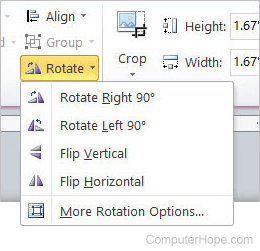
Below are the steps in Microsoft Word on how to rotate or flip an inserted image.
- Right-click the image in Microsoft Word.
- In the Ribbon, click the Format tab, if not already selected.
- In the Arrange section, click the Rotate
 icon. If you cannot find the Rotate option in the Format tab, click Picture Tools above the Format tab.
 - Select the desired rotate option from the list.
If you need to rotate the image more or less than the default options shown in the rotate menu, click More Rotation Options to specify an exact degree of rotation.
Rotating a photo on an iPhone and iPad
After taking a picture or saving a picture on an iPhone, you may want to rotate it 90 degrees or more to the left or right. To rotate images on an iPhone or other iOS devices, follow the steps below.
- Open the Photos application from your home screen.
- Select the desired photo by tapping it.
- Tap the blue Edit link at the top-right corner of the screen.
- Tap the Crop and Rotate tool icon
 in the toolbar at the bottom of the screen.
 - Tap the rotate button
 to rotate the image counter-clockwise by 90 degrees.
 - Continue to tap the rotate button until the photo is rotated to your preference.
- Tap the Done option at the bottom-right corner of the screen to save the changes to the image.
To rotate the image to a more specific degree, use the rotating wheel that appears below the image when using the Crop and Rotate tool.
Using an online service to rotate images
If you are using a smartphone or tablet, there are also online services to flip a photo through your web browser. A good example of such a service is the free FlipMyPhotos web page found at the link below.
For smartphone and tablet users, there are also several apps to edit and rotate images on your devices.