
Mouse is not detected or working in Windows
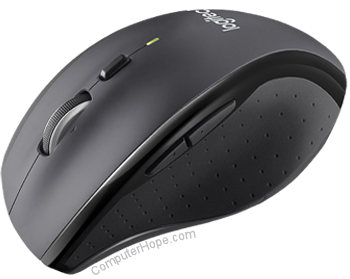
If your mouse cursor stops moving or isn't showing on your monitor, several issues may cause the mouse not to work properly in Microsoft Windows. This page contains solutions that may help unfreeze, rediscover, or unlock your mouse.
Use your keyboard to navigate in Windows or connect a different mouse that works to access areas of Windows mentioned on this page. For help navigating using a keyboard, see: How to navigate Windows using a keyboard.
If you're having trouble with a touchpad mouse on a laptop, see: Why is my laptop mouse touchpad not working?
If you are having trouble with an external mouse connected to your laptop, the troubleshooting options on this page help you fix the problem.
Computer frozen
When a computer freezes, the first sign is that the mouse has stopped responding. If your mouse pointer movement disappears, follow these steps to determine if your computer is completely frozen.
Using the Num Lock key
Make sure the computer is not frozen by pressing Num Lock on the keyboard. When the Num Lock is pressed repeatedly, the Num Lock indicator LED (light-emitting diode) on your keyboard should turn on and off. If this indicator does not change, your computer is frozen, meaning all hardware on the computer (including the mouse) will not work. Reboot the computer to resolve this issue. If you don't have an indicator light, proceed to the next part of this section.
The keyboard doesn't have a Num Lock indicator light
If your keyboard does not include the LED described in the previous section, anywhere in Windows, press Ctrl+Alt+Del at the same time. This action should bring up a blue Windows options screen. You may leave this menu by pressing Esc. Your computer is frozen if you are not taken to the blue screen in a few seconds. Reboot your machine to resolve this issue.
Press the Windows key
If you have Microsoft Windows, try pressing the Windows key to see if the Start menu appears. If this is also not responding, the computer is frozen.
Hardware conflict
If any new hardware was recently installed on the computer, remove it to help verify the new hardware is not causing a conflict with your existing mouse.
Mouse is not connected correctly
Follow these steps to verify the mouse is connected correctly to the computer.
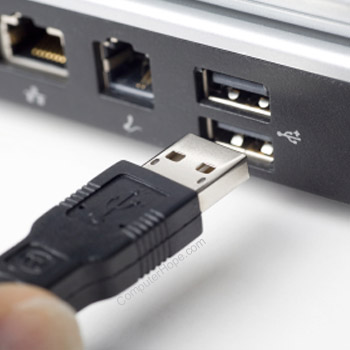
USB mouse
If you use a USB (universal serial bus) or cordless mouse, disconnect the mouse cable and reconnect to a different USB port. If the mouse connects to a USB hub, try connecting the mouse to a USB port on the back of the computer.
Wireless mouse
- Ensure the wireless mouse is receiving power by checking for some indication of power (usually a light). Move your mouse around on the mousepad to see if any indicator lights up. If your mouse has a power switch, it's often on the bottom side.
- If the mouse has power, find the power switch, turn it off, wait a few seconds, and turn it on again.
- If the mouse doesn't appear to be getting any power, replace the batteries, if possible.
- Ensure the wireless USB receiver is in range and not blocked by too many objects.
- Disconnect the wireless USB adapter and try plugging it into a different port. If this is a desktop computer, try a different port on the back of the computer.
- Check if the mouse has a button to re-sync it to the wireless receiver. If found, press it (you may need to hold it for a few seconds) to get the mouse to reconnect to the receiver.
- If the mouse uses Bluetooth to connect to the computer, ensure Bluetooth is enabled in the operating system settings.
- If it's a Bluetooth mouse and Bluetooth is enabled on the computer, remove the mouse from the Bluetooth settings. Make sure the computer can discover and see the mouse, and pair it with the computer again.
PS/2 mouse
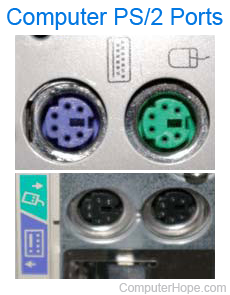
With a PS/2 mouse, check the back of the computer to verify that it's plugged into the PS/2 mouse port and not the PS/2 keyboard. If the mouse has worked properly in the past (i.e., not a new mouse), shut down the computer and disconnect and reconnect the mouse.
A PS/2 mouse should not be disconnected and reconnected while a computer is turned on.
If the computer's keyboard works, shut down Windows properly by pressing the Windows key and then use the arrow keys and Tab to select shut down.
Touchpad mouse is not working
If you're using a laptop and the touchpad is not working, there are several potential causes for the issue. For troubleshooting help, visit the page linked below.
Software or driver conflict
Boot to Windows Safe Mode. If the mouse is works in Safe Mode, there is likely a driver or software conflict. To fix this problem, follow the steps below.
- Expand the mouse (mice) option in Device Manager by clicking the + symbol.
- Remove all mice listed by highlighting each device and pressing Del on the keyboard.
- Restart the computer, see if Windows recognizes the mouse is connected, and reinstalls the mouse driver.
Mouse driver is outdated or missing
Check if a driver is installed for the mouse in the Device Manager. While Windows may have a standard or default driver for the mouse, installing a driver for your specific mouse may fix the issue. Check our mouse manufacturers list for links to many mouse manufacturer websites to download a driver for the mouse.
If a driver is installed for the mouse, we recommend you check for any updated drivers. Updating the driver may fix issues with a non-functioning mouse.
Outdated USB driver
Motherboard and computer manufacturers update hardware drivers periodically, including USB port drivers. USB mouse detection and functionality issues may result from outdated USB port drivers.
Updated USB port drivers can fix mouse detection and functionality issues. Check our computer manufacturers list and motherboard companies list for links to manufacturer websites. Visit the website of your mouse or motherboard manufacturer to check for updated USB port drivers. If updated drivers are available, download and install the new drivers. Restart your computer and test the mouse to see if the updated drivers fix the issue.
Other USB driver issues
If your USB mouse does not work on the computer, the USB port drivers may be corrupt. Two options for fixing corrupt drivers are to restore Windows to a previous point when the USB mouse worked or uninstall and reinstall the USB port drivers.
Activate Windows restore point
If your USB mouse worked previously, activate a Windows restore point to a date when the mouse worked on your computer.
Uninstall and reinstall USB port drivers
USB port drivers can get corrupted, causing a USB mouse not to work. Follow the steps below to uninstall and reinstall the USB port drivers.
You need to navigate Windows using your keyboard; for help navigating using the keyboard, see: How to navigate Windows using a keyboard.
- Using the Tab and arrow keys, highlight the Universal Serial Bus controllers entry in the Device Manager.
- Press the right arrow key to expand the devices under Universal Serial Bus controllers.
- Use the arrow keys to highlight a USB Composite Device or USB Root Hub entry and press Enter to open the properties window.
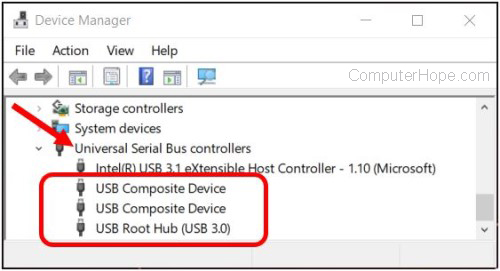
- In the properties window, use Tab and arrow keys to access the Driver tab.
- On the Driver tab, press Tab several times to select the Uninstall Device button and press Enter.
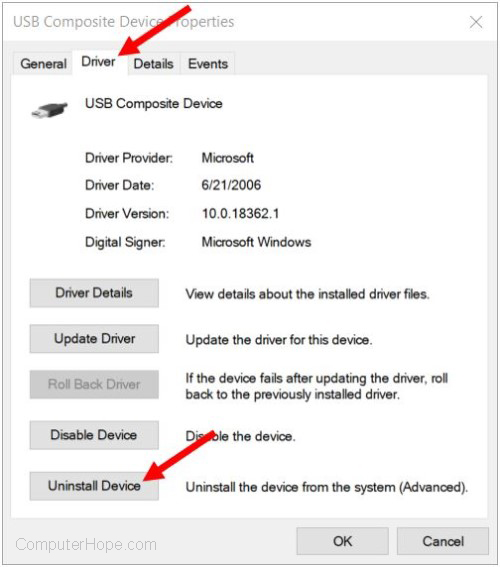
- On the Uninstall Device window, press Tab to highlight the Uninstall button and press Enter.
- For each USB Composite Device or USB Root Hub entry in the Device Manager, repeat steps 4 through 7.
- After uninstalling each USB port device, restart your computer.
- When Windows loads, it should detect the USB port devices in your computer and reinstall them, including the drivers.
Operating system files corrupted
If the solutions above do not resolve the issue, there is a possibility of corrupt system files in the operating system. You may need to run an operating system repair using the system installation disc.
If you have a Windows restore point saved from when the mouse was working, restore your system to that state.
Other hardware issues
These hardware issues may also apply to you.
Bad port
If the previous solutions did not solve the problem, try another mouse. If that mouse works, try the mouse not working with another computer. If multiple mice do not work, the problem is with the mouse port. If you're using the PS/2 or USB port on the back of the computer, the motherboard may be bad and needs to be replaced.
Bad mouse
If the mouse no longer works with any computer or the mouse wire is partially cut or frayed, the mouse needs to be replaced. It's cheaper to buy a new mouse than to try fixing a bad mouse.