
My computer is running slow, what steps can I do to fix it?
Below are recommendations that users can follow to help speed up a computer and make it run faster or determine why it's running slow. It should be noted that this page only covers an overall slow computer and not a computer that starts slow or has a slow Internet connection. To diagnose those issues, visit the following pages.
Reboot
If your computer has not been rebooted recently, reboot it before following the steps below. Rebooting the computer can fix many problems and is an easy first step.
Background programs
One of the most common reasons for a slow computer is programs running in the background. Remove or disable any TSRs and startup programs that automatically start each time the computer boots.
To see what programs are running in the background and how much memory and CPU (central processing unit) they are using, open Task Manager. If you are running Windows 7 or higher, run Resmon to understand better how your computer resources are used.
If you have an antivirus scanner on the computer, spyware protection program, or another security utility, make sure it's not scanning your computer in the background. If a scan is in progress, it decreases the overall performance of your computer. If this is the case, allow the scan to complete, and the computer's performance should improve.
Disable Windows search indexing
The Windows operating system indexes content, like files and folders, to improve Windows search performance. Windows also caches some file properties to help improve some functionality of other programs. Unfortunately, search indexing and property caching can slow down the performance of Windows and programs running in Windows. Turning off the Windows search indexing can free up valuable system resources and improve overall performance.
To turn off Windows search indexing, follow the steps below.
- In the Windows search box, type services and press Enter, or select the Services app in the search results.
- In the Services window, find the Indexing Service or Windows Search service. Right-click that service and select Stop to turn off the service.
- Right-click that service again and select Properties.
- In the properties window, click the Startup type drop-down menu and select Disabled to prevent the service from starting each time you turn on your computer.
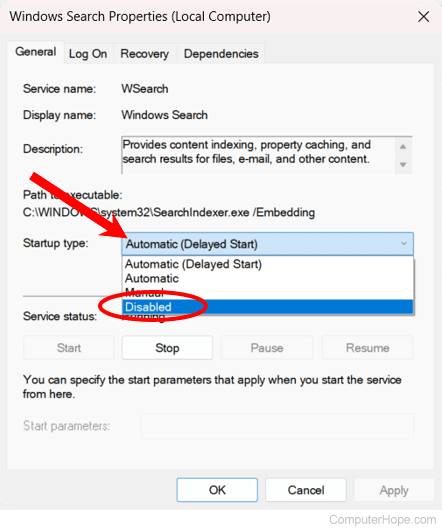
- Click OK to save the settings change.
Delete temp files
As a computer runs programs, temporary files are stored on the hard drive. Deleting these temp files help improve computer performance.
Windows computers
First, we suggest using the Windows Disk Cleanup utility to delete temporary files and other files no longer needed on the computer.
Unfortunately, the Disk Cleanup may not delete every file in the temp directory. Therefore, we also suggest deleting temporary files manually.
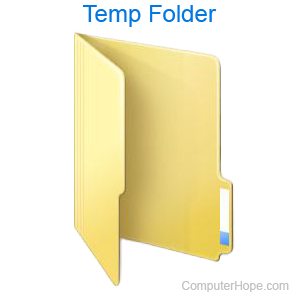
- Open the Start menu or press the Windows key, then type %temp% in the Search field.
In Windows XP and prior, click the Run option in the Start menu and enter %temp% in the Run field.
- Press Enter, and a Temp folder should open.
- Delete all files found in this folder, if any files are in use and cannot be deleted, they can be skipped.
Free hard drive space
Verify there is at least 500 MB of free hard drive space. The free space allows the computer to have room for the swap file to increase in size and give room for temporary files.
Bad, corrupt, or fragmented hard drive
Check the hard drive for errors
With Windows, run ScanDisk, chkdsk, or something equivalent to verify there is nothing physically wrong with the computer's hard drive.
With macOS, access the Disk Utility program, and use the First Aid option to check the hard drive for errors.
Make sure the hard drive is not fragmented
Run Defrag to help ensure that data is arranged in the best possible order.
Test hard drive
Use other software tools to test the hard drive for errors by looking at the drive's SMART (Self-Monitoring Analysis and Reporting Technology).
Scan for viruses
If your computer is infected with one or more viruses, it may run more slowly. If your computer doesn't have an antivirus program installed, run Trend Micro's free Housecall online utility to scan and remove viruses on your computer. We also recommend you install an antivirus program for active protection against viruses.
Scan for malware
Spyware and other malware can cause computer problems, including slower performance. Even if an antivirus scanner is installed on the computer, we also recommend running a malware scan. Use the free version of Malwarebytes to scan your computer for malware.
Hardware conflicts
Verify that the Device Manager has no conflicts. If any exist, resolve these issues, as they could be causing your problem.
Update the operating system
To update a computer running Microsoft Windows, run Windows Update.
To update a macOS computer, run Software Update. To upgrade the operating system, use the App Store.
Disable browser plug-ins
If your computer runs especially slow when using your web browser, consider turning off any browser plug-ins, add-ons, or extensions.
Update your drivers
Ensure you have the latest drivers for your computer hardware, especially the latest video drivers. Having out-of-date drivers can cause an assortment of issues, including slow performance.
Reboot the computer again
After making any of the changes above, reboot your machine.
Run a registry cleaner
If you have a Mac computer, skip this section, as there is no registry in macOS.
We usually do not recommend registry cleaners. However, if you followed all the steps above and your computer is still slow, try running a registry cleaner on the computer.
Memory upgrade
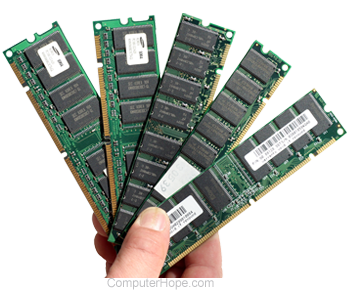
You may need more memory if you have had your computer for over two years. Today, we suggest computers have a minimum of 4 GB of memory (RAM) for a 32-bit system and 8 GB for a 64-bit system. With enough memory for programs to run within memory, your computer doesn't need to swap information stored in memory to the swap file. If the hard drive light is continuously active, the computer is frequently swapping information between your memory and the hard drive.
Hard drive upgrade
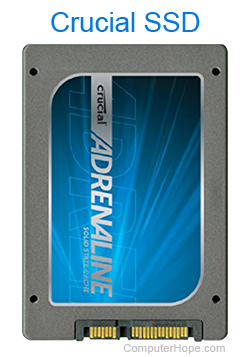
One of the biggest bottlenecks of a computer is the hard disk drive. Upgrading from a standard hard drive (e.g., a 5400 RPM (revolutions per minute)) to a solid-state drive (SSD) can drastically improve the computer's performance.
Computer or processor is overheating
Make sure your computer and processor are not overheating. Excessive heat can cause a decrease in the computer's performance because most operating systems automatically reduce the processor's speed to help compensate for heat-related issues.
Dust, dirt, and hair can also constrict proper airflow inside your computer, which causes a computer to overheat. Ensure your computer case is clean and that the fans are not obstructed.
Increase or upgrade the processor speed
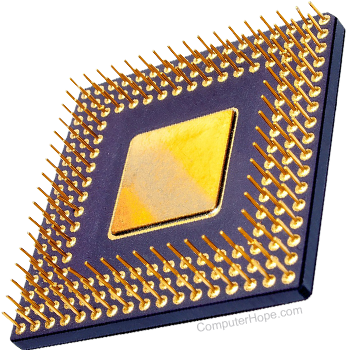
Increasing the processor's (CPU) speed can improve your computer's performance. There are two options for increasing processor speed: overclocking or upgrading.
Overclocking a processor means increasing its speed beyond what it's designed to run stably. While overclocking can increase the processor speed, the increase is often not significant, resulting in a 10% or 20% speed increase at most. Furthermore, the processor itself must be capable of being overclocked. You would need to find the specifications for the processor in your computer to determine if it can be overclocked. An overclocked processor generates more heat, thus requiring a more powerful heat sink and fan to pull the excess heat away from the processor.
A safer alternative to overclocking is upgrading the processor in your computer. You would need to get the specifications for your motherboard to determine what type of newer processor may be used in it. Then, install the new processor in place of the existing processor.
Erase the computer and start over
If none of the solutions above resolve your issues, another option is to reinstall the operating system, or erase everything and start over.
Erasing everything on your computer and reinstalling the operating system can increase performance by eliminating old software or drivers. Installing a fresh copy of macOS or Windows, programs, and the latest drivers helps verify no software-related issues are causing your computer to be slow.
Hardware issues
If your computer is still slow after trying the recommendations above, there's likely a more serious hardware-related issue (e.g., a failing component). Examples of failing hardware could include the hard drive, CPU, RAM (random-access memory), motherboard, or other components.
Run hardware diagnostic tests using the UBCD (Ultimate Boot CD) utility to help determine if your computer has a bad piece of hardware.
Old computer
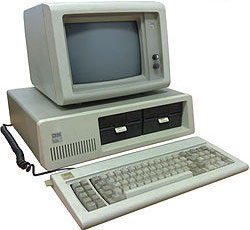
If your computer is over five years old, it performs slower than a new one. As more advanced programs are released, they are optimized to run more efficiently on newer computers. Older computers cannot run these new programs as well, which causes them to perform more slowly. Furthermore, new software tends to be more demanding, another problem for old hardware. We recommend you consider purchasing a new computer or upgrading your current one.